Publishing Templates
A publishing template fills in the title and description every time you publish an episode of the brand. You build it once from text and placeholders, such as the episode title and brand title.
Create a template
Open the brand, click the gear icon and choose Publishing Templates.
Choose the platform: YouTube, Facebook or RSS.
In Title, type text and click Add Placeholder to insert values from the episode: for example Episode Title, then
|, then Brand Title.Build the Description the same way, for example from Episode Short Description.
Check the Preview on the right: it shows the title and description with your brand's data and sample values for the episode and season (for example The Joy of Salvation). When you publish, the real episode's values are used.
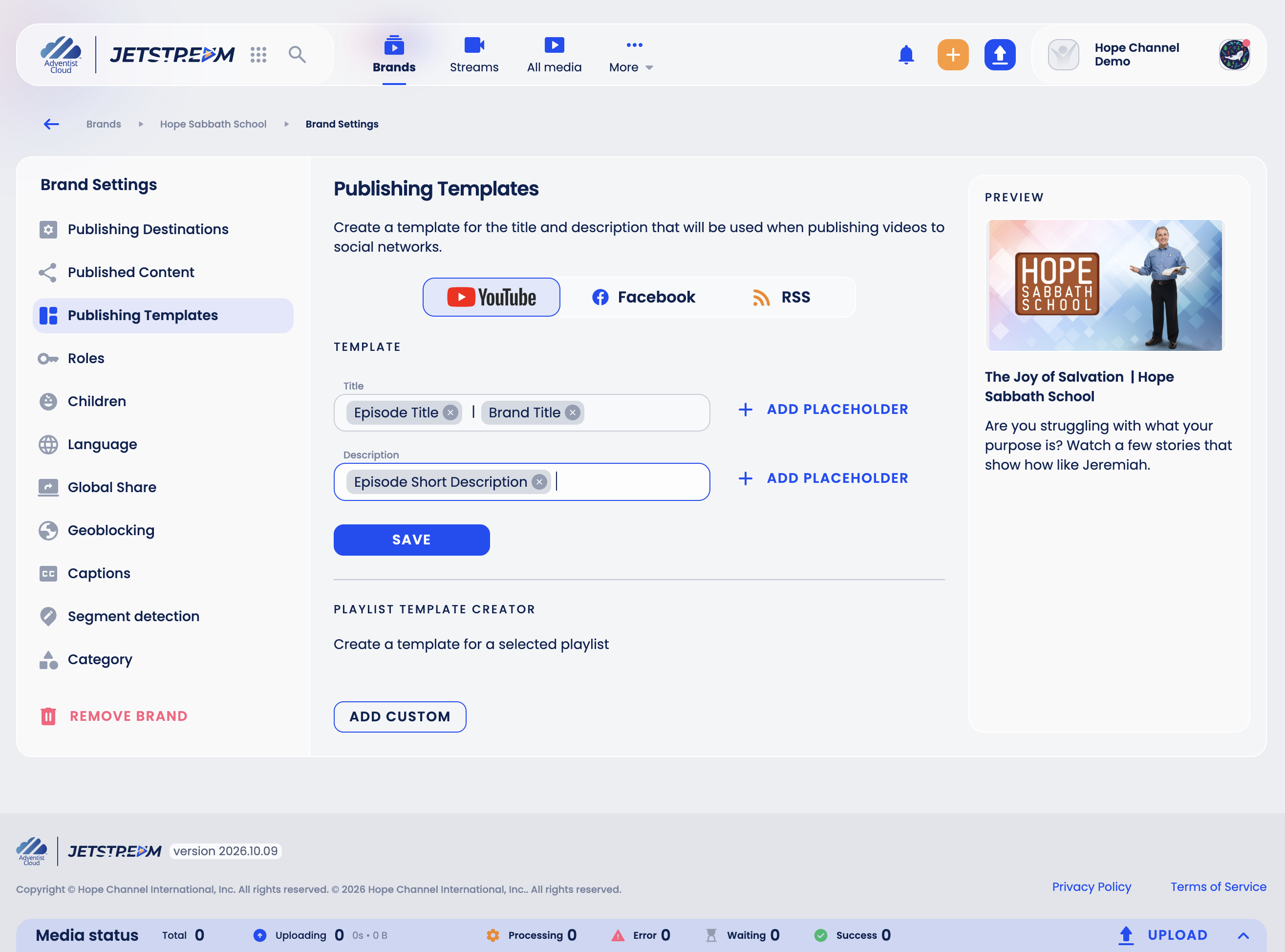
Click Save.
Next time you publish an episode of this brand to YouTube or Facebook, the title and description are already filled in. The RSS template sets the title and description of each episode in the brand's RSS feed.
Placeholders
| Episode | Season | Brand |
|---|---|---|
| Episode Title | Season Title | Brand Title |
| Episode Code | Season Code | Brand Code |
| Episode Short Description | Season Group Title | Brand Short Description |
| Episode Long Description | Brand Long Description | |
| Episode Tags | Brand Tags | |
| Creation Date |
Template for a playlist
Under Playlist Template Creator, click Add Custom to make a separate template for one YouTube playlist. Videos you publish by hand to that playlist use it instead of the brand's template. Automatic publishing always uses the brand's template.