Brands, Seasons and Episodes
A brand is a show. Inside it you can group episodes into seasons, and seasons into season groups. See how content is organized.
Create a brand
Click Brands, then New Brand.
Fill in the form:
- Brand Name - the name of the show.
- Code - a short code. If you leave it empty, it is generated from the first letters of the name. The Material ID is generated from the code.
- Language - the language actually spoken in the content. New episodes of the brand start with this language, videos take the language of the episode they are uploaded to, and subtitles are generated for it. Changing it later does not change existing episodes or videos: change the episode's Language on the episode page if needed.
- Category and Short Description - optional.
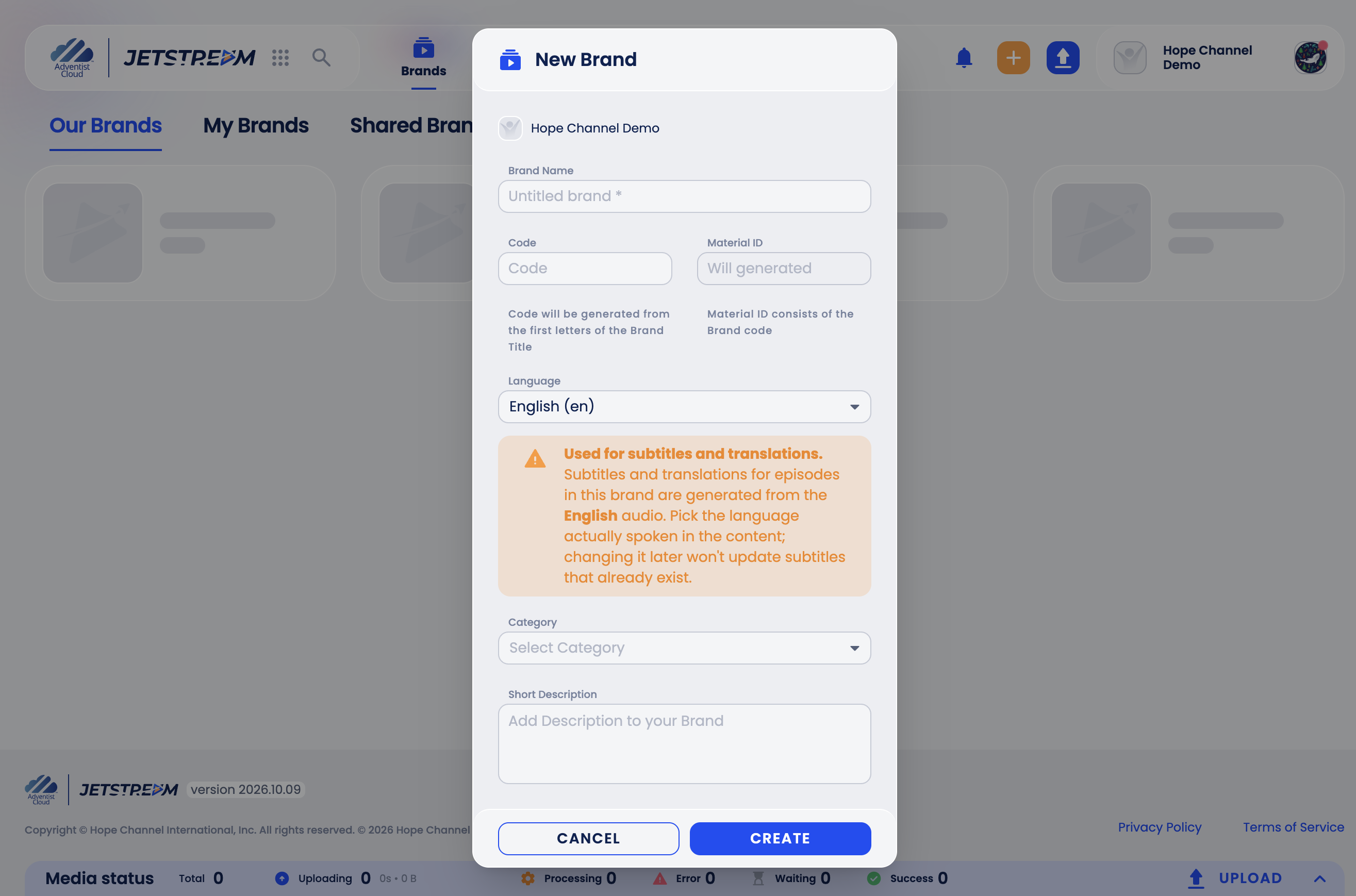
Click Create.
The brand page
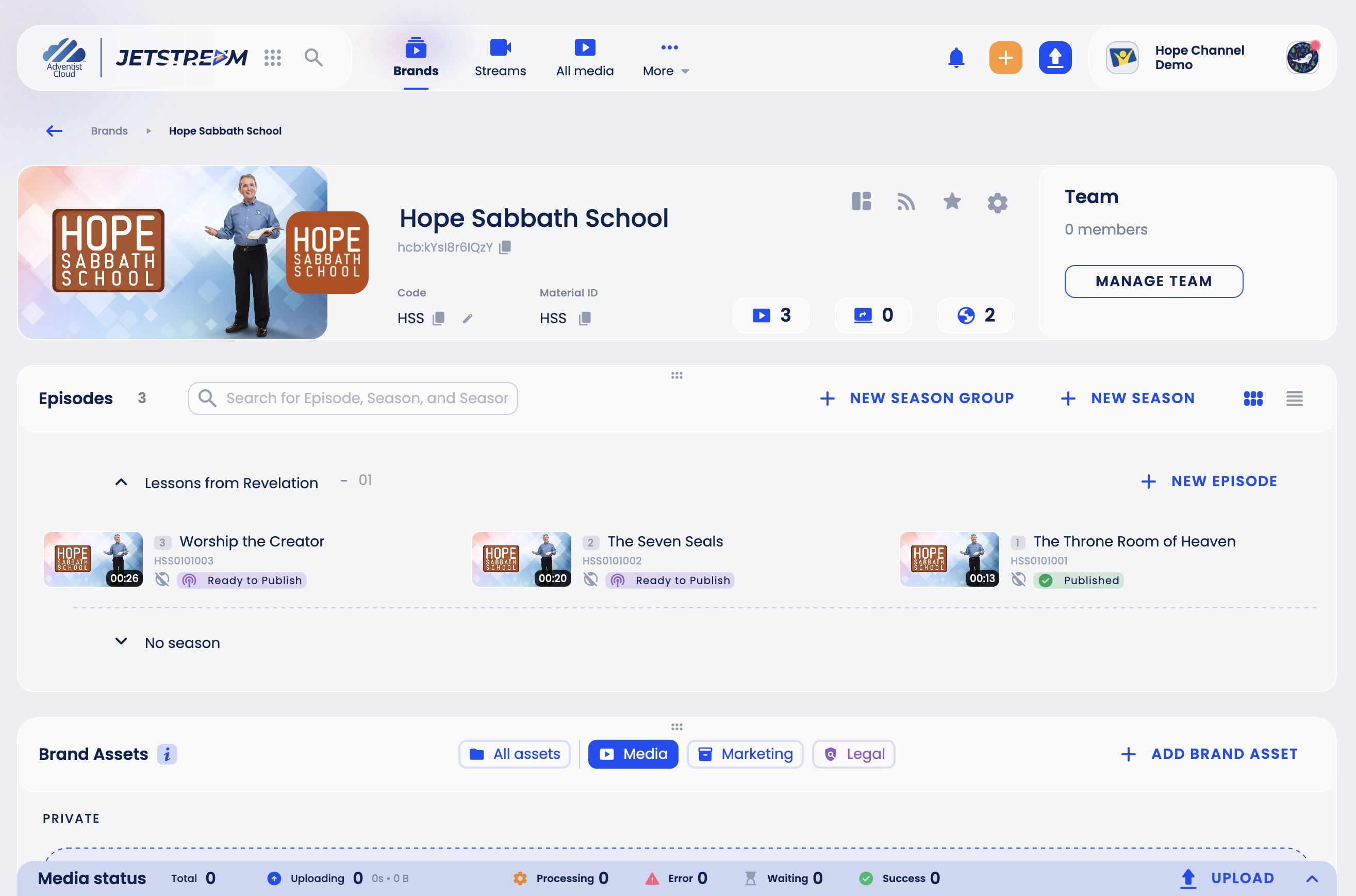
On the brand page you can:
- upload the brand's poster and logo;
- see the brand's Code and Material ID, and the number of episodes;
- copy the link to the brand's RSS feed (Copy RSS URL), add the brand to favorites (star) and open Brand Settings (gear);
- see who works on the brand in the Team card (see Brand Roles);
- create seasons and episodes in the Episodes block;
- keep brand-wide files in Brand Assets.
Create a season
- On the brand page, in the card view of the Episodes block, click New Season. If the brand already has season groups, use New Season in the header of the group instead. A new season called Untitled season appears right away.
- Its name is already open for editing: type the season name. To rename a season later, click its name.
To group several seasons, first click New Season Group, then create seasons inside it.
Create episodes
Click New Episode next to a season. Episodes without a season are in the No season section; if the brand has no seasons at all, click the New Episode tile at the beginning of the list.
To create several episodes at once, set Number of Episodes or click Add Episode.
Enter the Episode Name for each episode. The Code is filled in for you (you can change it; if you clear it, a new one is generated), and the Material ID is generated from it. You can add a Short Description.
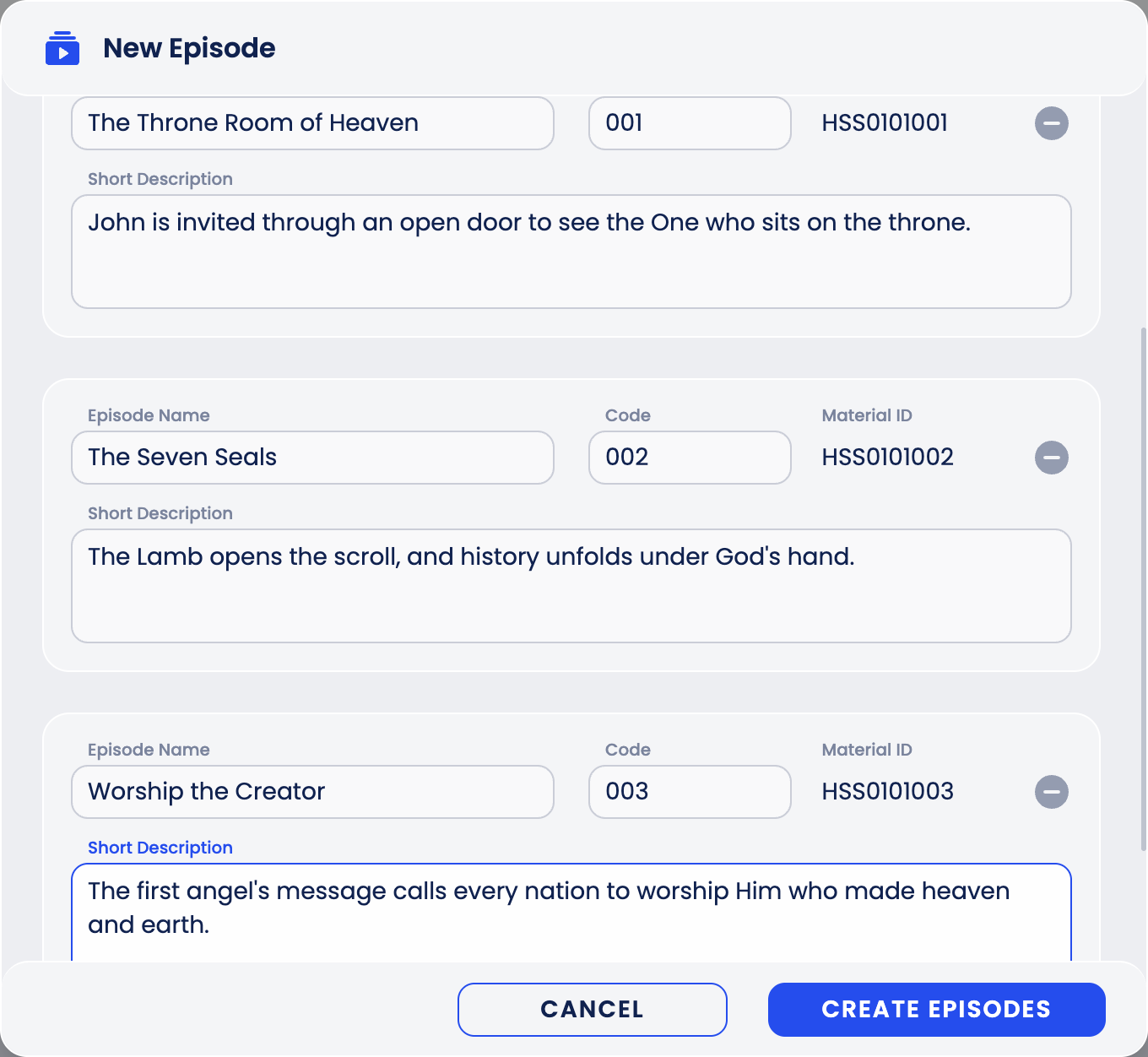
Click Create Episodes.
The episodes appear in the season:
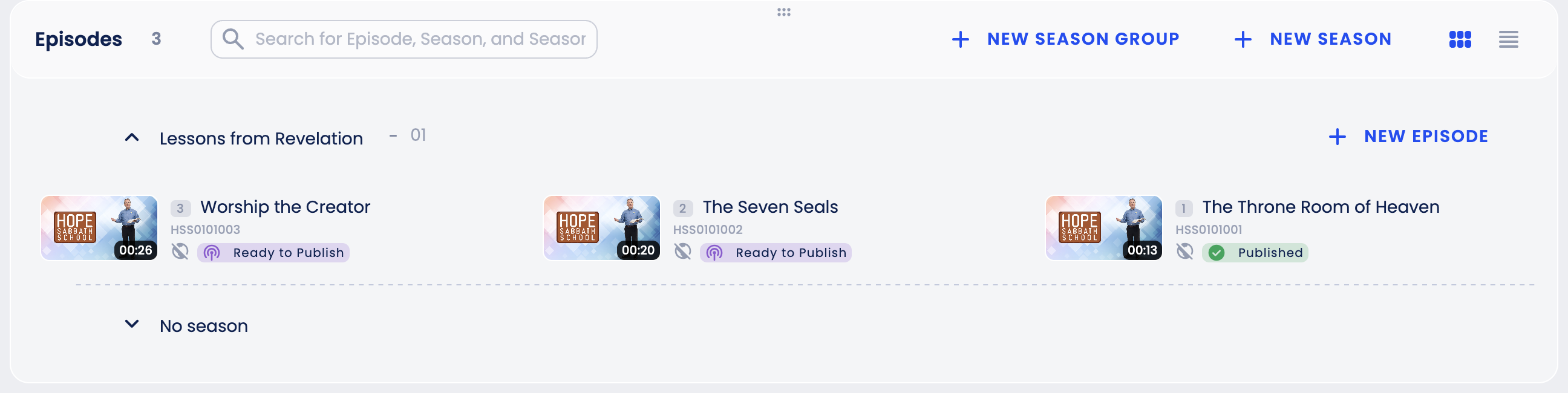
Use the grid and list icons on the right to switch between views.
The episode page
Click an episode to open it.
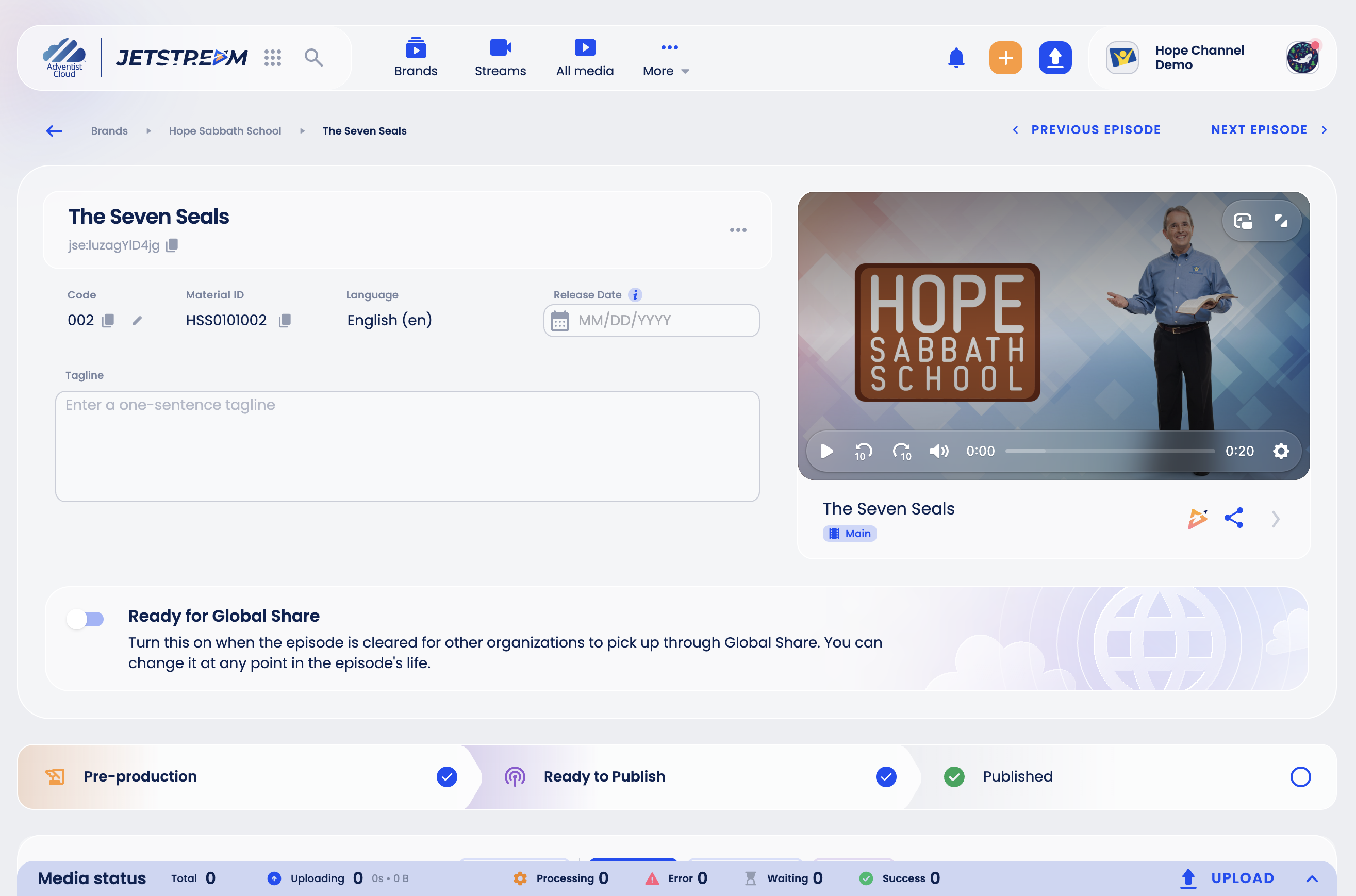
- Code, Material ID and Language of the episode.
- Release Date - when the episode is released. It is also used for scheduled and automatic publishing.
- Tagline - a one-sentence summary.
- The player with the episode's main video.
- The production stage: Pre-production, Ready to Publish, Published. It changes by itself unless the episode follows a review workflow: the episode becomes Ready to Publish when its main video is processed, and Published when the main video is published, or when the release date arrives for an episode that is Ready to Publish.
- Episode Assets - additional files. See Episode Assets.
Use Previous Episode and Next Episode at the top to move to the neighbouring episode of the brand, in the order of the Episodes block, also across seasons.
Brand Settings
Click the gear icon on the brand page. The most used settings:
| Setting | What it does |
|---|---|
| Publishing Destinations | YouTube and Facebook accounts the brand publishes to. See Connecting YouTube and Facebook. |
| Published Content | Everything the brand has published. |
| Publishing Templates | Ready-made titles and descriptions for publishing. See Publishing Templates. |
| Roles | Who works on the brand. See Brand Roles. |
| Language | The language spoken in the brand's content. |
| Geoblocking | Countries where the brand's videos cannot be watched (set by an Organization Admin). See Geoblocking. |
| Captions | Caption settings for the brand. |
| Category | The brand's category. |
| Remove Brand | Deletes the brand with all its seasons, episodes and media. This cannot be undone. |