Scheduled Events
An Event stream goes live by schedule. Each event has a title, a start time and, if it repeats, how often. Linked restreams to YouTube and Facebook are created from the event's settings.
WARNING
An Event stream cannot start without a scheduled event.
Add an event
- Open an Event stream. See Creating a Stream.
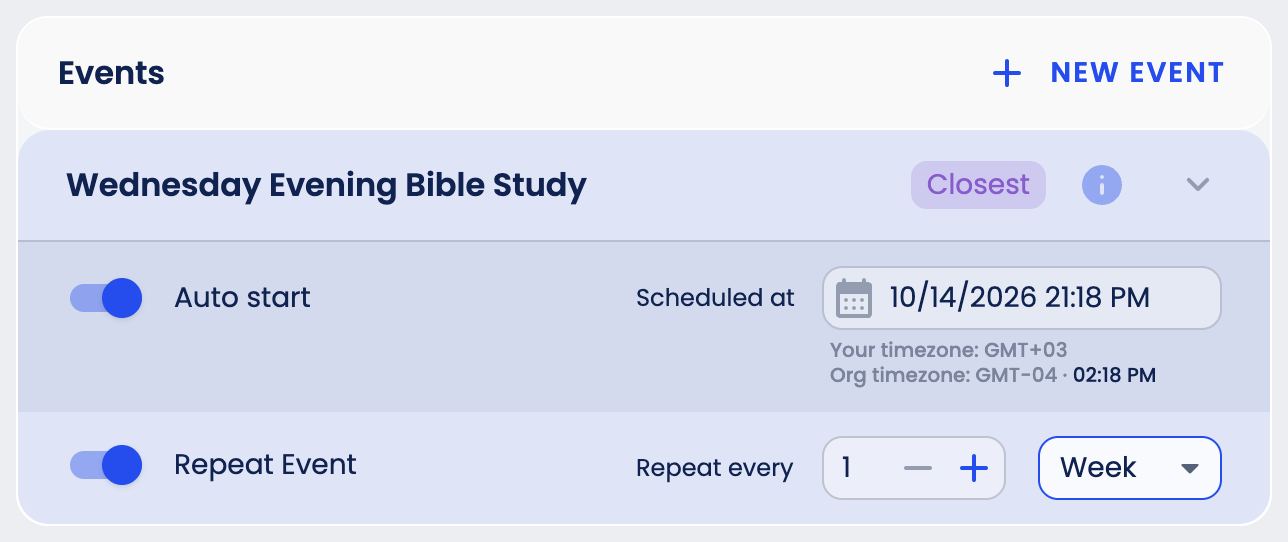
- In the Events block, click New Event. A new event appears, called Untitled event and scheduled 10 minutes from now.
- Change its Title and choose the date and time in Scheduled at. Under the field you see your time zone (for example, GMT+02) and, if your organization's time zone has a different offset at that moment, the organization's time zone and the same moment on its clock.
- Auto start is on by default. Leave it on if the event should go live by itself.
- For a weekly service or another regular program, turn on Repeat Event and set Repeat every: a number and Day, Week or Month.
How an event goes live
- With Auto start on, the event goes live within a minute after the scheduled time if your encoder is already sending a signal. If there is no signal at that moment, the event does not start by itself, so start the encoder a few minutes early.
- With Auto start off, or if the signal arrives late, start the event yourself with Go live. It appears while the stream is in Preview, on the closest event (or on the only event, if the stream has one). Once the start time of an event has passed, the closest event is the next one, and linked restreams use its settings.
- To end the broadcast, stop the encoder or click Stop on the event. When the encoder stops, the stream goes offline after about a minute: it waits in case the encoder comes back. After Stop, the stream shows Preview while the encoder is still sending.
- A repeating event then moves to its next date. It also moves on when it was missed.
Event status
- Closest - the next event. Linked restreams are created from the settings of this event.
- Scheduled - a later event. It becomes the closest one once the start time of the current closest event has passed.
Restreams for events
Linked restreams to YouTube and Facebook can create the live event on the platform in advance, so your viewers see the upcoming broadcast. You choose whether it is created On Start or Before Start. See Restreaming.