Embedding a Video or Stream on Your Website
You can show an episode's video or a live stream on your own website with an embed code.
Copy the embed code of a video
Open the episode.
Under the player, click the Publish (share) icon, then the <> icon.
In Select Player, choose the player. Edit players lets you set up how players look.
Choose the code type:
- HTML code - an
<iframe>you can paste into any website builder; - JavaScript - for web developers who want more control.
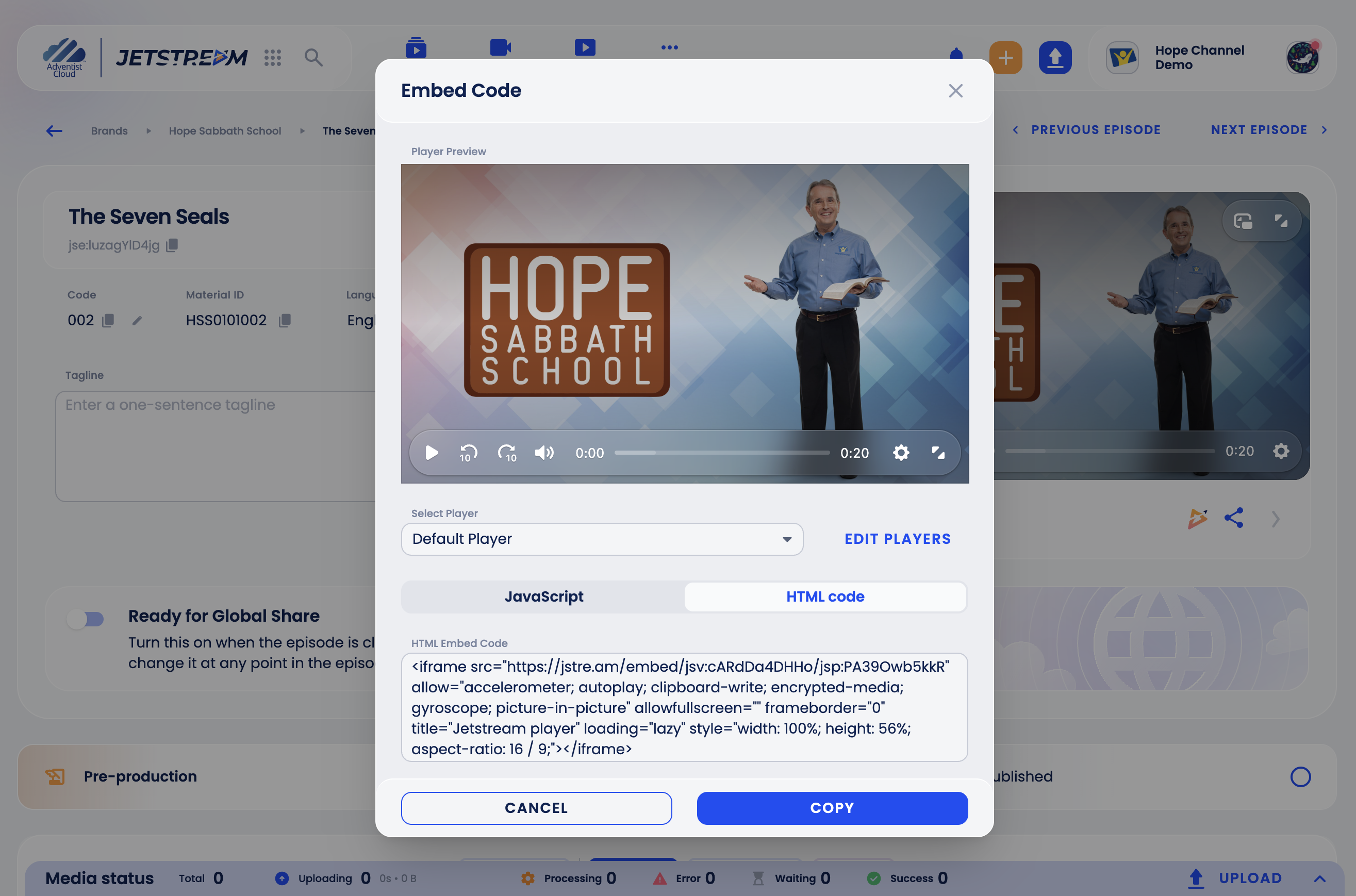
- HTML code - an
Click Copy.
Copy the embed code of a live stream
- Open the stream.
- In the Publish block, click HTML Embed Code.
- The window opens on JavaScript; for an
<iframe>, switch to HTML code. - Click Copy.
Paste the code into your website
In your website builder, add an HTML (or Embed, Custom code) block to the page and paste the code into it. If your website is managed by someone else, send them the code.
Adventist Church Connect
How to add content to your church website is described in the Adventist Church Connect help center. If you cannot find a block for HTML or embed code on your site, contact Adventist Church Connect support.