Uploading Videos
Each episode has one main video. You can upload it from anywhere in Jetstream Studio or directly on the episode page.
Before you start
Create the brand and the episode first, and the season if you use one. See Brands, Seasons and Episodes.
Upload one or several videos
Click the blue arrow button (Upload media) in the top menu.
Drag your video or audio files into the window, or click Browse to choose them.
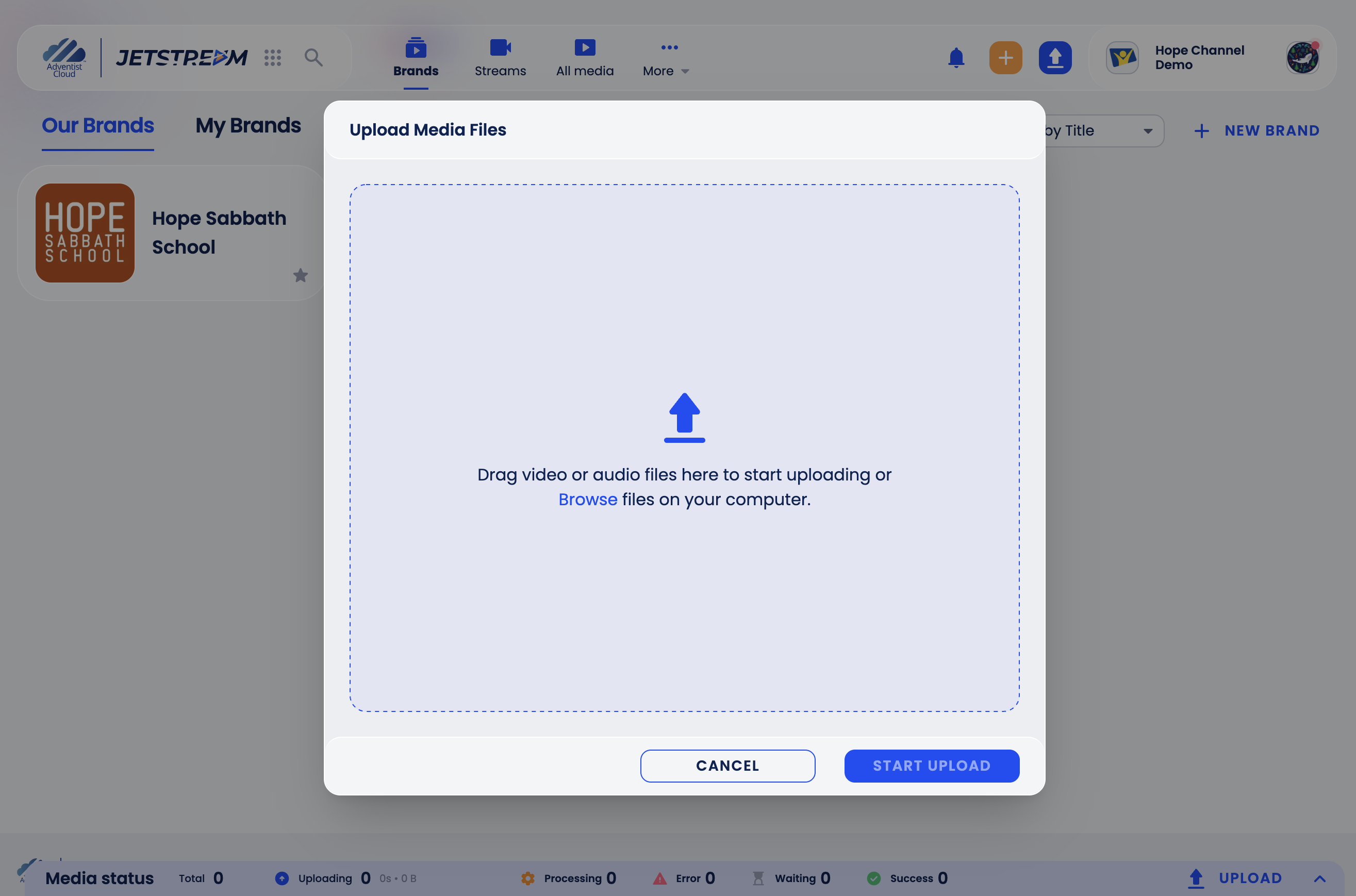
For each file, select the Brand, Season Group, Season and Episode it belongs to. To apply the same brand, season group and season to all files, fill them in on one file and click the checklist icon to the left of the trash icon on its card. The Episode is not copied: choose it for each file. Only episodes that do not have a main video yet are listed; to change an existing video, see Replace a video.
Click Start Upload.
A single file can be up to 20 GB.
Upload to an episode
If the episode has no main video yet, the top of the episode page, where the player goes, shows an upload area. Drag the video or audio file there, or click Browse Files.
Follow the upload
The Media status bar at the bottom of the page shows how many files are uploading, processing, waiting, finished with an error or succeeded. Click it to see each file.
After the upload, the video is processed. Processing takes longer for longer videos, so allow some time before a long video is ready.
If the connection drops while the tab is open, Jetstream Studio keeps retrying for a few minutes and continues the upload by itself when the connection returns. If you close the tab, or the connection stays down longer, the upload stops. When you come back in the same browser, click Resume in the Media status bar; if asked, select the same files again (they are matched by name). Parts already sent are not sent again; a file that changed is sent from the start. An interrupted upload can be resumed for about 7 days; after that, upload the file again.
Replace a video
Open the video, open the ⋯ menu, click Replace Asset (available once the video has been processed), confirm the warning and choose the new file. The current video is deleted together with all its captions and the automatically generated audio tracks, and this cannot be undone. Audio tracks you uploaded yourself stay.
If the video was already published to YouTube or Facebook, you can publish the new version. See Publishing an Episode.
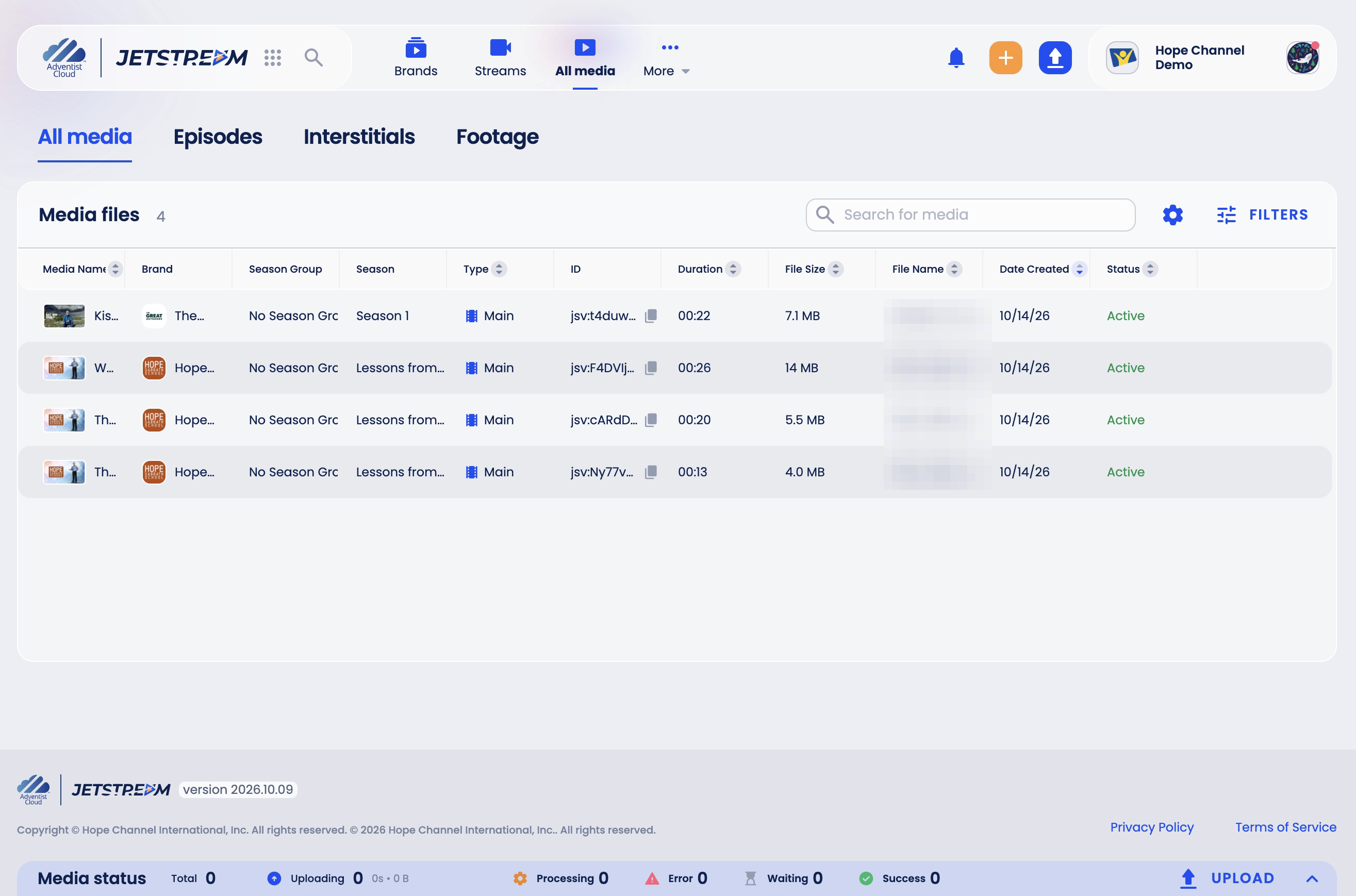
All media
All media in the top menu lists every video and audio file of the organization with its brand, season, type, duration, size, date and status. Use the search and Filters to find a file.