Appearance
Wirecast [macOS]
You have two ways to configure Wirecast. Choose the option that best fits your workflow:
- Importing Configuration Profiles - use a preconfigured setup for a faster start
- Manual Setup - configure all settings step by step
After completing either option, follow the Connect to Jetstream Studio section to finish the setup.
TIP
Jetstream Studio recommends using the SRT protocol as the default option for streaming.
Why not Apple H.264?
Wirecast's Apple H.264 encoder is not recommended for Jetstream Studio. With Strict Constant Bitrate enabled, audio gradually drifts ahead of video during a broadcast. Without it, the encoder uses a variable bitrate that does not hold the configured value. If x264 overloads your Mac, stream with OBS Studio [macOS] using its Apple VT H264 hardware encoder.
Importing Configuration Profiles
The included Wirecast configuration is preconfigured for SRT. If needed, you can switch it to RTMP in the Wirecast output settings without changing the encoder configuration.
📥 Importing the Configuration File
Download the configuration archive:
Unzip the archive. It contains one configuration file.
Open the Wirecast application.
At the top of the interface, find the File menu and hover over it.
In the drop-down menu, select Open.
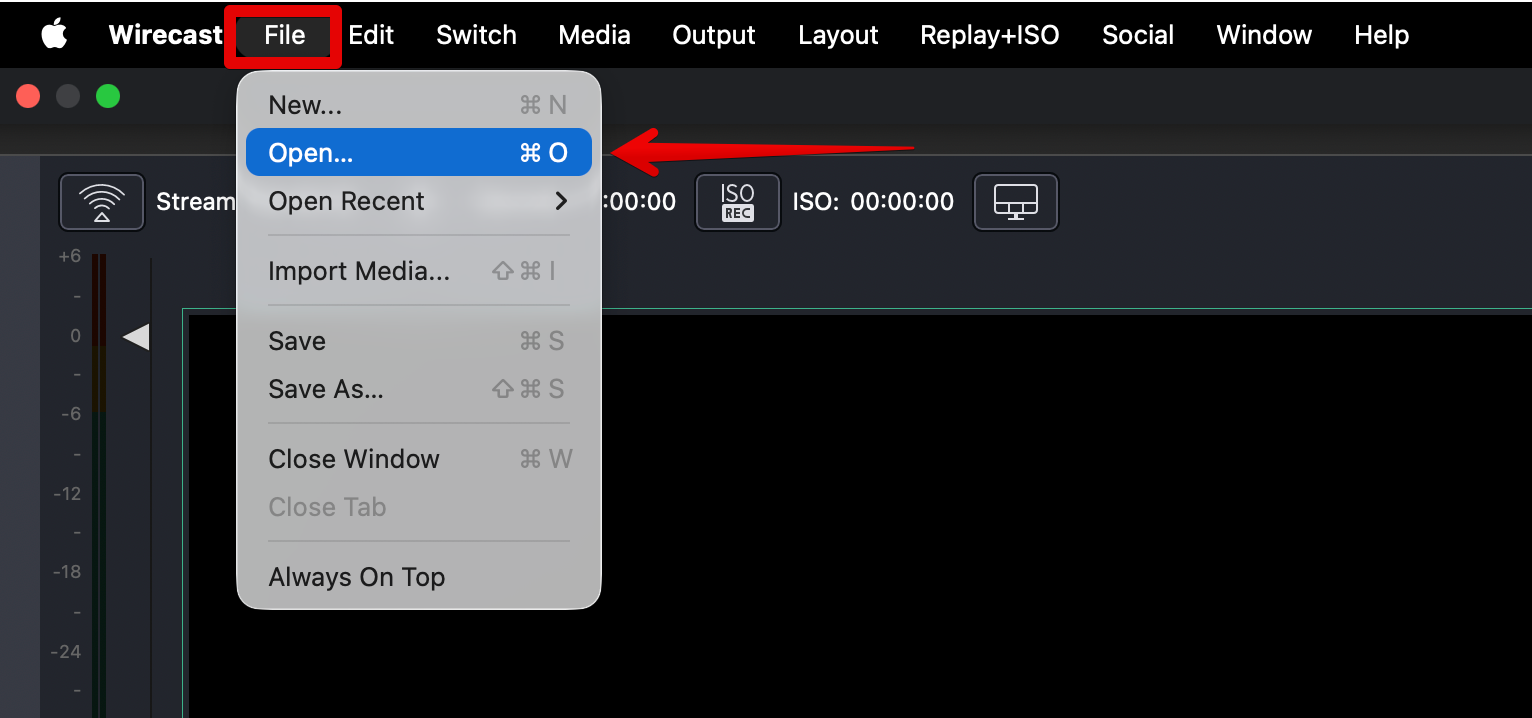
Locate and select
x264 - Wirecast_Jetstream_macOS.wcst, then confirm your selection.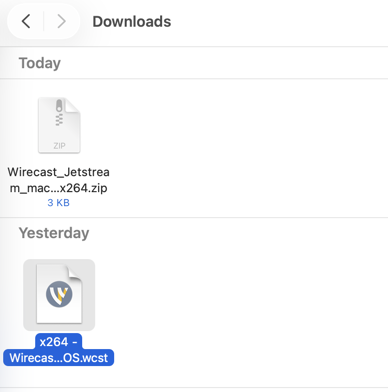
Your application is now configured for streaming through Jetstream Studio. Add the connection details for your selected protocol, set up your sources, and start your broadcast.
▶️ Switching from SRT to RTMP
Open the Output menu and select Output Settings.
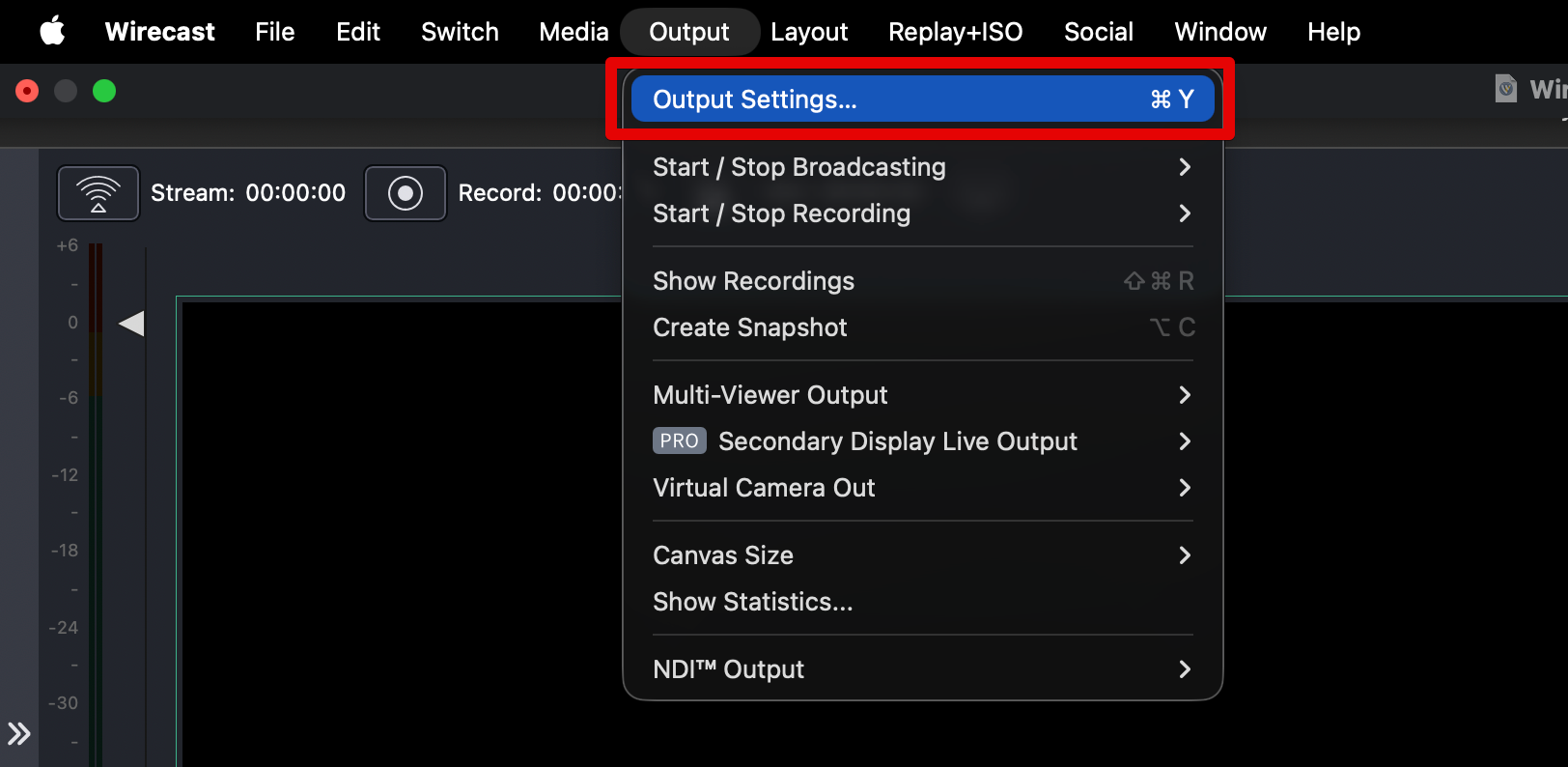
In the Destination field, select RTMP Server.
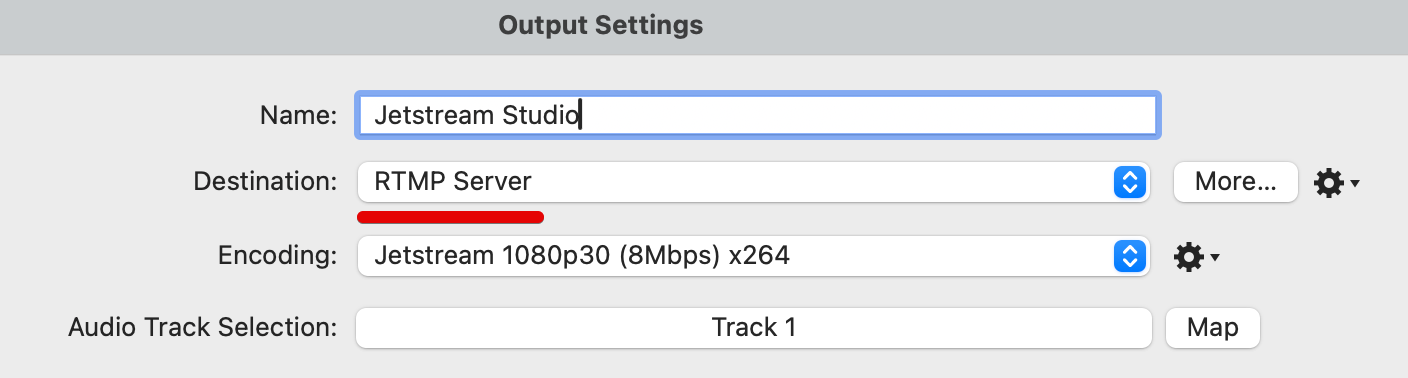
Click OK to apply the changes.
The same encoding preset can be reused - no additional encoding setup is required.
🎛 Included Encoder Presets
The configuration archive includes one preconfigured encoder preset, x264. It uses software video encoding, which requires more CPU resources but gives the most reliable result in Wirecast. File: x264 - Wirecast_Jetstream_macOS.wcst.
Manual Setup
Step 1 - Create Output Destination
Open Wirecast. In the top menu, click Output → Output Settings.
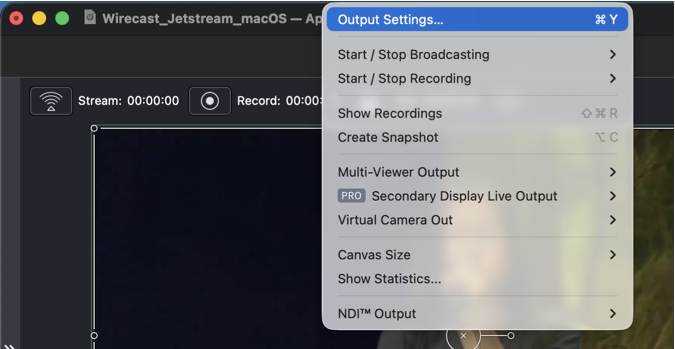
Create a new Output Destination:
- If this is your first time using Wirecast, the Select an Output Destination window may appear automatically.
- If you already use Wirecast and have existing output destinations, we recommend creating a new one for Jetstream Studio. In the Output Settings window, click Add in the lower-left corner.
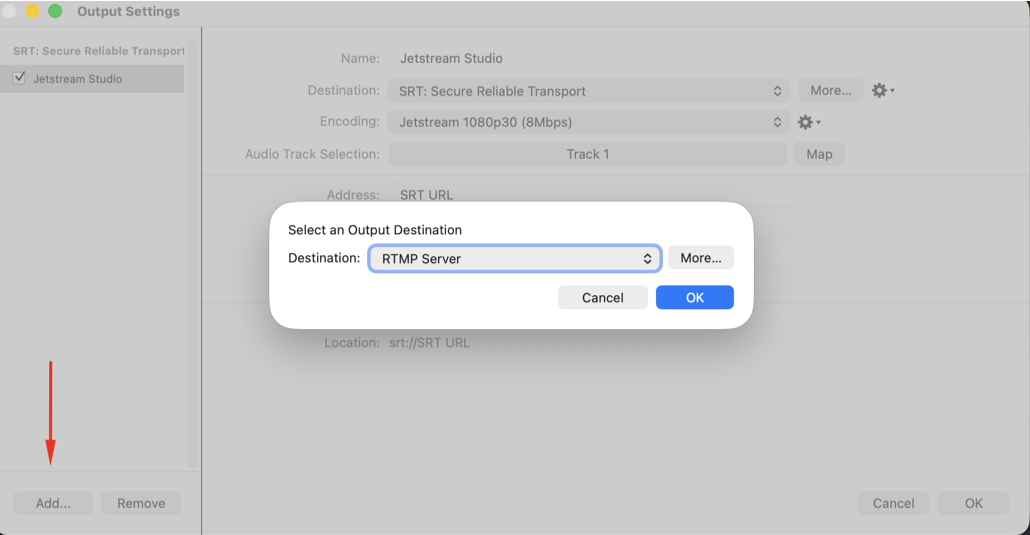
In the Select an Output Destination window, choose the protocol you plan to use:
Protocol Description SRT: Secure Reliable Transport Recommended RTMP Server Standard RTMP / RTMPS streaming 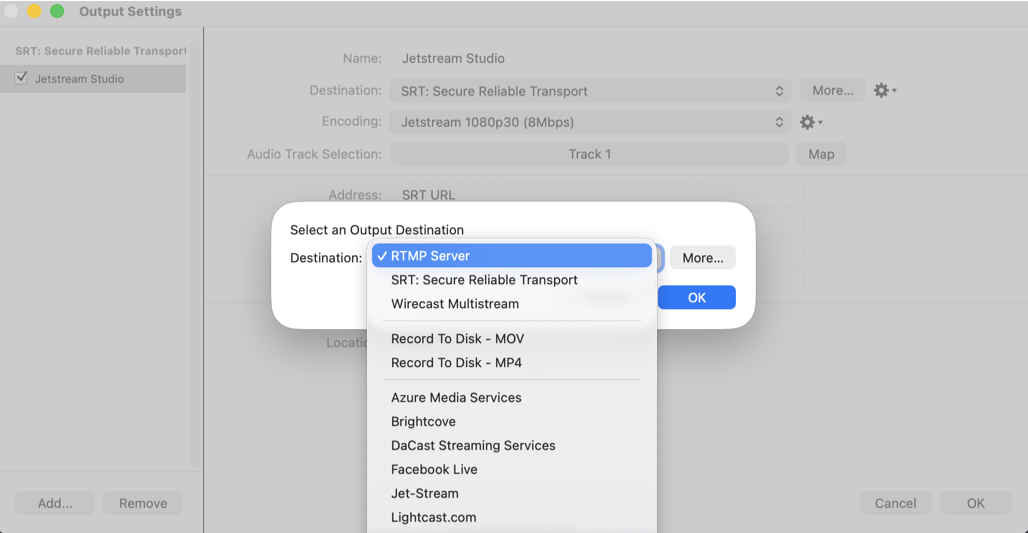
If a notification appears, click Match Preset Size.
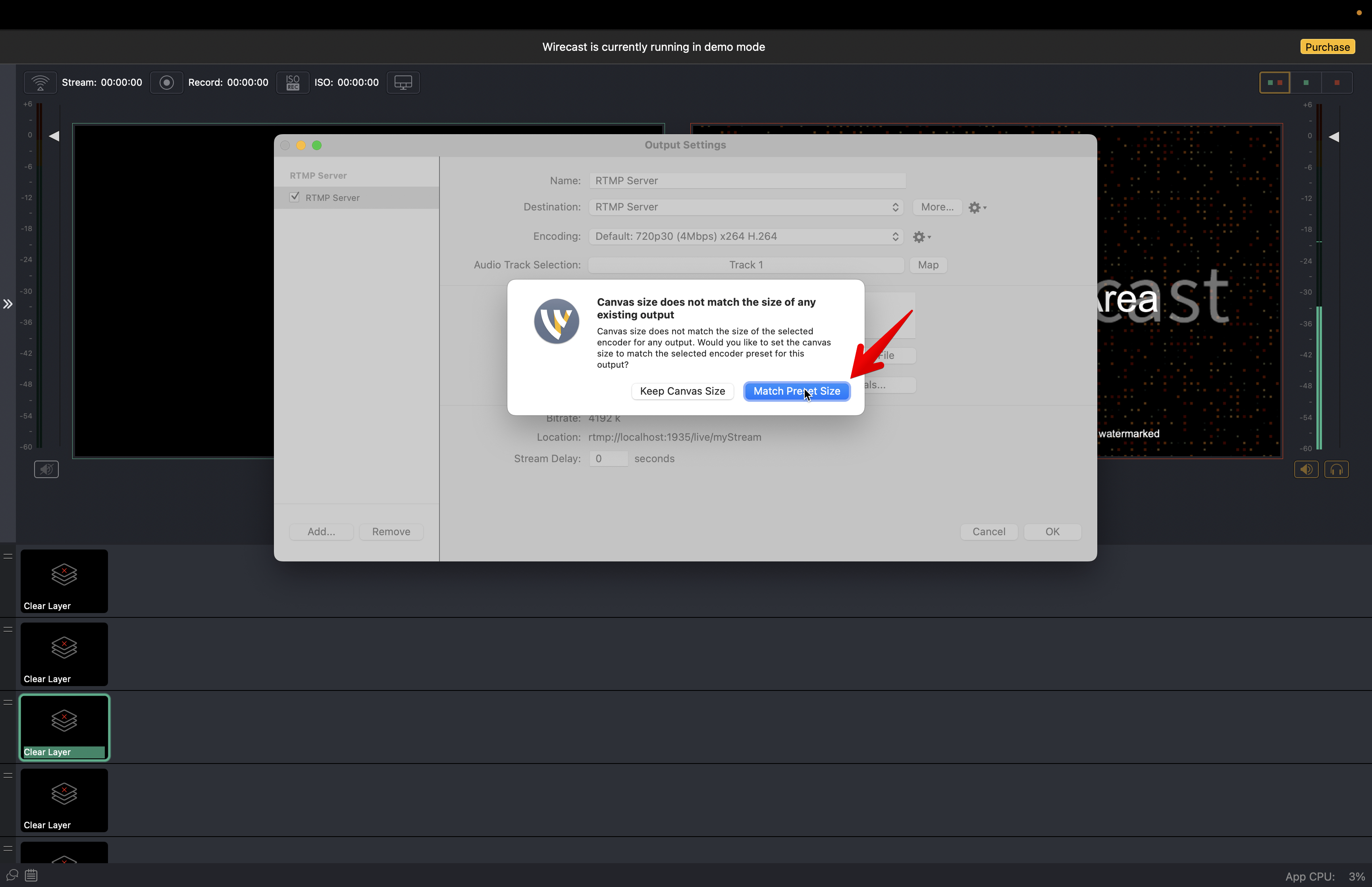
In the Name field, enter a name for this output destination, for example
Jetstream Studio.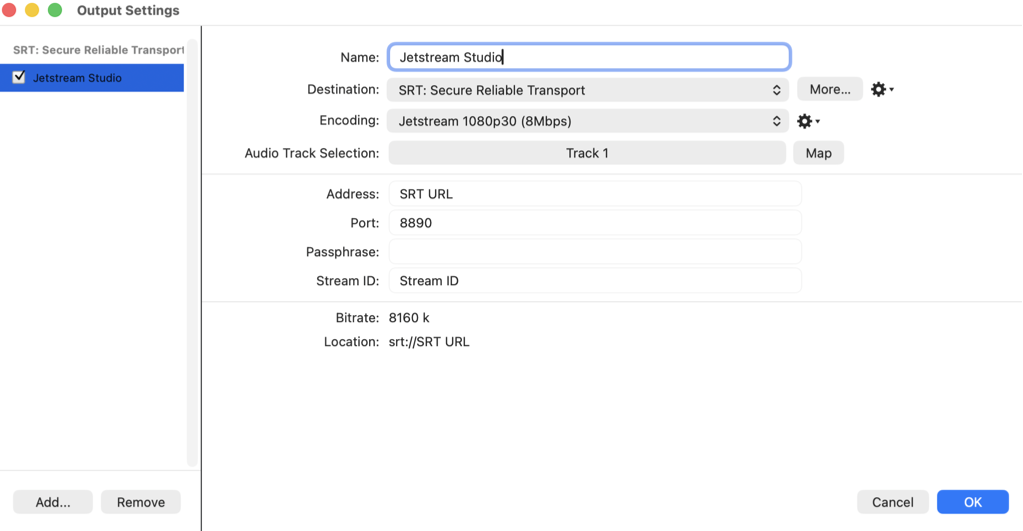
TIP
This output supports both SRT and RTMP streaming by updating the destination settings, or you can create a new output destination at any time.
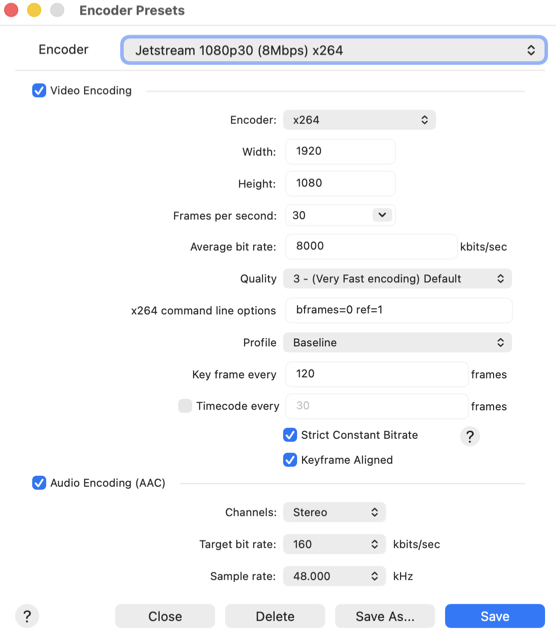
Step 2 - Create Encoding Preset
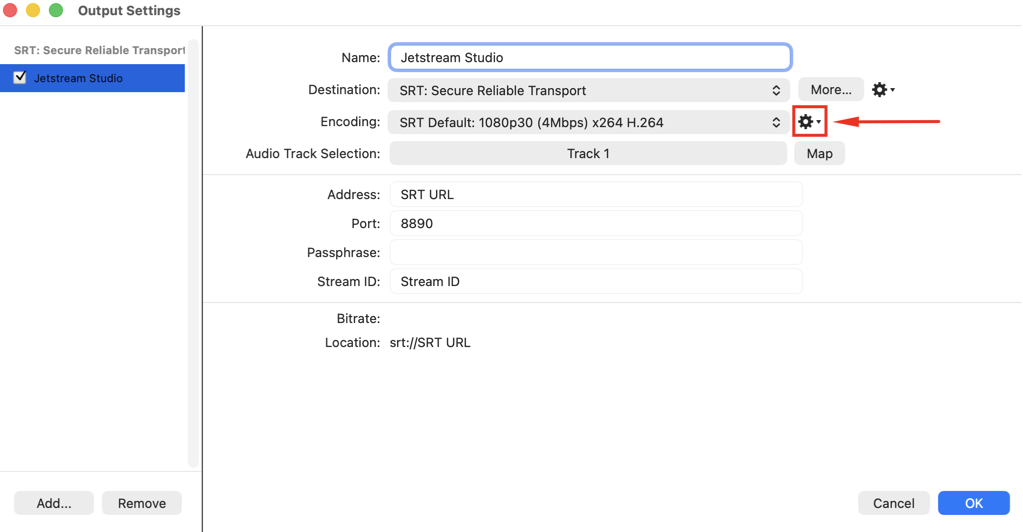
Click the gear icon next to the Encoding selector.
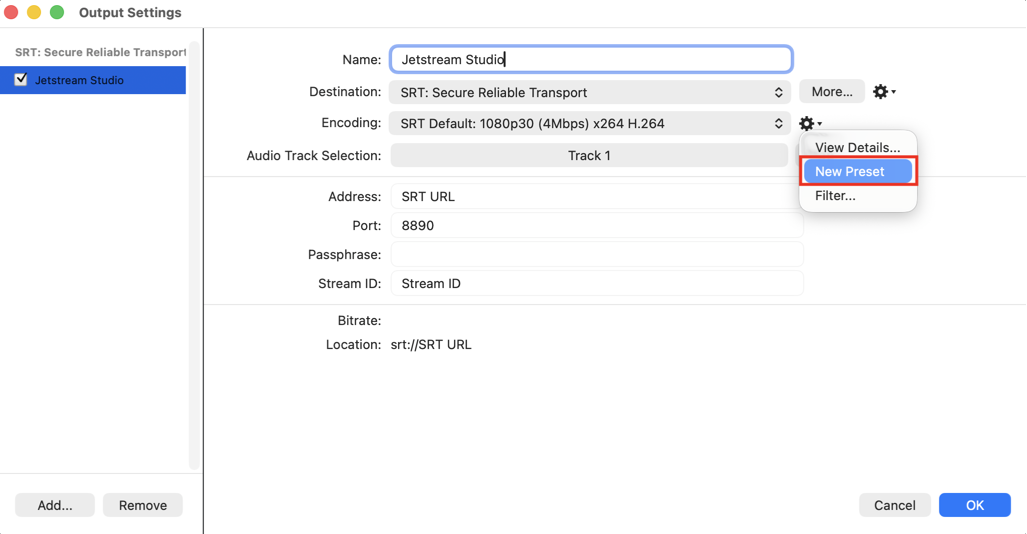
Click New Preset.
In the preset name field, enter a name, for example
Jetstream 1080p30 (8Mbps) x264.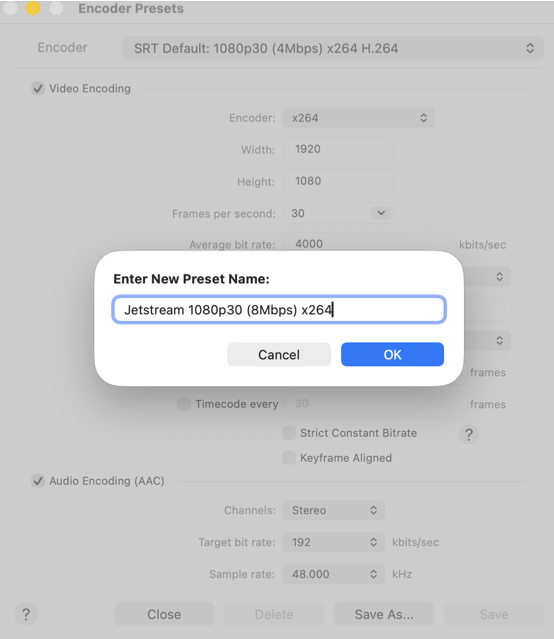
x264 encoder settings
Select x264 as the encoder and apply the following settings:
| Setting | Value |
|---|---|
| Encoder | x264 |
| Width | 1920 |
| Height | 1080 |
| Frames per Second | 30 |
| Average Bit Rate | 8,000 kbits/sec (max 12,000 kbits/sec) |
| Quality | 3 - (Very Fast encoding) Default |
| x264 Command Line Options | bframes=0 ref=1 |
| Profile | Baseline |
| Key Frame Every | 120 frames |
| Strict Constant Bitrate | Enabled |
| Keyframe Aligned | Enabled |
Step 3 - Audio Settings
Make sure Audio Encoding (AAC) is enabled, then configure the following settings:
| Setting | Value |
|---|---|
| Channels | Stereo |
| Target Bit Rate | 160 kbps |
| Sample Rate | 48.000 kHz |
Click Save, then click OK to close Output Settings.
Connect to Jetstream Studio
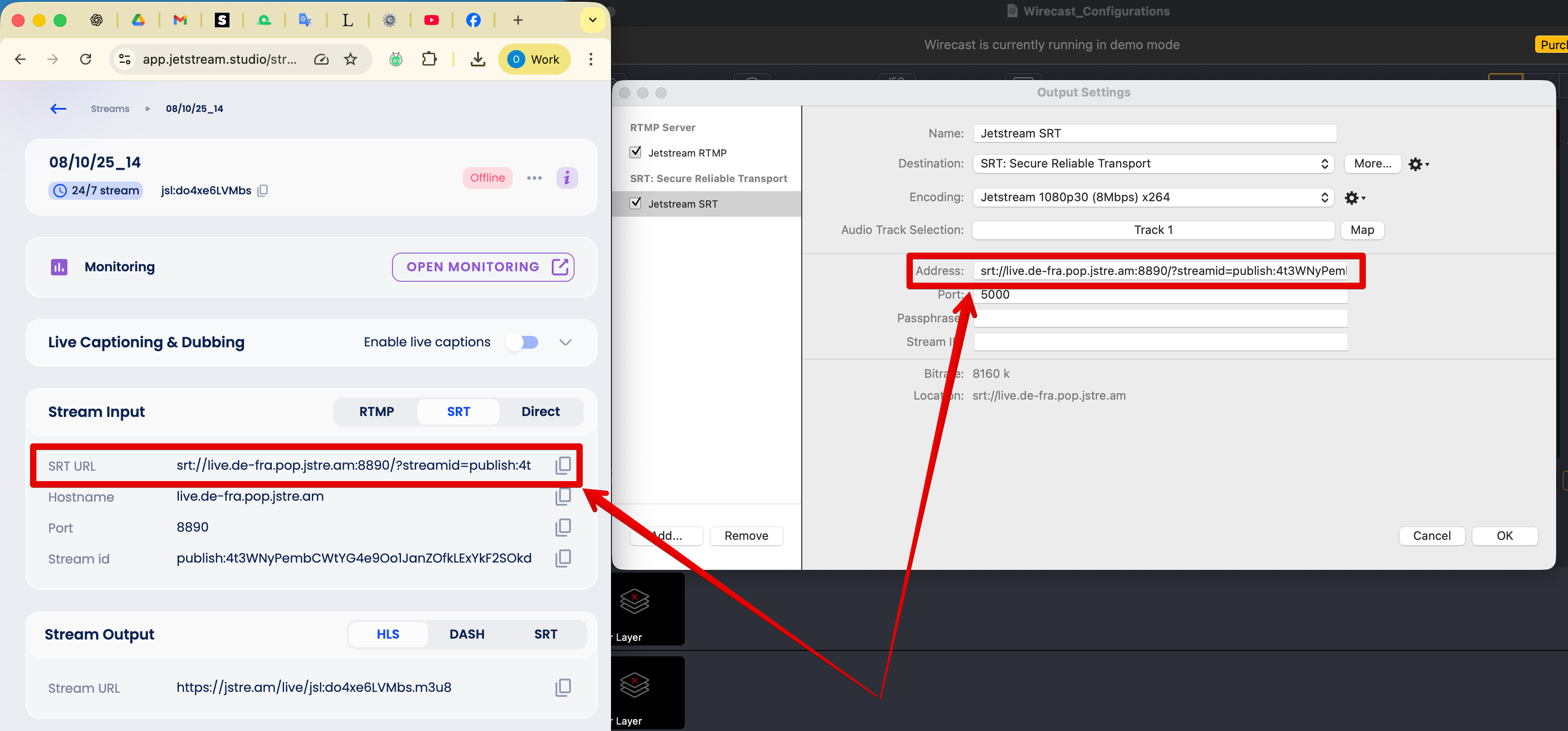
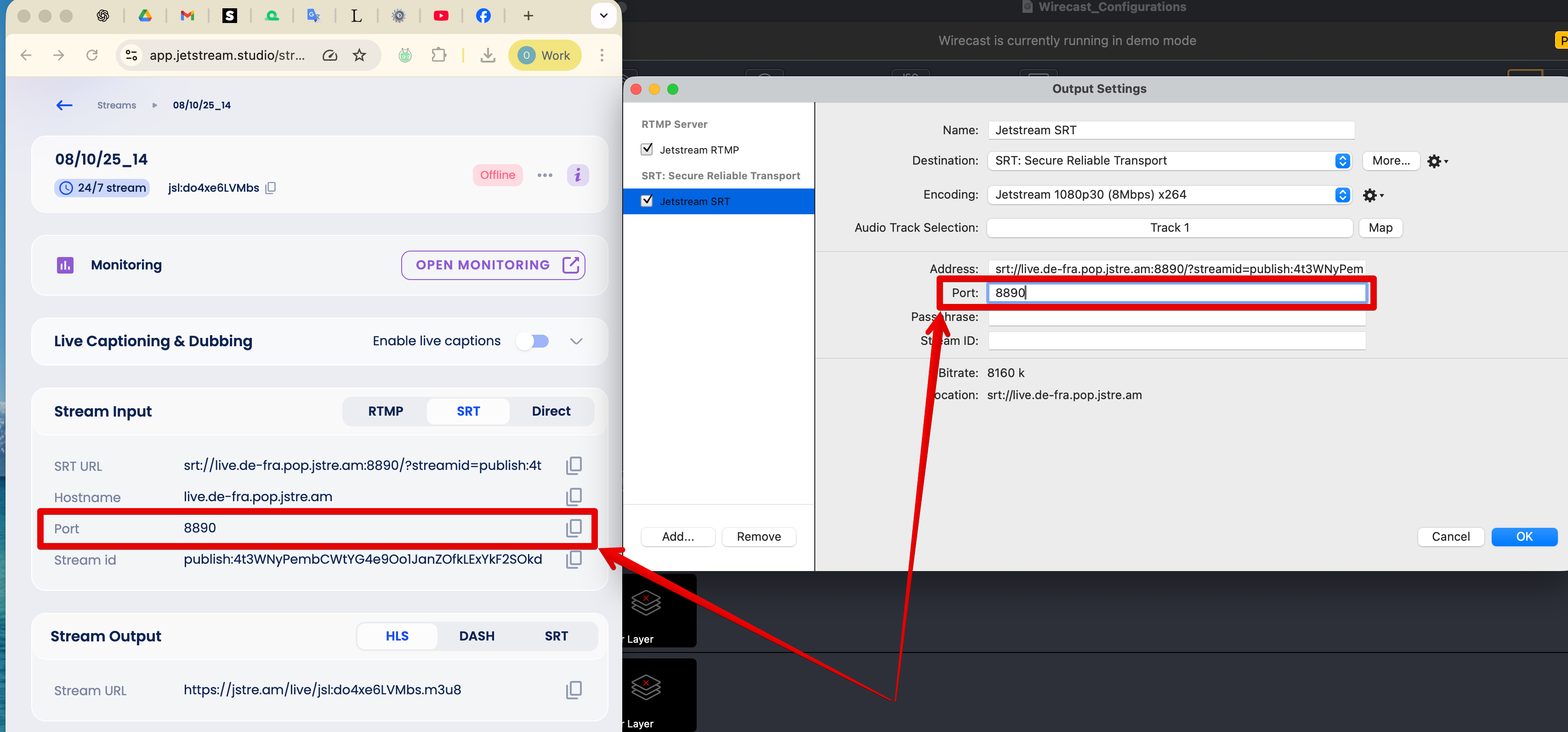
Find your stream credentials on the Stream Details page in Jetstream Studio.
SRT (recommended)
In the Output Settings window, select the SRT: Secure Reliable Transport destination.
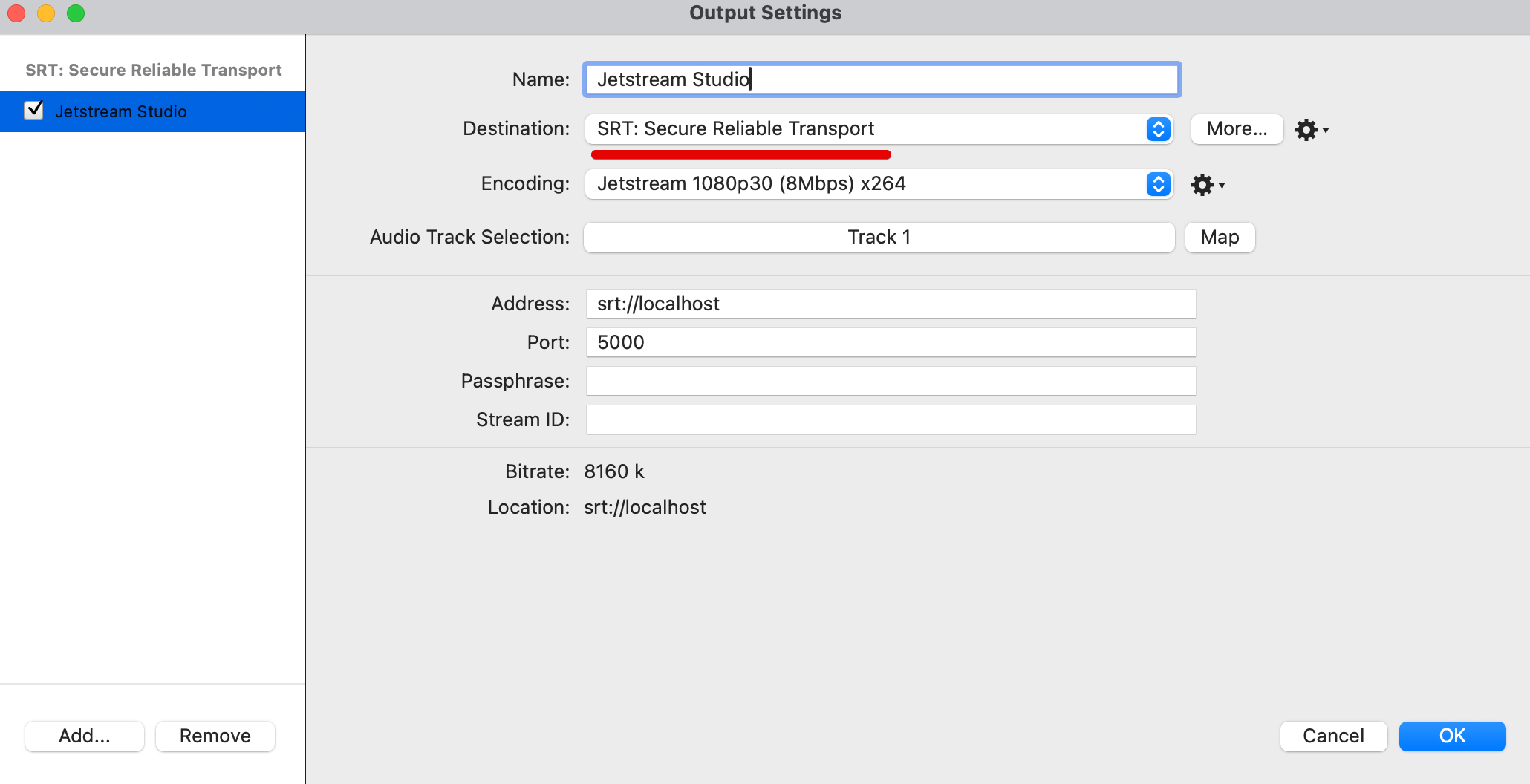
In the Address field, enter the SRT URL from the Stream Details page.
In the Port field, enter the Port from the Stream Details page.
In the Stream ID field, enter the Stream ID from the Stream Details page. Leave Passphrase empty.
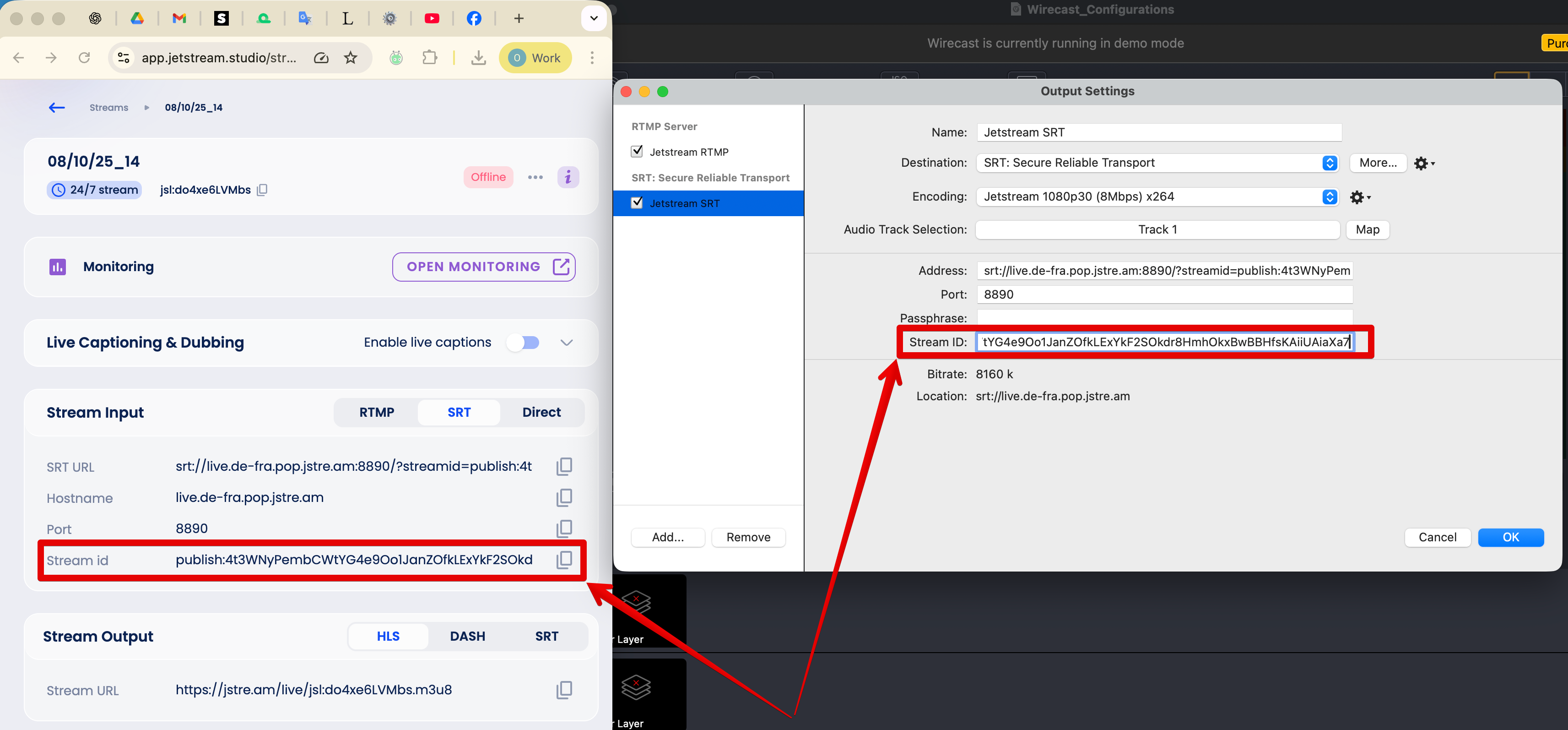
Click OK to save the changes.
RTMP
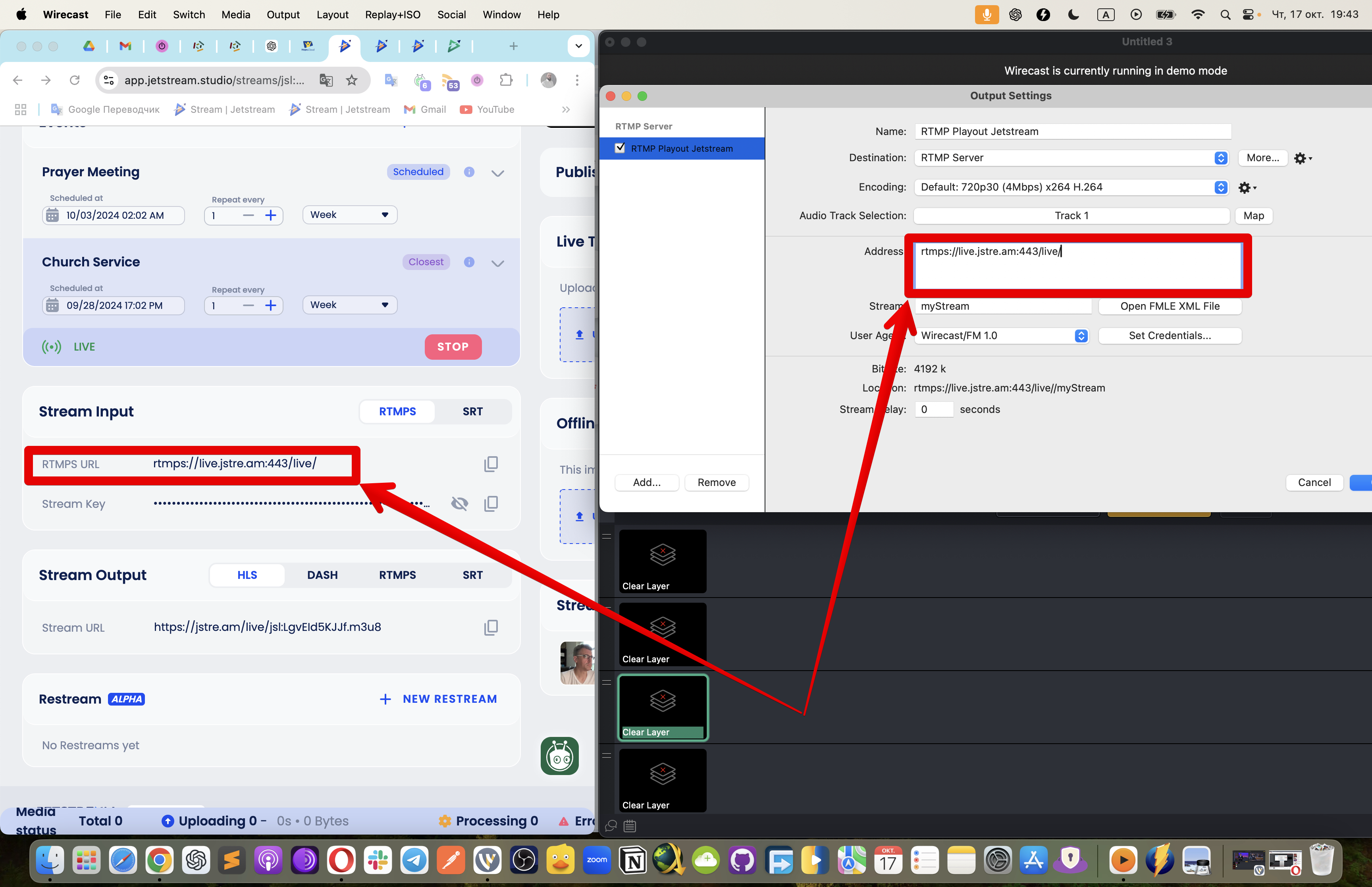
In the Output Settings window, select the RTMP Server destination.
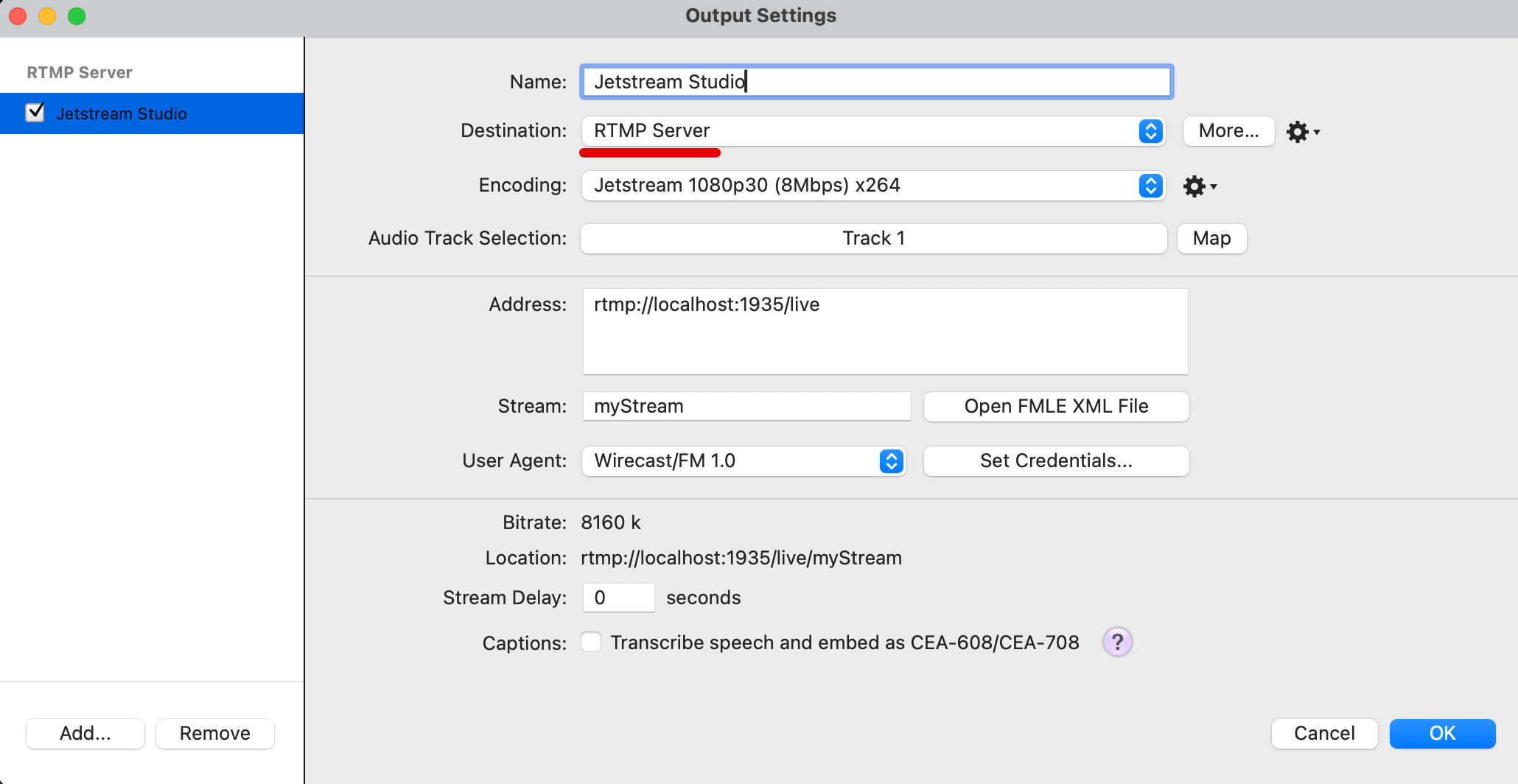
In the Address field, enter the RTMPS URL from the Stream Details page.
In the Stream field, enter the Stream Key from the Stream Details page.
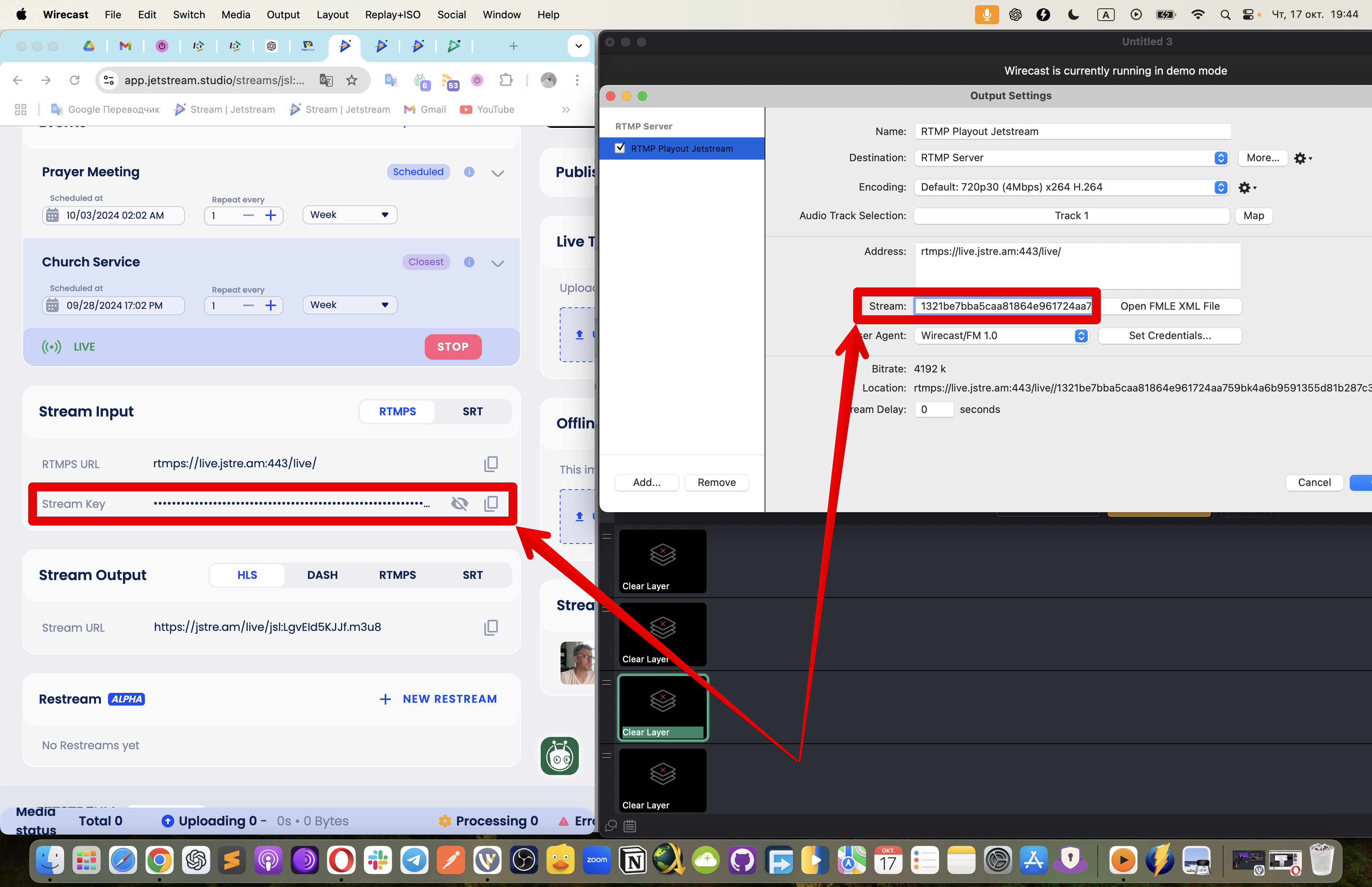
Click OK to save the changes.