Appearance
OBS Studio [macOS]
You have two ways to configure OBS. Choose the option that best fits your workflow:
- Importing Configuration Profiles - use a preconfigured setup for a faster start
- Manual Setup - configure all settings step by step
TIP
SRT is the recommended protocol for streaming.
Importing Configuration Profiles
Choose the configuration that matches the encoder you plan to use and download the archive:
OBS_Jetstream_macOS_AppleVT - Apple VT H264.zip
Recommended for Apple Silicon and Intel Macs using hardware encoding.
OBS_Jetstream_macOS_x264 - x264.zip
Software encoding fallback for systems where Apple VT H264 is unavailable.
Unzip the archive.
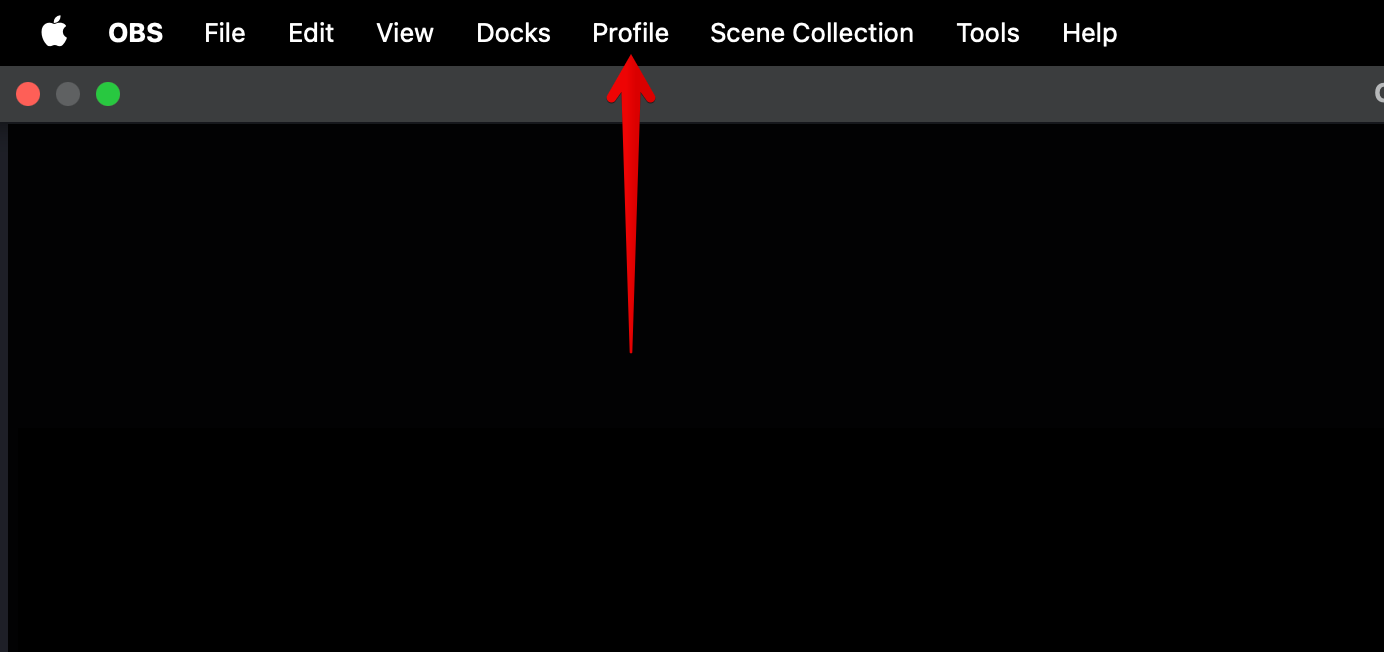
Open OBS. In the top menu, click Profile.
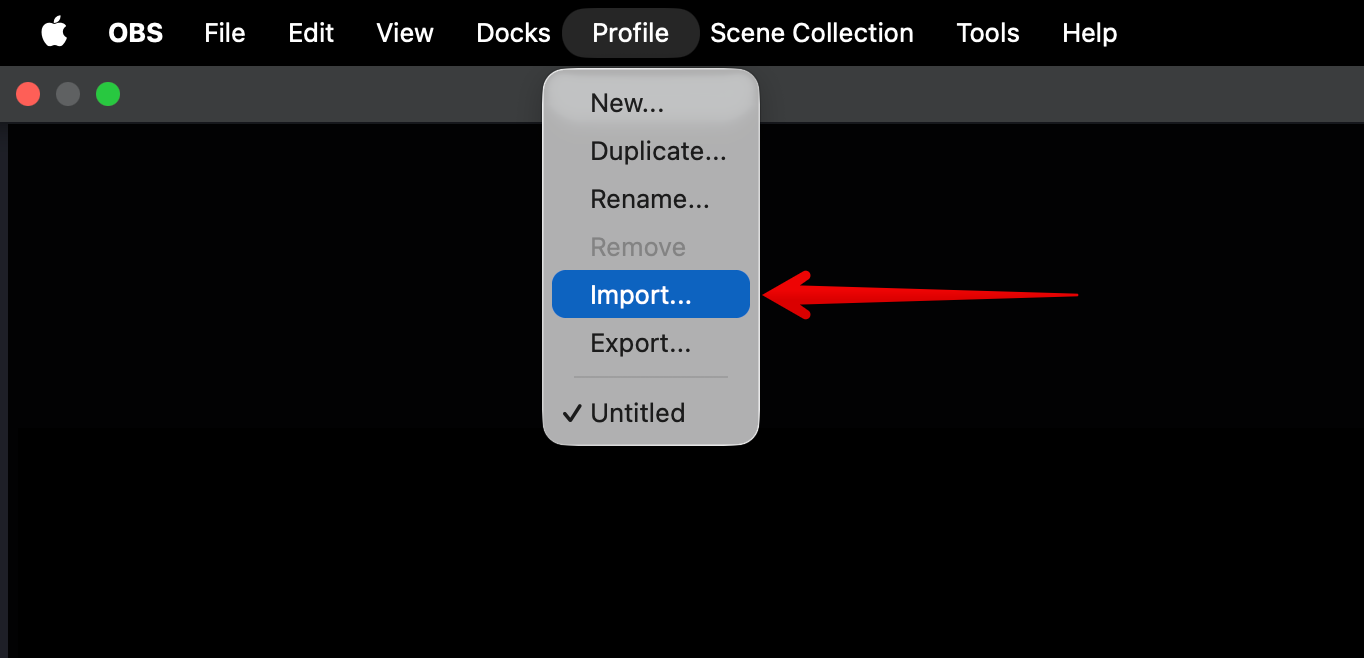
Click Import.
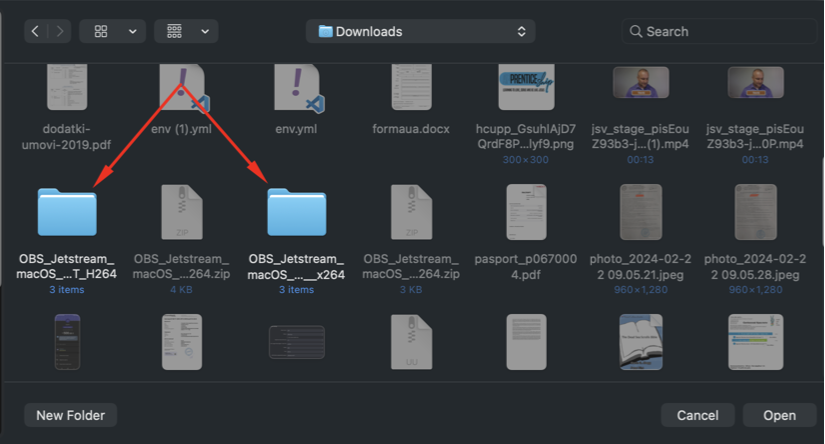
Select the downloaded configuration folder and click Open.
Open the Profile menu and select the imported Jetstream profile. If the profile does not appear, restart OBS and check the menu again.
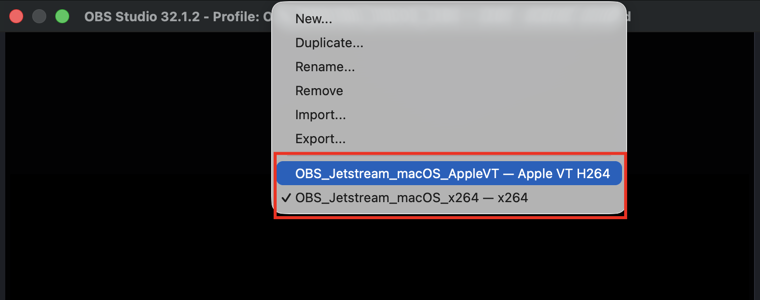
Your application is now configured for streaming through Jetstream Studio. Add the connection details for your selected protocol, set up your sources, and start your broadcast.
Manual Setup
Step 1 - Output Settings
- Open OBS Studio.
- In the Controls panel at the bottom right, click Settings.
- In the left sidebar, select Output.
- Set Output Mode to Advanced.
- Open the Streaming tab.
- Set Audio Encoder to FFmpeg AAC.
- Click Apply.
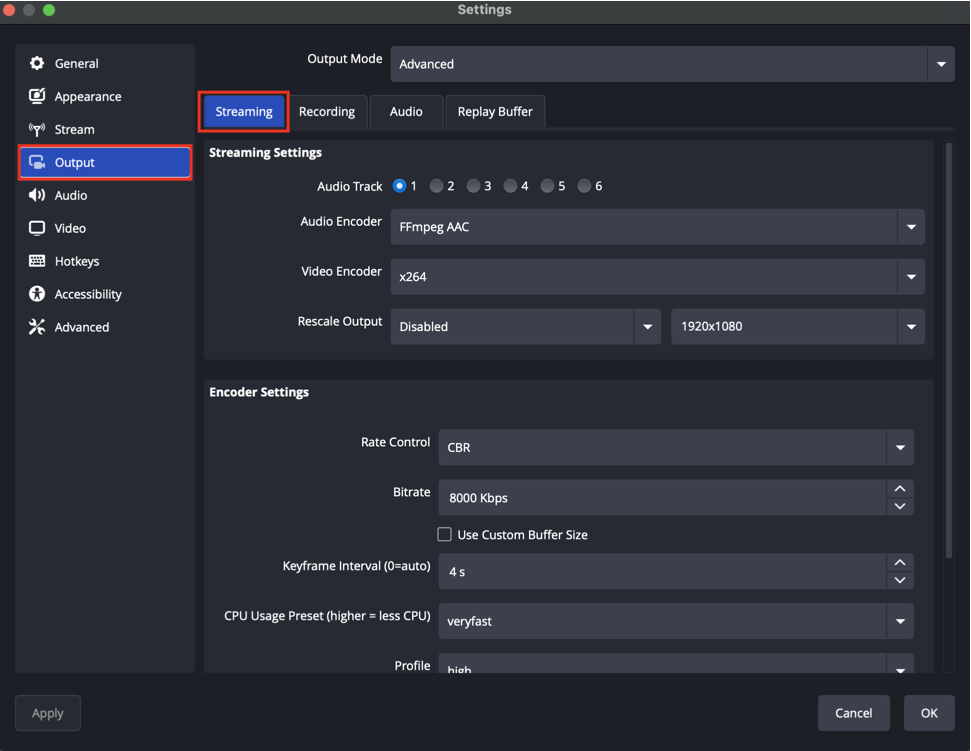
Step 2 - Video Encoder
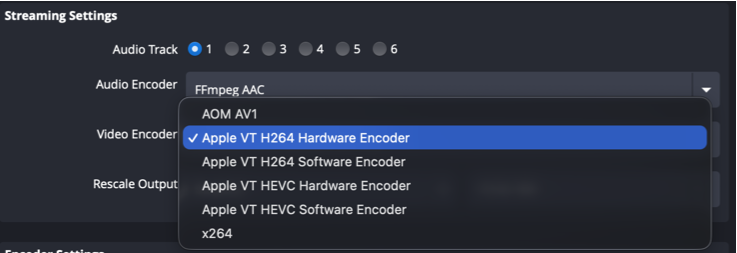
Open the Video Encoder dropdown and select an H.264 encoder only.
WARNING
Do not use HEVC / H.265 encoders - Jetstream Studio requires H.264.
Recommended encoder by hardware:
| Hardware | Encoder |
|---|---|
| Recommended (Any Mac) | Apple VT H264 Hardware Encoder |
| Fallback (Any Mac) | x264 |
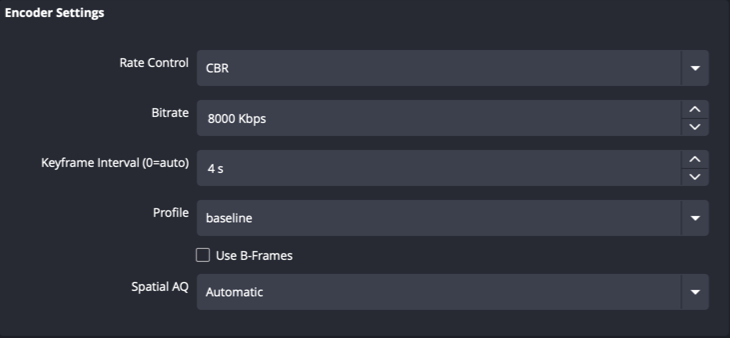
Apple VT H264 Hardware Encoder settings
| Setting | Value |
|---|---|
| Rate Control | CBR |
| Bitrate | 8,000 Kbps (max 12,000 Kbps) |
| Keyframe Interval | 4 s |
| Profile | Baseline |
| Use B-Frames | Disabled |
Click Apply.
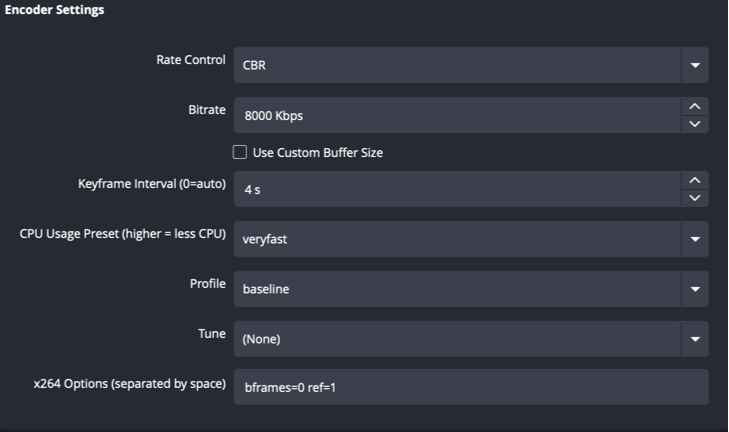
x264 settings
| Setting | Value |
|---|---|
| Rate Control | CBR |
| Bitrate | 8,000 Kbps (max 12,000 Kbps) |
| Keyframe Interval | 4 s |
| Profile | Baseline |
| CPU Usage Preset | veryfast |
| x264 Options | bframes=0 ref=1 |
Click Apply.
Step 3 - Auto-Reconnect
- In the left sidebar, select Advanced.
- Find the Automatically Reconnect section and enable it.
- Leave the default values unchanged:
| Setting | Value |
|---|---|
| Retry Delay | 2 s |
| Maximum Retries | 25 |
Click Apply, then OK.
Connect to Jetstream Studio
Find your stream credentials on the Stream Details page in Jetstream Studio.
SRT (recommended)
- Go to Settings, then in the left sidebar select Stream.
- Set Service to Custom.
- In the Server field, enter your SRT connection string:
srt://SRT_HOST:SRT_PORT?streamid=STREAM_ID - Leave Stream Key empty.
- Click Apply, then OK.
RTMP
- Go to Settings, then in the left sidebar select Stream.
- Set Service to Custom.
- In the Server field, enter the RTMP URL from the Stream Details page.
- In the Stream Key field, enter the Stream Key from the Stream Details page.
- Click Apply, then OK.