Publishing an Episode
You can publish an episode's video to YouTube or Facebook straight from Jetstream Studio, now or at a set time.
Before you start
- Connect the YouTube channel or Facebook page to the brand.
- Set up a publishing template so titles and descriptions are filled in for you.
Publish to YouTube
Open the episode.
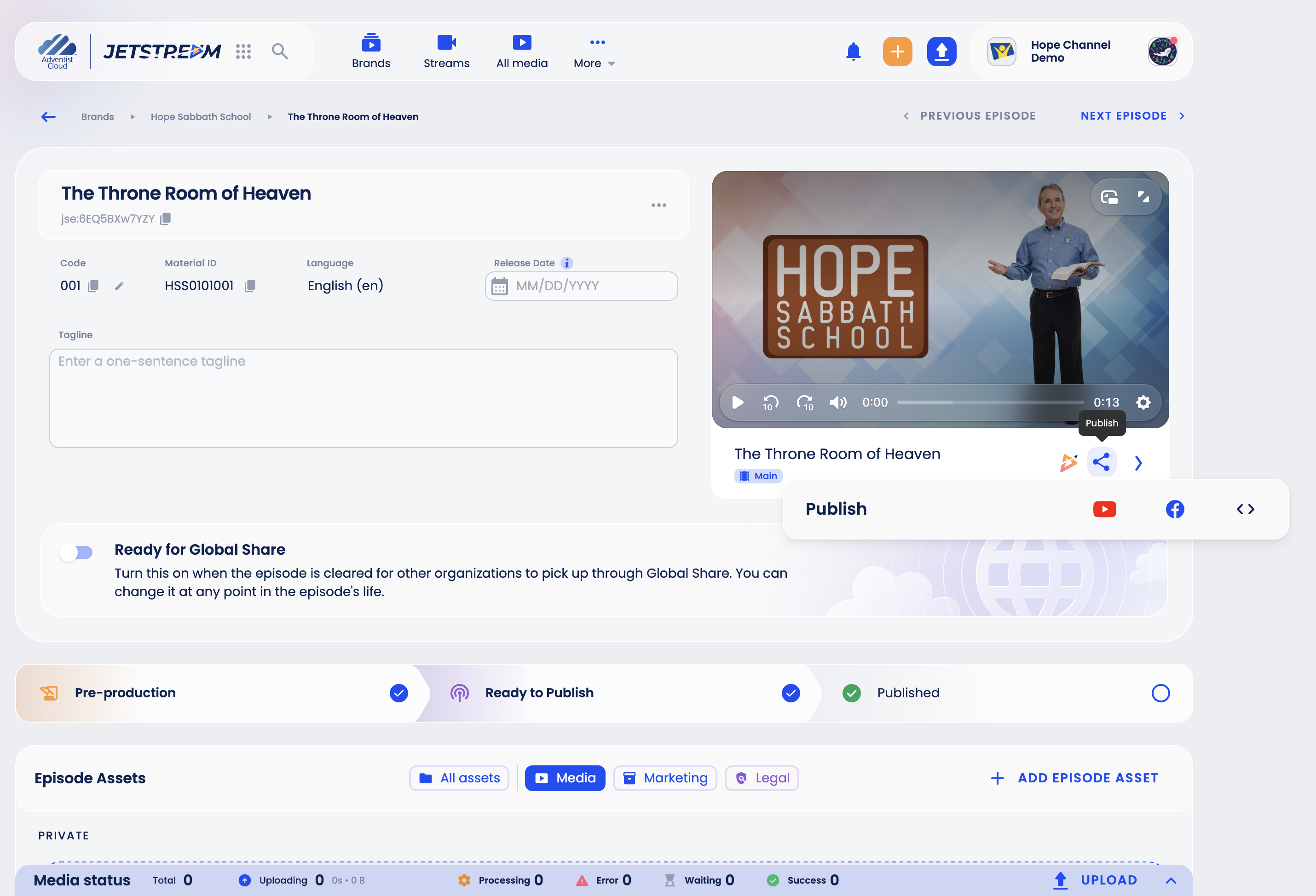
Under the player, click the Publish (share) icon and choose YouTube.
Check the form:
- Title and Description - filled in from the publishing template; you can change them.
- Account - the YouTube channel.
- Playlist - optional.
- Allow Embedding - lets other websites embed the video.
- Visibility - Public, Unlisted or Private.
- Made for Children - turn on if the video is made for children.
- Synchronized with Jetstream - when you change the video's main thumbnail in Jetstream Studio later, the thumbnail on YouTube changes too. The title is not synchronized: to change it on YouTube, open the published link in the Publish menu, edit the Title and save.
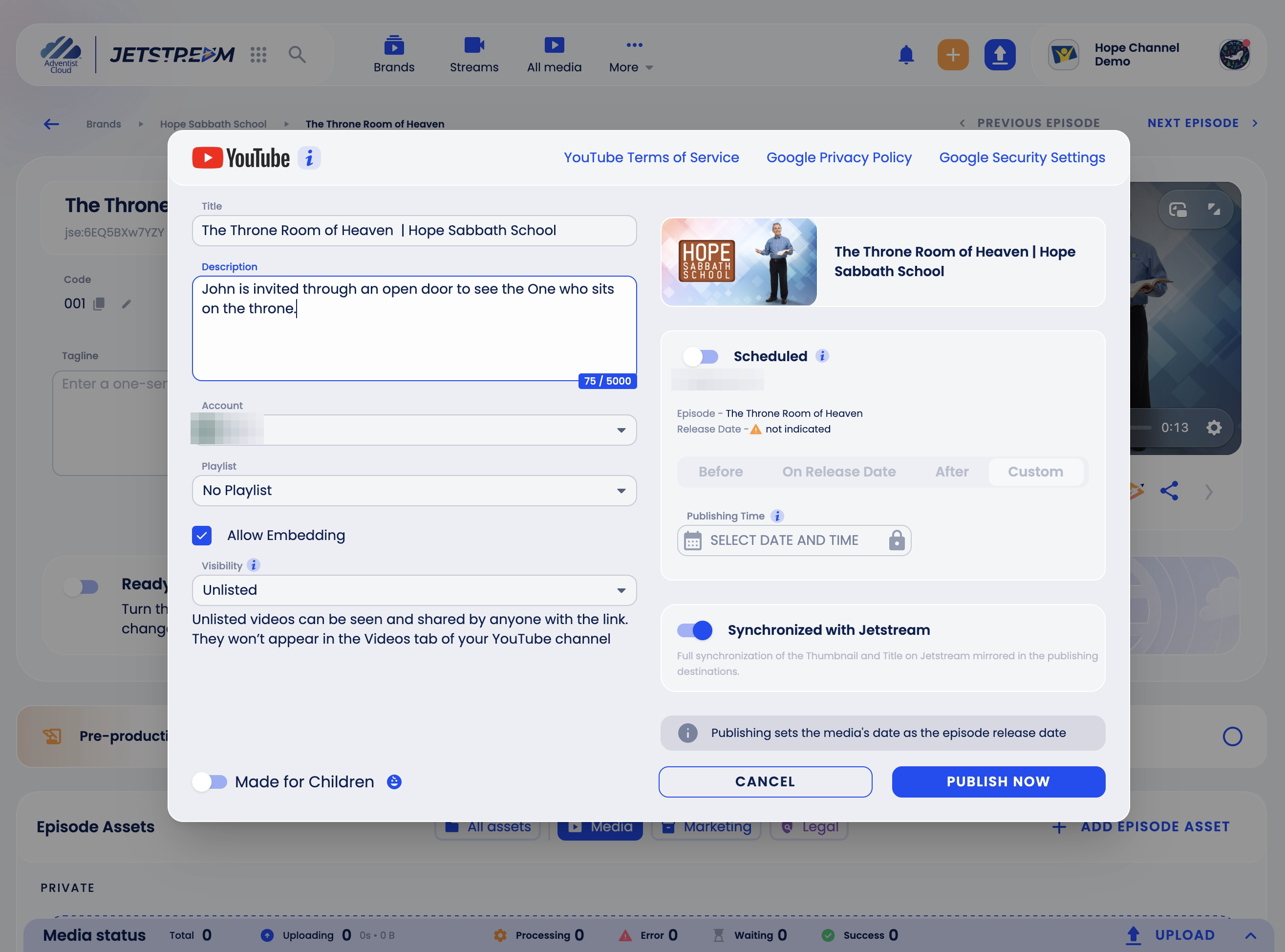
To publish now, click Publish Now. To publish later, turn on Scheduled and choose when: before, on or after the episode's release date (only if the episode has a Release Date), or a Custom date and time.
If the account has a switched-on Auto-Publish rule for the video's media type, Scheduled is already on and cannot be changed: the time follows the rule and the button reads Schedule Publishing. This needs the episode's Release Date.
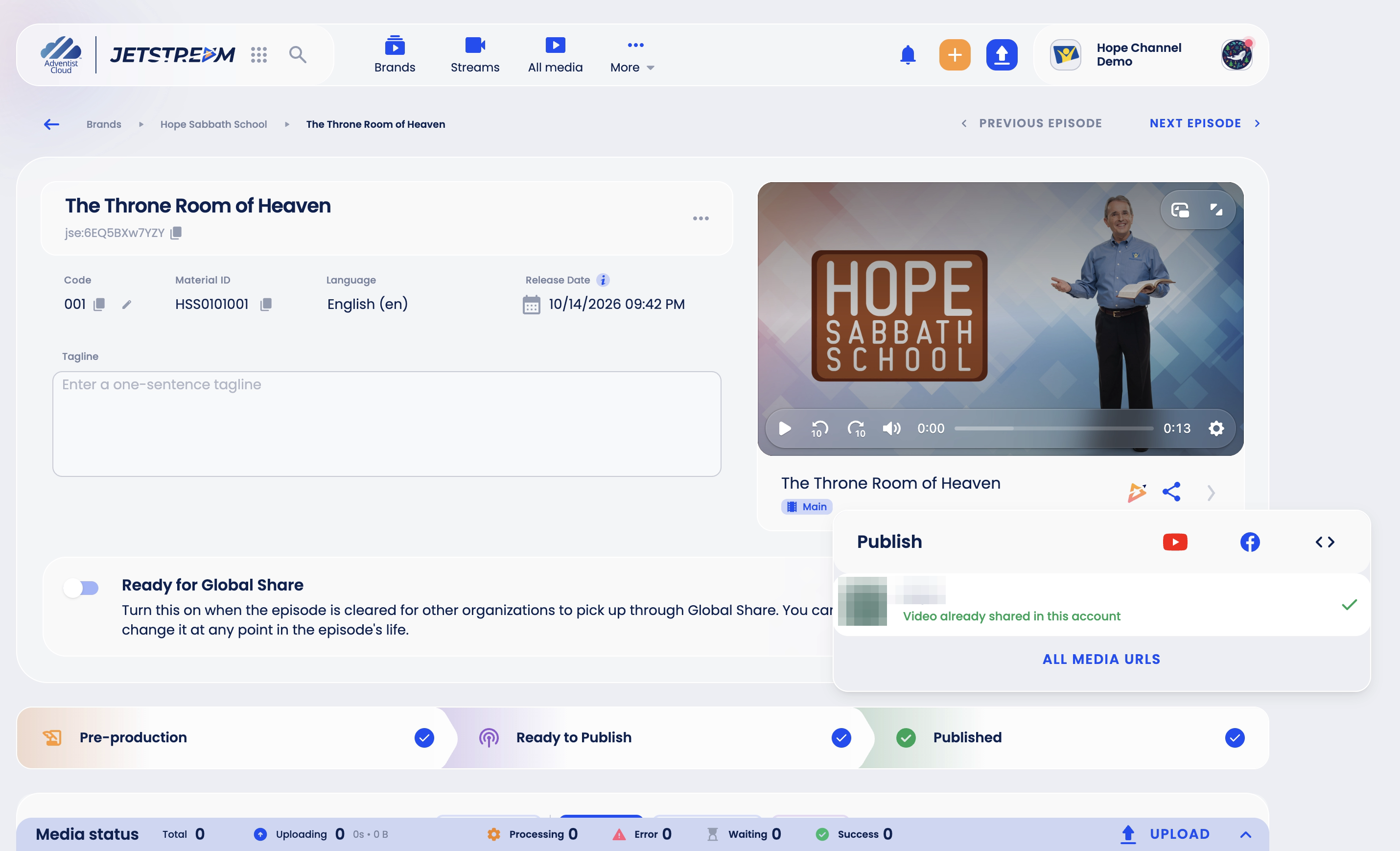
If the episode has no Release Date yet, publishing sets it to the date of publication. When the video is published, the account shows Video already shared in this account in the Publish menu.
Publish to Facebook
Open the episode, click the Publish icon and choose Facebook.
Fill in the Title and Description (they are filled in for you if the brand has a Facebook publishing template; both are required), and choose the page in Account.
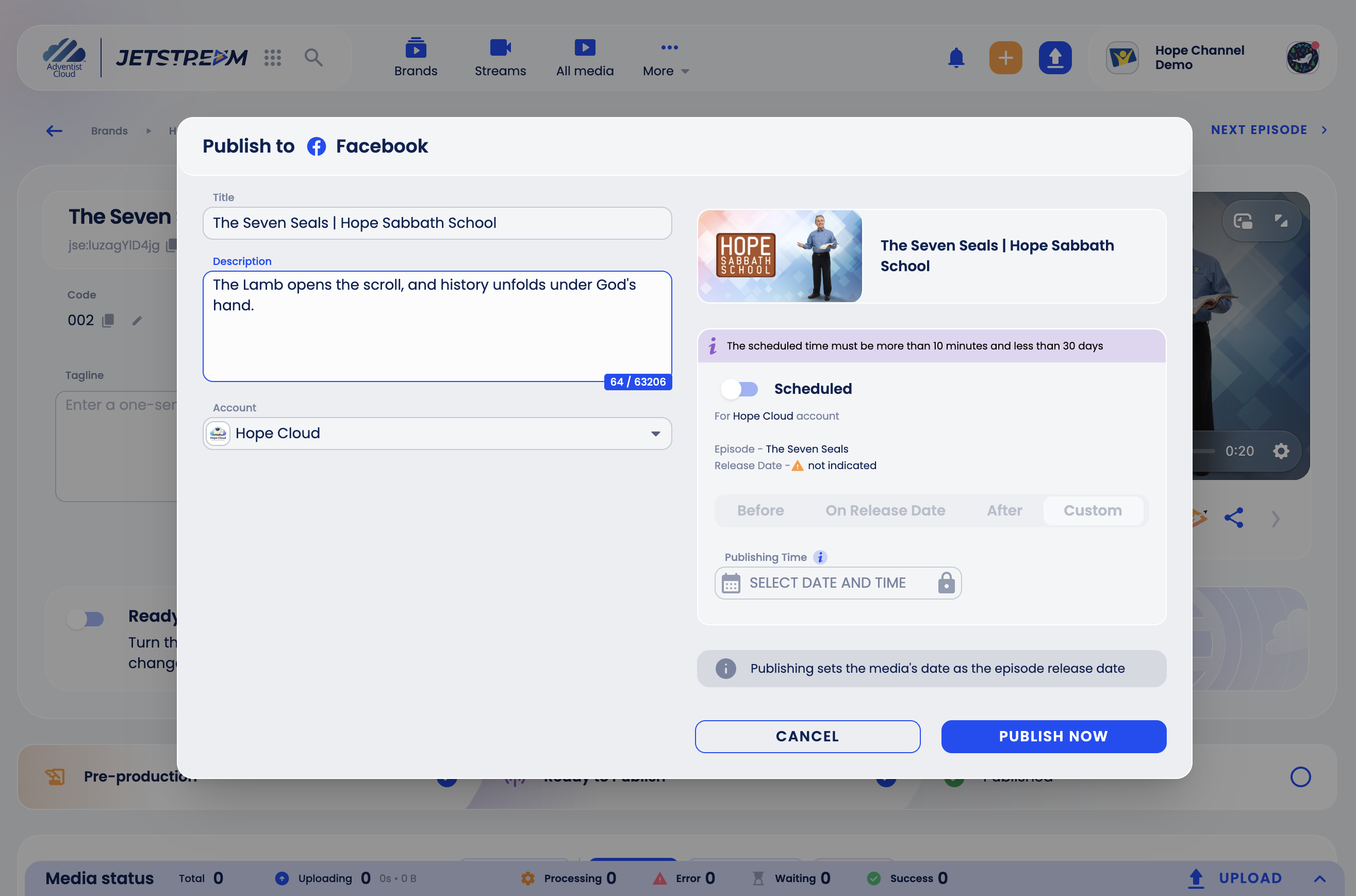
Click Publish Now, or turn on Scheduled and choose the time. Facebook accepts a scheduled time from 10 minutes to 29 days ahead.
Publish a new version
If you replaced the video after it was published, publish it again to the same channel or page. Whenever you publish to an account where the video is already published, Jetstream Studio asks you to confirm. To remove the old copy from YouTube or Facebook, tick I want to delete the previous video on YouTube (or Facebook), then click Submit. The publishing form opens; the old video is removed when you finish publishing there.
Get the video links
Once the video has at least one link, All Media URLs appears in the Publish menu. Click it to see every link of the video, including the published ones.