Brand Roles
A brand role gives a person access to one brand. Use it for producers, editors, translators and reviewers who work on specific shows.
Before you start
The person must already be a user of your organization. If they are not, invite them first.
Brand roles are managed by an Organization Admin or the brand's Lead Producer.
Add a person to a brand
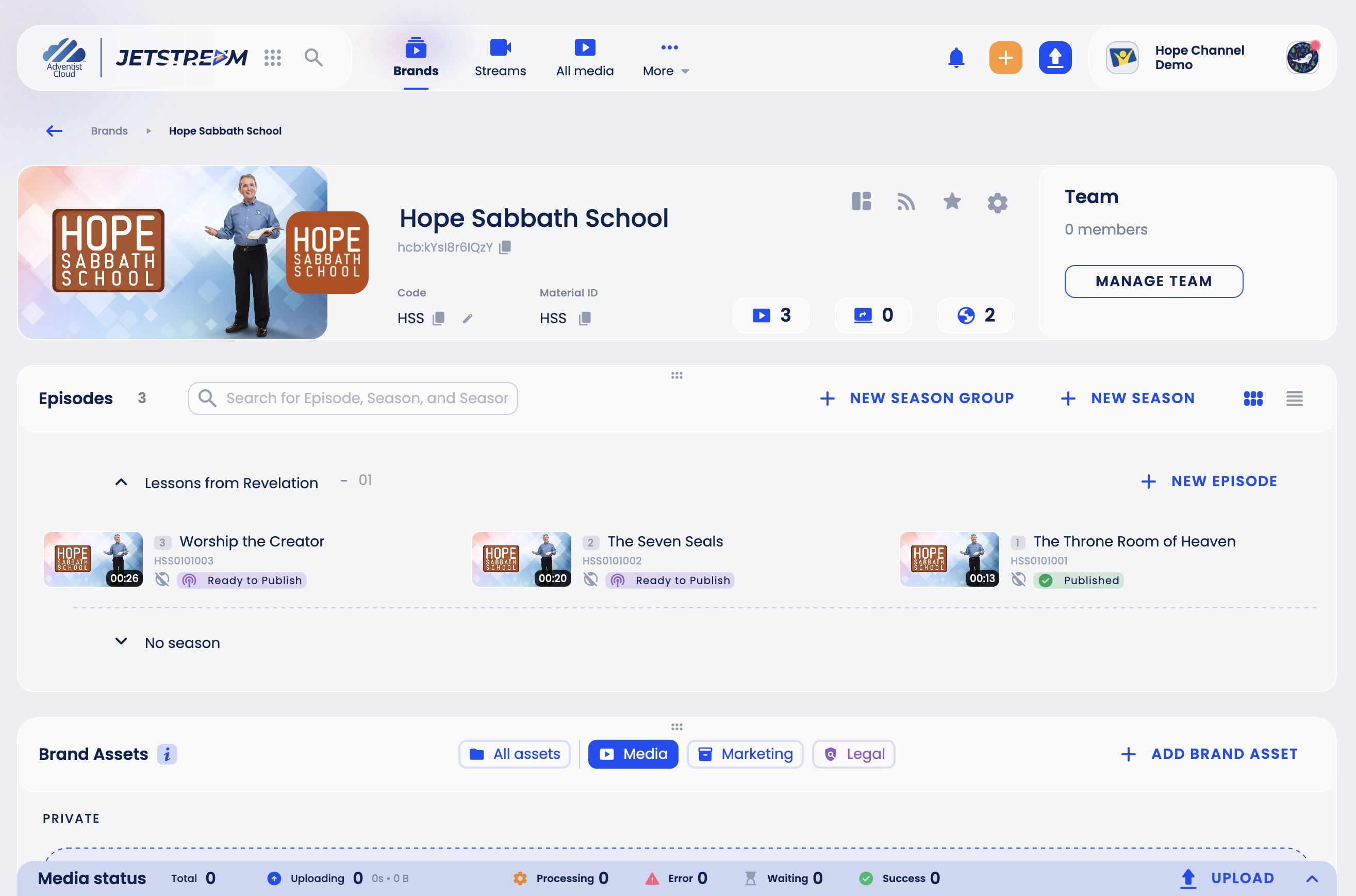
Open the brand and click the gear icon next to its name to open Brand Settings.
Click Roles.
Choose the role you want to give. The text under the role name explains what it allows.
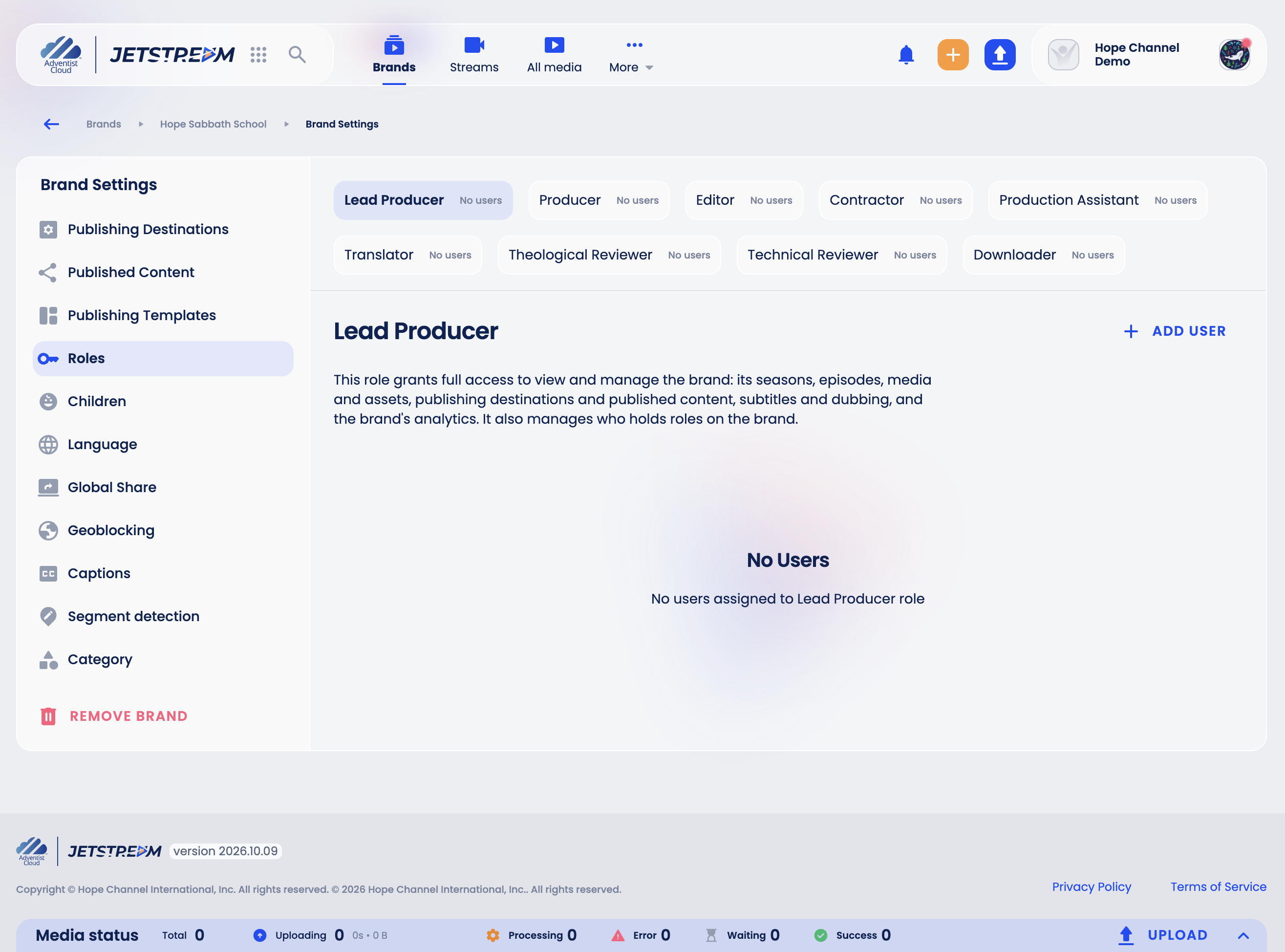
Click Add User.
Select the user, then choose the Period:
- No End Date - for permanent team members;
- Temporary - set an End Date; the role ends as that day begins, so the person has no access on it.
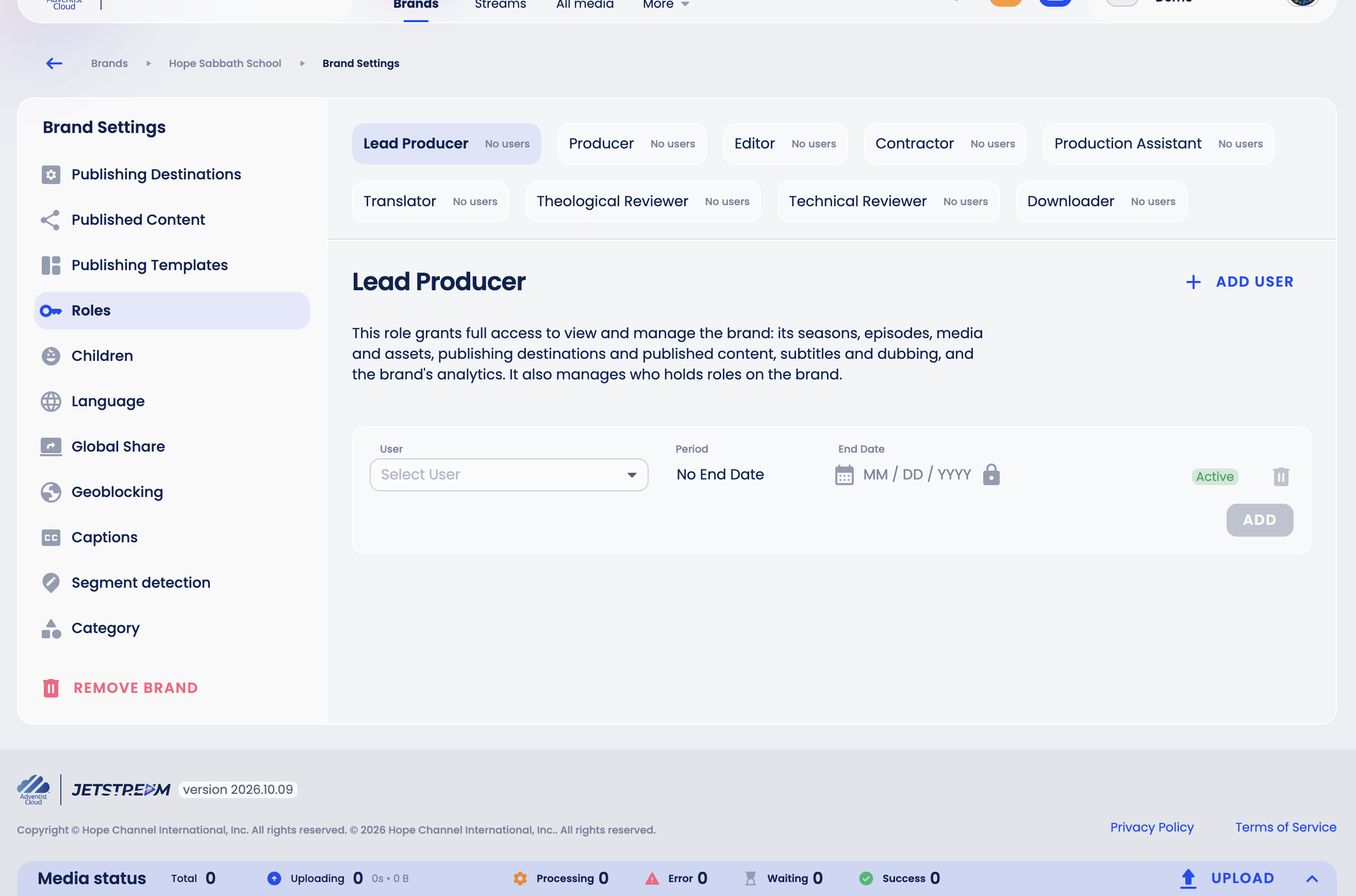
Click Add.
The person now sees the brand under Brands → My Brands.
On the brand page, the Team card shows who works on the brand. Click the avatars to see the list; Manage Team there opens the same Roles settings. While the brand has no team members, the card shows the button itself.
Brand roles
| Role | What it allows |
|---|---|
| Lead Producer | Full access to the brand: seasons, episodes, media and assets, publishing destinations and published content, subtitles and dubbing, analytics; takes and completes workflow tasks; manages who holds roles on the brand. |
| Producer, Editor, Contractor, Production Assistant | The same full access to the brand content and the same workflow tasks. They cannot manage roles. |
| Translator | View the brand content and download files; translate and edit subtitles and dubbed audio, in every language or only in the languages chosen on the assignment (Languages access). No other editing. |
| Technical Reviewer | View the brand content and download files; complete or reject technical review tasks. No editing. |
| Theological Reviewer | View the brand content and download files; complete or reject theological review tasks. No editing. |
| Downloader | View the brand content and download master (original) videos and public assets, or every file when the assignment allows it (Download access). No editing. |
Remove a person from a brand
In Brand Settings → Roles, open the role, find the person and click the trash icon next to them, then confirm.
Request a role
If you cannot manage roles yourself, open the brand settings and click Request New Role (or Add Request on the Team card of a brand with no team members yet), choose the role and send the request. An Organization Admin or the brand's Lead Producer approves or rejects it in Brand Settings → Roles.