Captions
Captions (closed captions) are managed on the video page, in the Languages block. You can generate them automatically, upload your own files and translate them into other languages.
To open the video page, open the episode and click the title of the main video under the player at the top of the page.
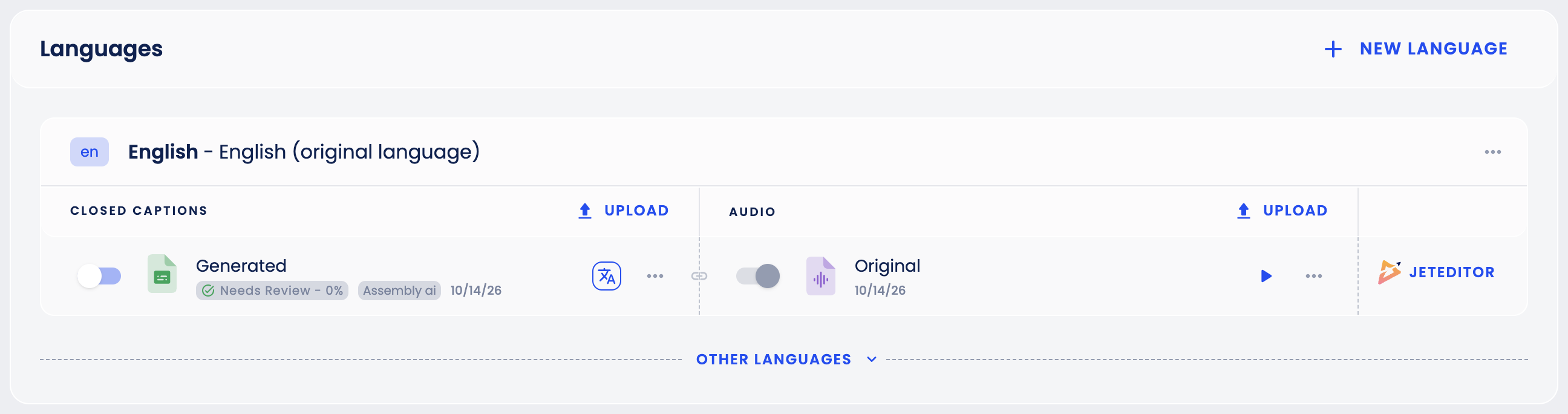
Generate captions
- In the Languages block, find the original language of the video.
- Under Closed captions, click Generate caption.
Captions are generated for the video's language. A video takes the Language of the episode it is uploaded to; a new episode gets its language from its season or brand (Brand Settings → Language) when it is created. If it does not match the language actually spoken, the captions will be wrong, so check it before generating.
Every caption track gets a review status with a percentage: Needs Review (0%), In Review or Complete (100%). Tracks generated automatically are marked Generated.
Upload a caption file
- In the row of the file's language, under Closed captions, click Upload. If the video does not have that language yet, add it first with New language.
- Drag your file into the window or click Browse. Supported formats: VTT and SRT.
- Click Upload. The file is added to the language you started from.
Show captions in the player
Turn on the switch next to a caption track to publish it. If Brand Settings → Captions → Automatically enable generated captions is on (it can be switched on only while Automatic captions generation above it is on), generated and translated tracks are published by themselves as soon as they are ready. The published track may take a moment to appear in the player. Viewers turn captions on and off with the captions (CC) button of the player.
Translate captions
- Click the translate icon next to a caption track.
- Choose the language to translate to and click Translate.
The translation appears in the row of that language. Unless it is your organization's main language, expand Other languages to see it. Add a new language to the video with New language.
Edit captions
Click JetEditor in the language row to open the editor, where you can correct the text and timing.
The ⋯ menu of a caption track downloads it (VTT, SRT or TXT) or deletes it. If generation fails, the track offers to try again.