Episode Assets
Besides the main video, an episode can hold other files: a promo, the episode in another language, artwork, scripts or release forms. These are the episode's assets.
Add an asset
Open the episode and scroll to Episode Assets.
Click Add Episode Asset.
Choose the tab for the kind of file:
- Media - video and audio;
- Marketing - images and promotional material;
- Legal - contracts, releases and other documents.
Drag the files into the window or click Browse. The Asset Title is the file name and cannot be changed, so name the file before you upload it. Add a Description if you need one. For a video on the Media tab, also choose the Media Type.
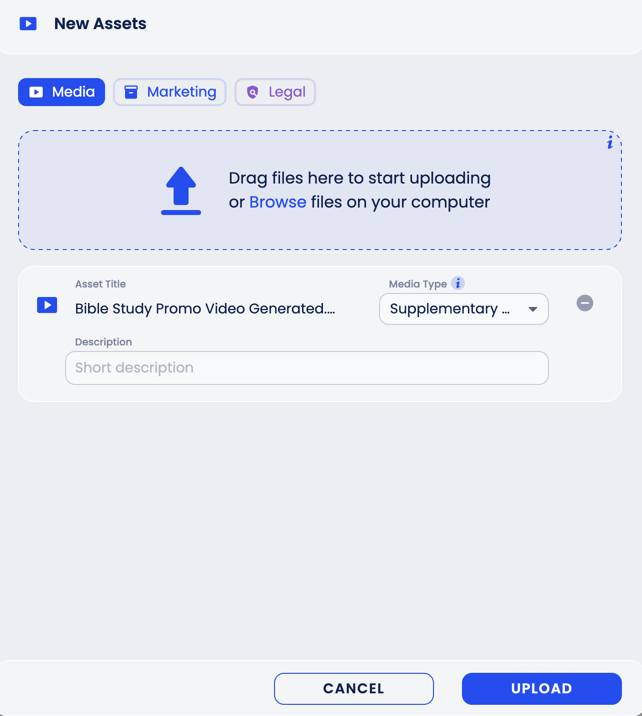
Click Upload.
Private and public assets
New assets appear under Private. Private assets are for your team: the Publish action is not offered for them.
To make a video or audio asset available for publishing, drag it from Private to Public. Images and documents have no Publish action, public or not.
Auto-Publish also publishes private videos
For now, Auto-Publish rules publish videos of the chosen media type even while they are under Private. Until this is fixed, if the brand has an Auto-Publish rule for a media type, do not upload a video of that type that must stay unpublished.
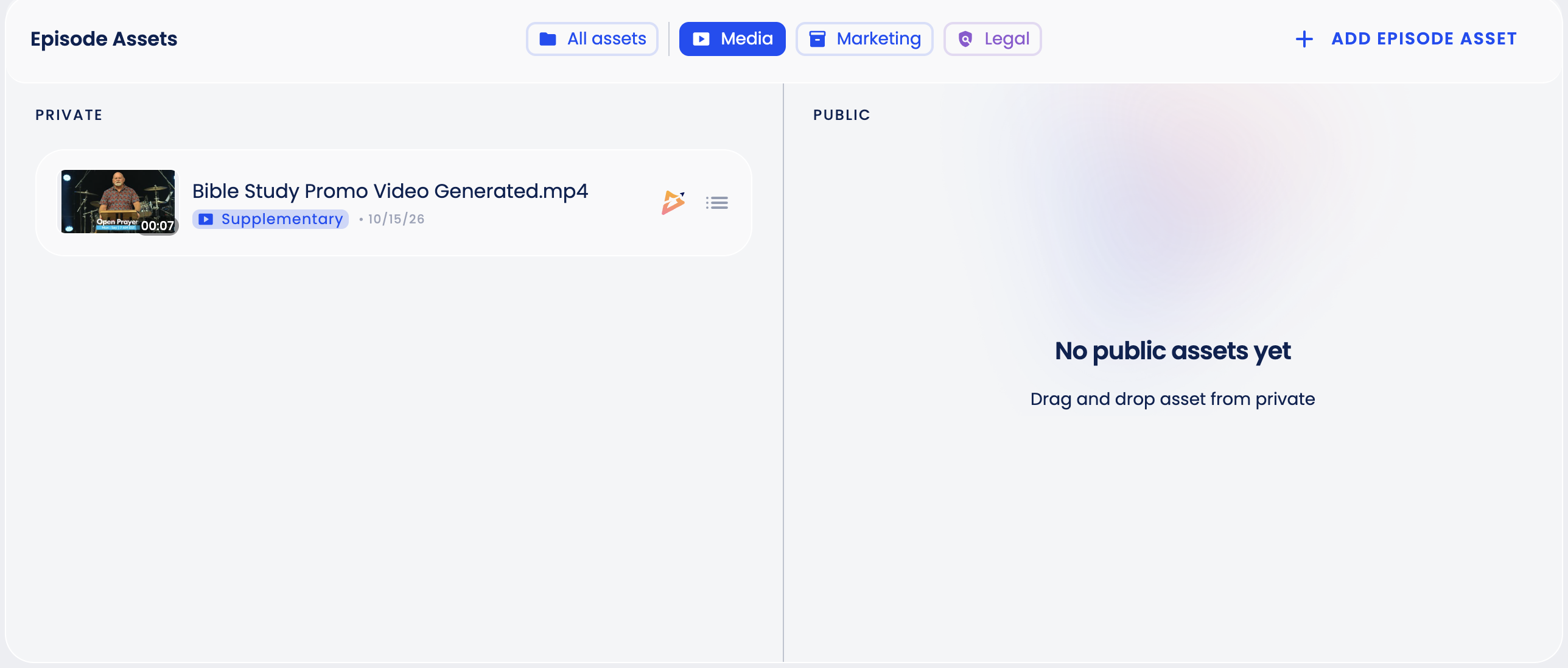
Use All assets, Media, Marketing and Legal at the top of the block to filter the list.
Brands and seasons have the same kind of block: Brand Assets and Season Assets.