Restreaming to YouTube, Facebook and Other Platforms
A restream sends your live stream from Jetstream Studio to another platform at the same time: YouTube, Facebook, Telegram or any service that accepts RTMP. You can add as many restreams to a stream as you need.
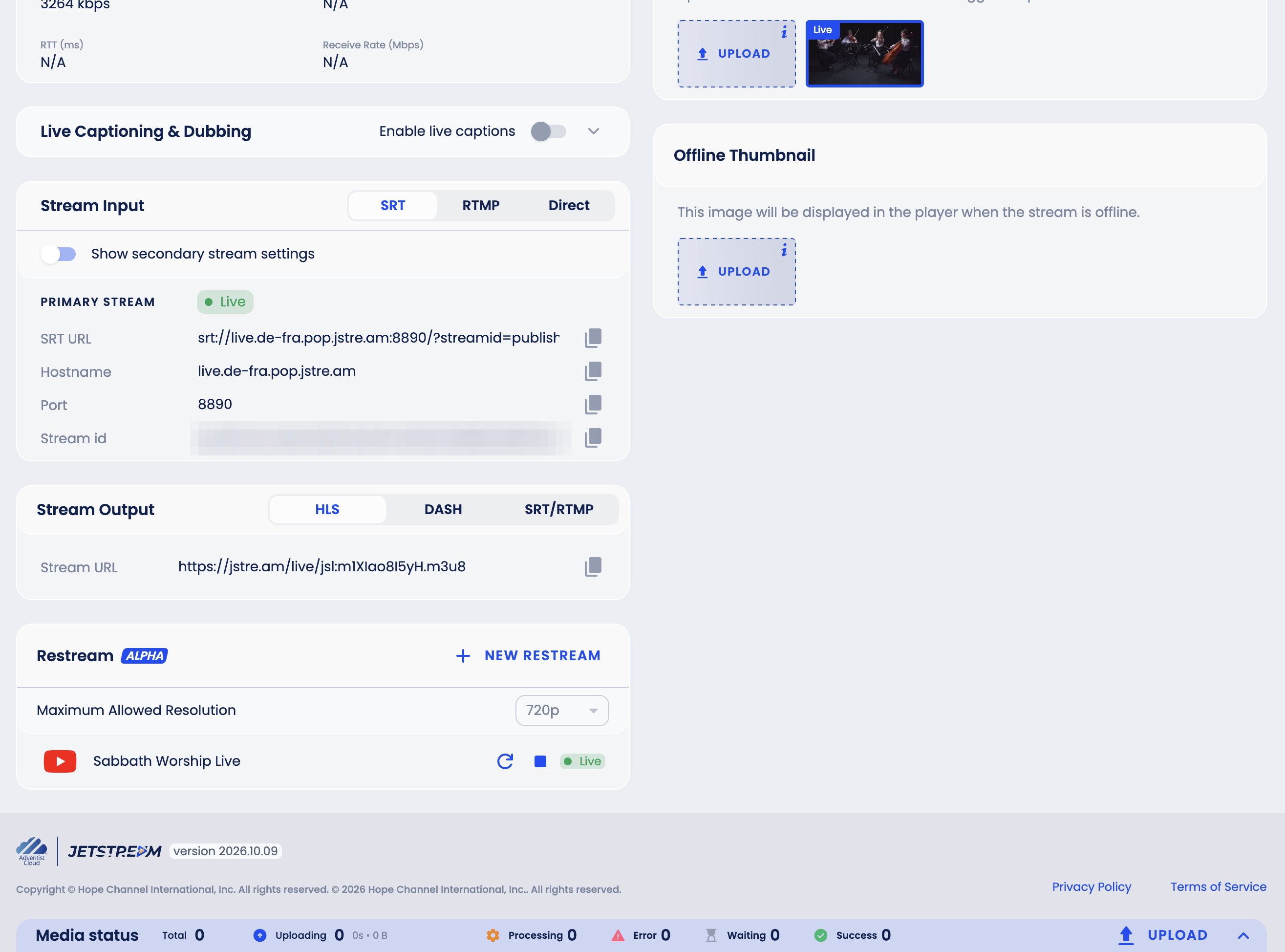
Restreams are set up in the Restream block at the bottom of the stream page.
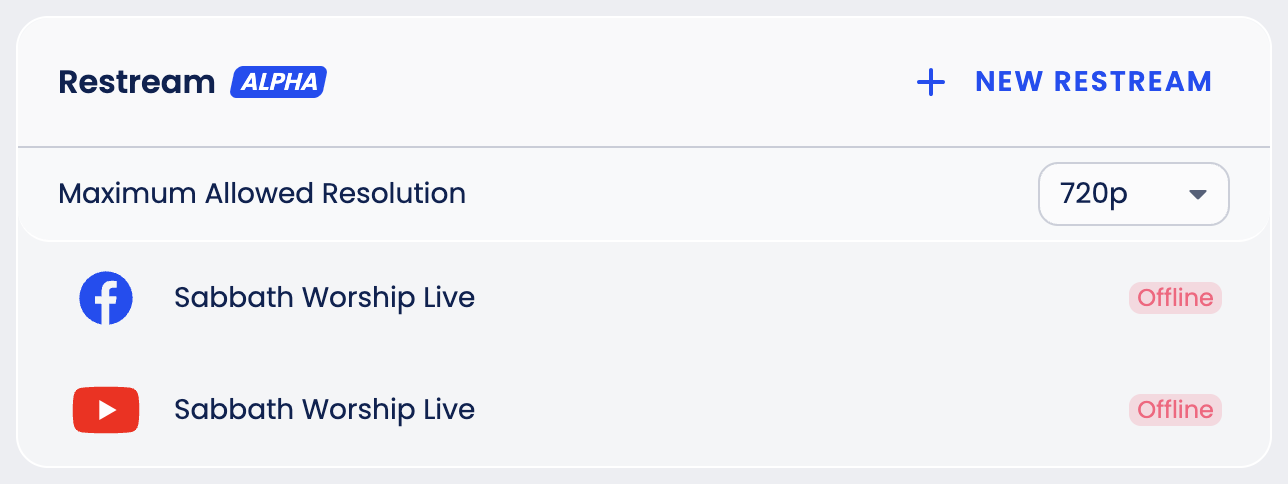
Maximum Allowed Resolution shows the highest resolution sent to the platforms (720p by default). Contact support if you need a different one.
Two kinds of restreams
| Manual restream | Linked restream | |
|---|---|---|
| What it is | Jetstream Studio sends the video to a server URL and stream key you copy from the platform. | Jetstream Studio connects to your YouTube channel or Facebook page and creates the live broadcast there itself. |
| Platforms | YouTube, Facebook, Telegram, any RTMP service | YouTube, Facebook |
| Streams | 24/7 and Event | Event only |
For an Event stream, Jetstream Studio asks which kind you want when you add a YouTube or Facebook restream. A 24/7 stream always uses a manual restream.
Manual restream
YouTube
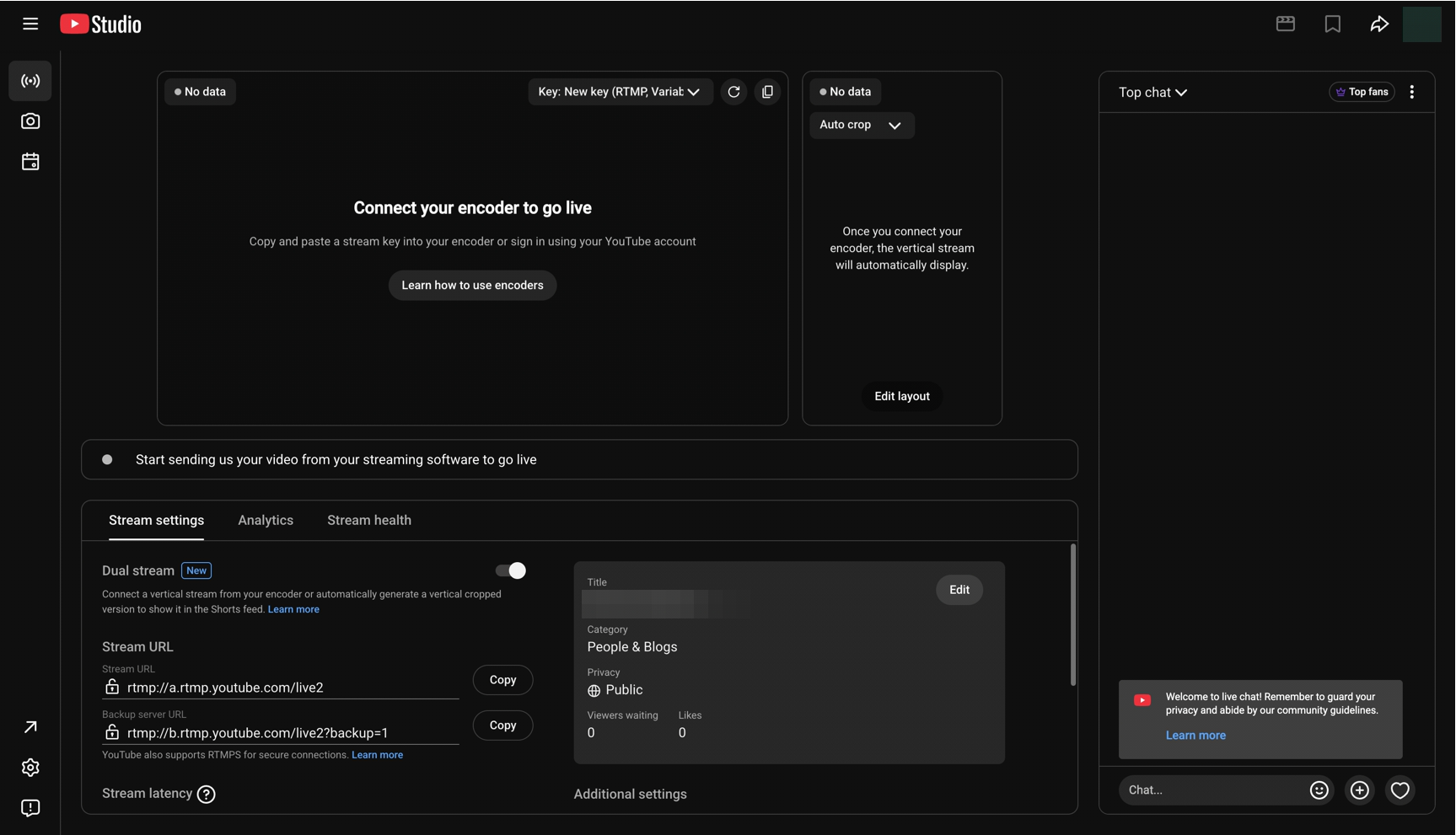
In YouTube Studio, click Create → Go live. At the top of the stream settings, click the copy button next to Key to copy the stream key. Jetstream Studio already knows the YouTube server address, so you only need the key.
In Jetstream Studio, open the stream and click New restream → YouTube. For an Event stream, choose Manual restream.
Enter a Title. The Restream Destination URL for YouTube is already filled in.
Paste the stream key into Restream Destination Key.
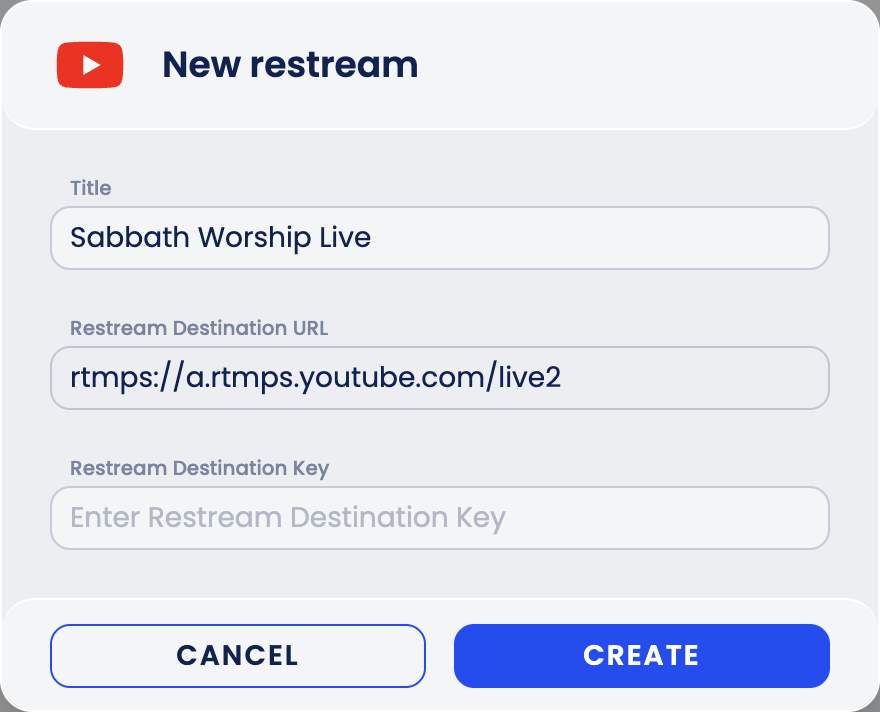
Click Create.
Facebook
In Facebook, click Live video. In Create live video, choose where to post, select Streaming software as the video source and click Copy next to Stream key.
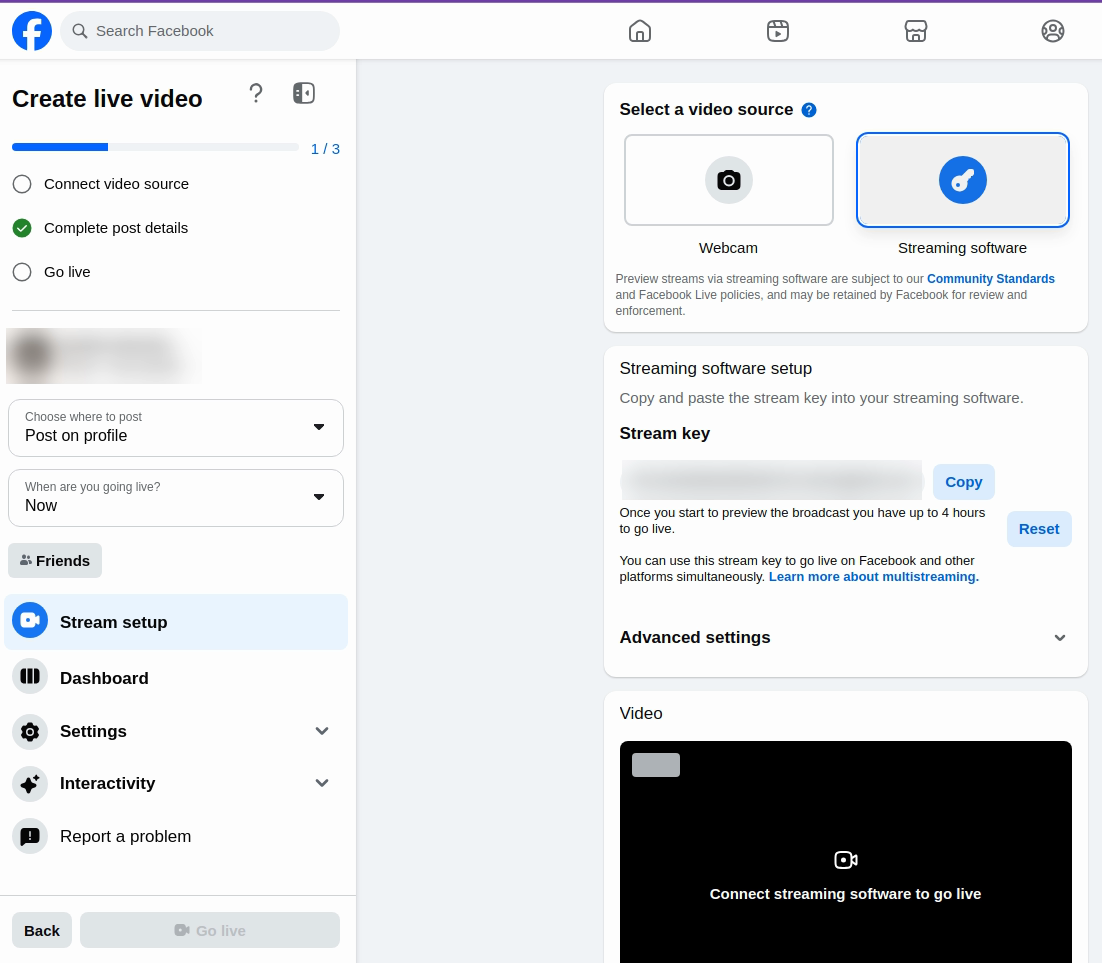
Facebook gives you up to 4 hours to go live after the preview starts.
In Jetstream Studio, click New restream → Facebook. For an Event stream, choose Manual restream.
Enter a Title and paste the key into Restream Destination Key. The URL is already filled in.
Click Create.
Telegram, Vimeo and other platforms
- On the platform, get the RTMP server URL and stream key for a live broadcast. Each platform explains where to find them in its own help, for example Vimeo: How to stream a live event over RTMP/RTMPS. In Telegram, a channel admin gets the stream key when starting a live stream with another app.
- In Jetstream Studio, click New restream and choose Telegram or RTMP.
- Enter a Title and the Restream Destination Key. For RTMP, also enter the Restream Destination URL; for Telegram, the URL is already filled in.
- Click Create.
Start and stop
On a 24/7 stream, start the restream when the stream is live: click the start button next to it. The status changes to Live. Use the stop and restart buttons next to the restream to control it. If the encoder disconnects, the restreams send a black picture without sound and switch back to the live video if the encoder returns within about a minute. After that the stream goes offline and its restreams stop. When the encoder comes back, the stream goes live again and its restreams start again by themselves.
On an Event stream, restreams start when the event goes live and stop when it ends. An encoder drop is handled in the same way as on a 24/7 stream: a short one is bridged, and after a longer one the restreams start again by themselves when the encoder comes back.
Linked restream
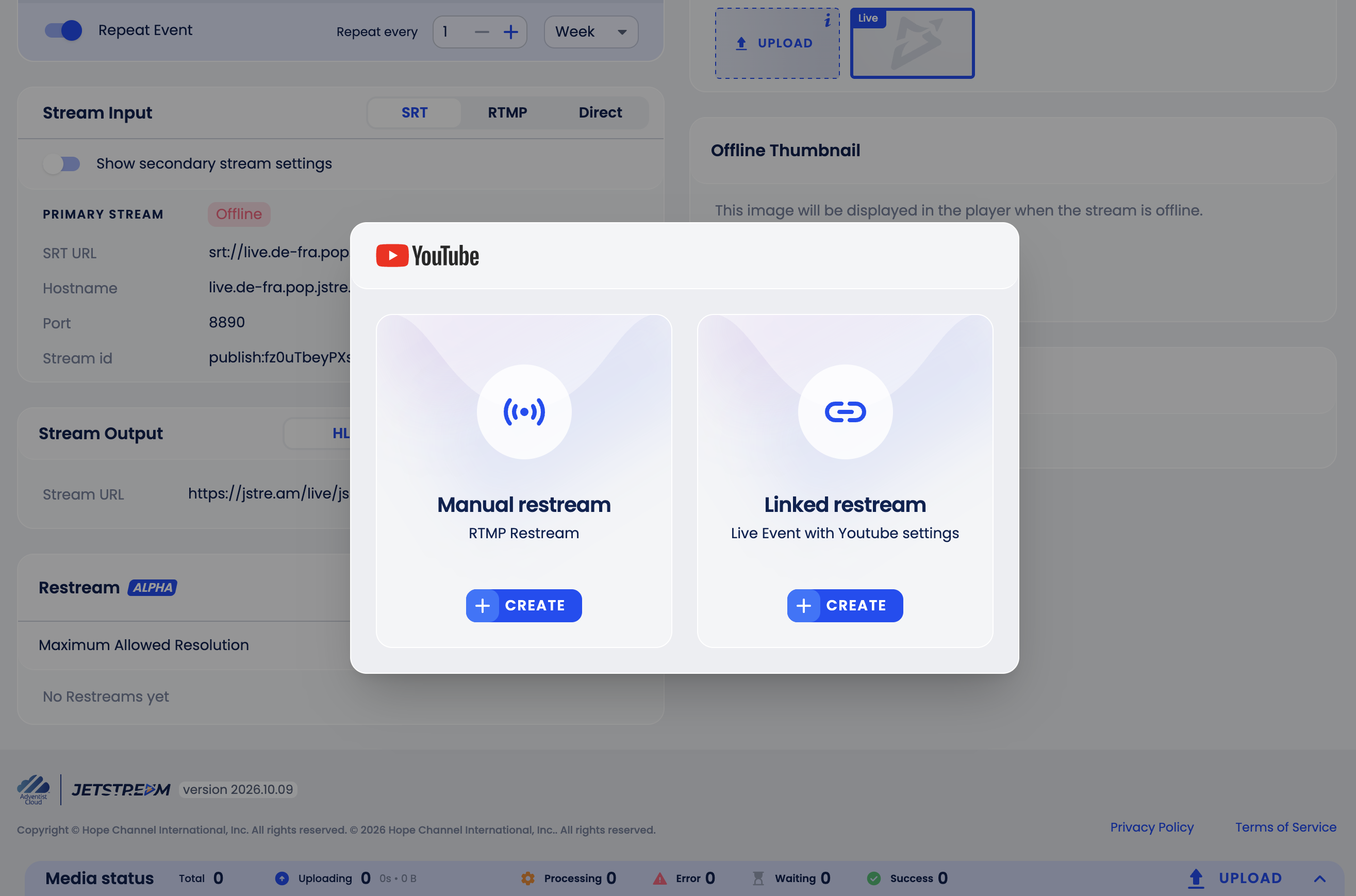
A linked restream is available on Event streams. Jetstream Studio creates the live broadcast on YouTube or Facebook for each event, so viewers can see the upcoming broadcast in advance.
Open the Event stream and click New restream, then YouTube or Facebook.
Choose Linked restream.
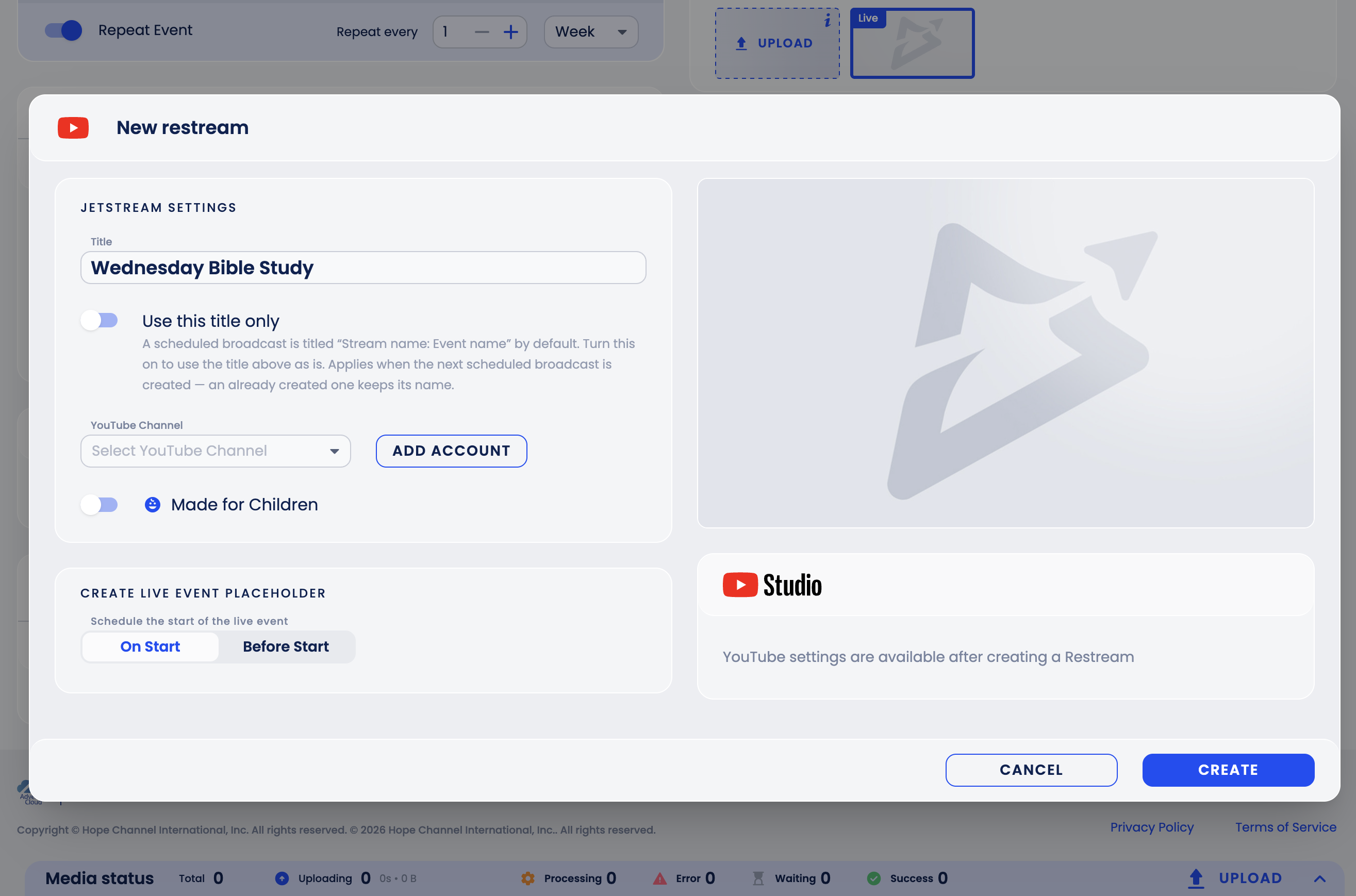
Fill in the form:
- Title - a YouTube broadcast created Before Start is titled Stream name: Event name by default; turn on Use this title only to use the title as you typed it. A broadcast created On Start, and every Facebook broadcast, takes the event's title.
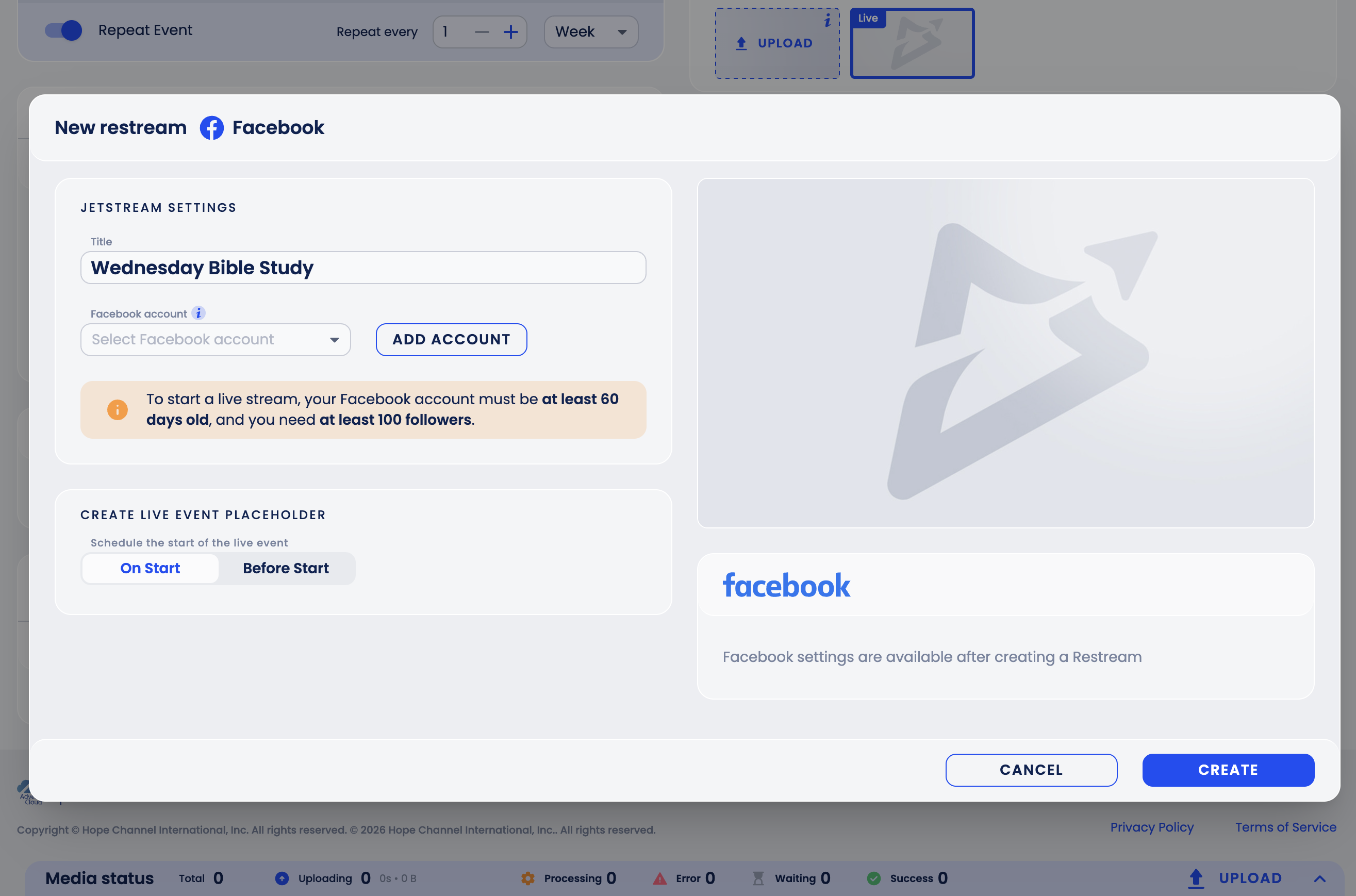
- YouTube Channel or Facebook account - choose a connected account, or click Add Account to connect one.
- Made for Children (YouTube) - turn on if the content is made for children.
- Create Live Event Placeholder - when the broadcast should appear on the platform: On Start, or Before Start with how long before (minutes, hours, days or weeks).
Click Create.
When the placeholder is created on the platform, the restream's settings show Live event created in the Create Live Event Placeholder block. The broadcast goes live when the event starts. See Scheduled Events.
Facebook requirements
To go live on Facebook, your Facebook account must be at least 60 days old and have at least 100 followers.
Delete a restream
Click the restream to open it, click the trash icon, type the restream's name to confirm and click Delete. A live restream stops immediately and its viewers are disconnected.