Geoblocking
Sometimes a license lets you show content only in some countries. Geoblocking stops viewers in the countries you select from watching a brand's videos or a live stream.
The selected countries are blocked
Select the countries where viewers must not be able to watch. Viewers in all other countries can watch as usual.
Geoblock a brand's videos
Brand geoblocking is set by an Organization Admin. It is not available for organizations whose embed region is Europe: the Geoblocking item is not shown for them.
Open the brand, click the gear icon and choose Geoblocking.
Turn on Enable Geoblocking.
Select the countries to block. Countries are grouped by region; tick a region to select all of its countries. The number next to Enable Geoblocking shows how many countries are selected.
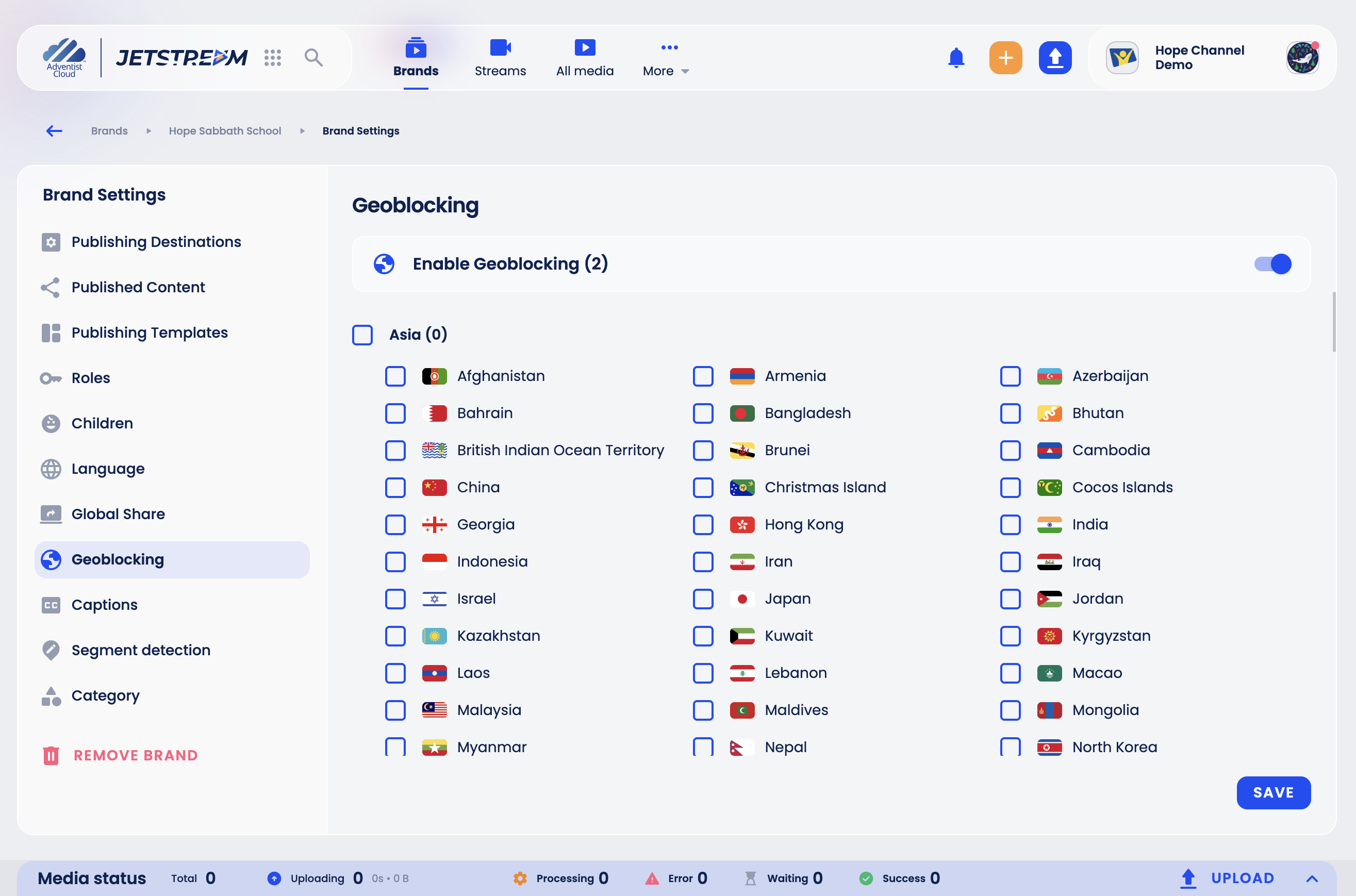
Click Save. If no country is selected, geoblocking is turned off.
The Enable Geoblocking switch takes effect as soon as you flip it: turning it on again applies the country list saved before.
The rule applies to all videos of the brand in the Jetstream player and in embeds. It does not block direct video links or copies published to YouTube or Facebook.
Geoblock a live stream
- Open the stream.
- Turn on Enable Geoblocking and click the gear icon next to it.
- Select the countries to block and save.
Good to know
- The viewer's country is checked when they start watching. Someone who started watching before you changed the setting can keep watching until they reload the page.
- To stop geoblocking, turn Enable Geoblocking off.