Creating a Stream
A stream is a fixed address your encoder sends live video to. Viewers watch it on your website, in apps and on the platforms you restream to.
A stream is deleted automatically one year after it last went live.
Who can do this
Creating and managing streams needs the Live Stream Admin role or Organization Admin.
Create a stream
Click Streams, then New Stream.
Choose the type:
- Event - for services and programs at set times. You schedule events, and an event can start automatically. See Scheduled Events.
- 24/7 - for a stream with no schedule: it is live whenever your encoder sends a signal, including a permanent stream.
Enter a Title.
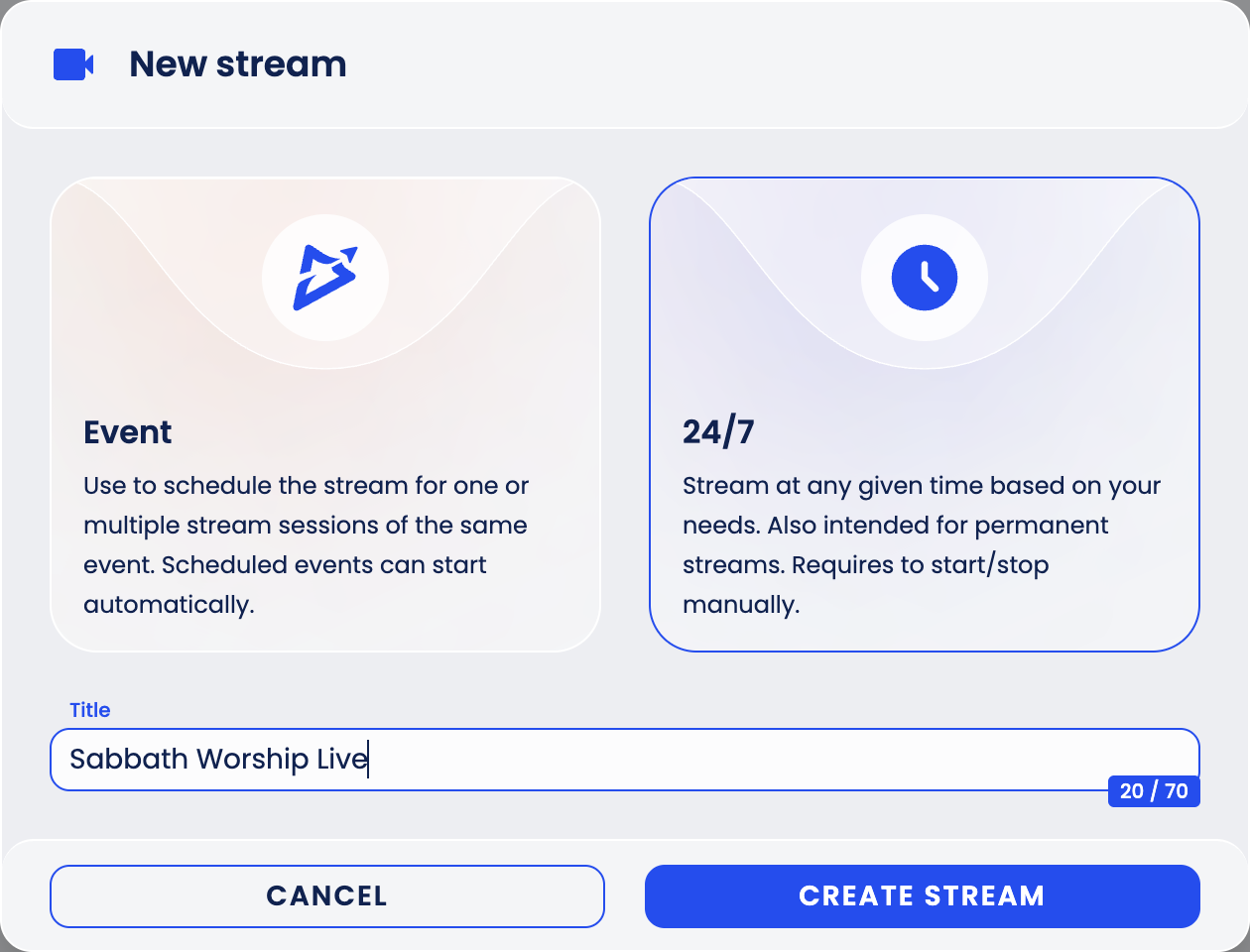
Click Create Stream.
The stream appears in the list. The Status column shows Offline until a signal arrives, and Live while it is on air. An Event stream that receives a signal before its event goes live shows Preview. The Restream column shows where the stream is restreamed.
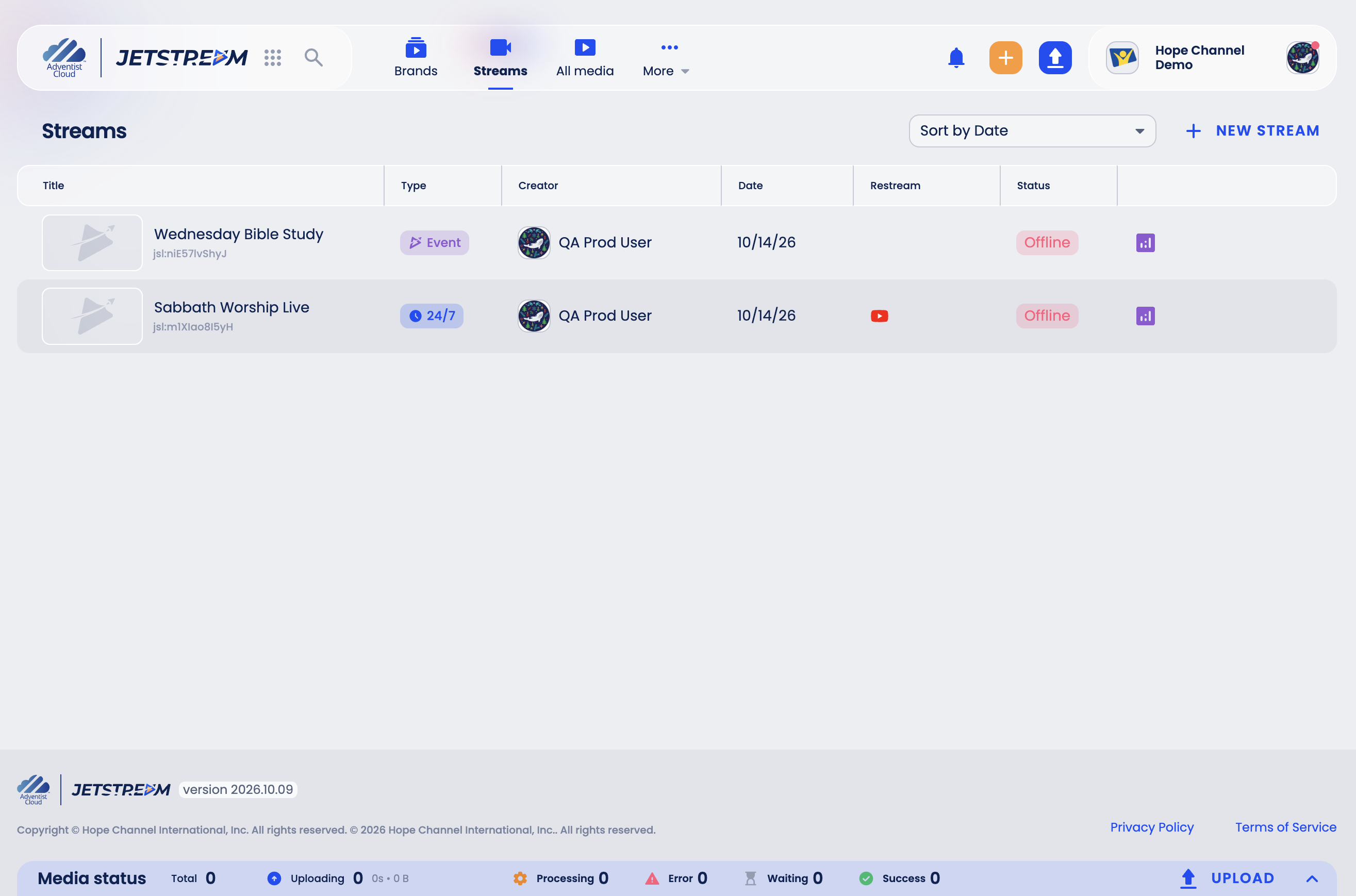
Click a stream to open it.
The stream page
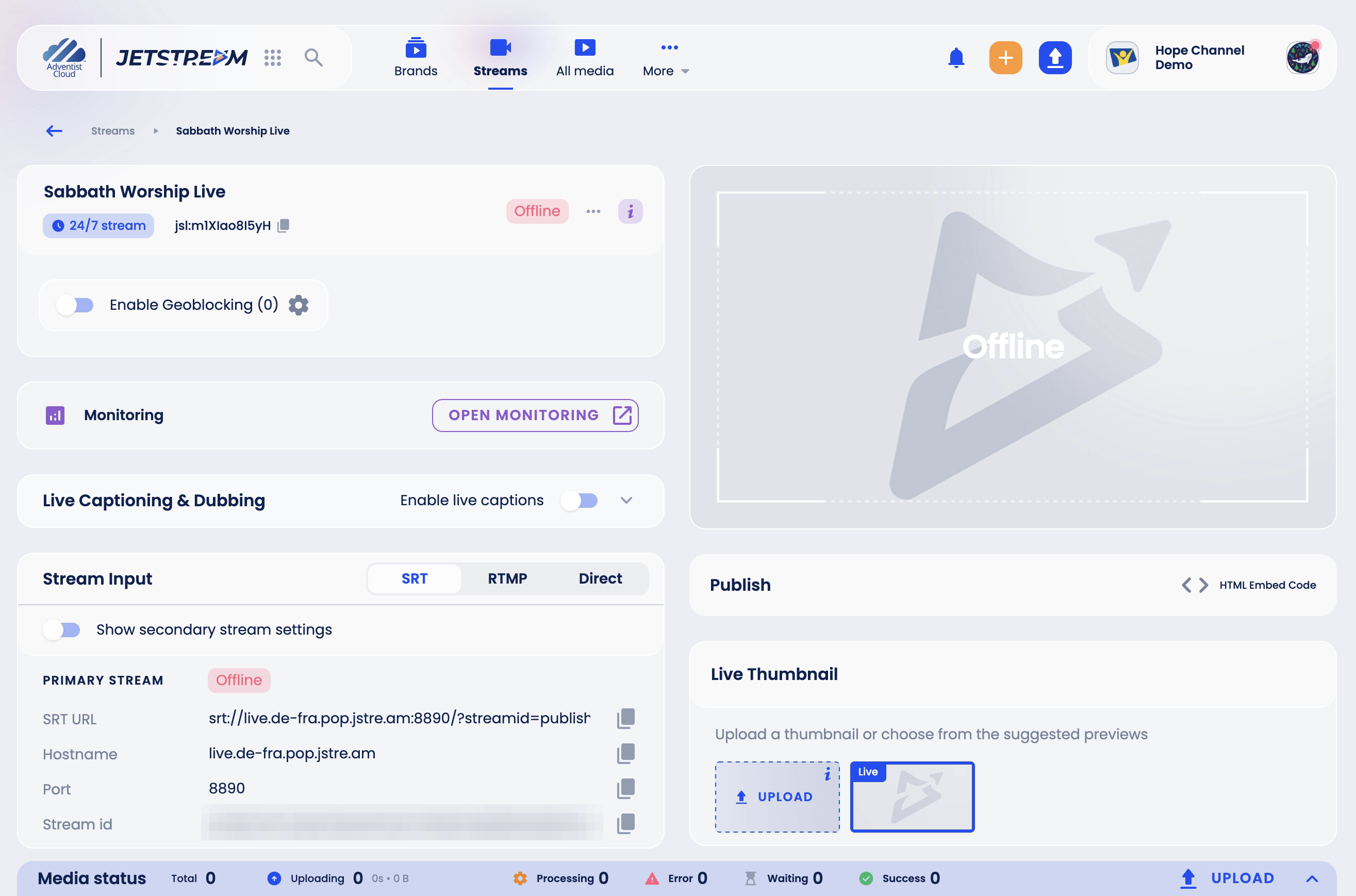
Stream Input
This is where your encoder sends the video. Choose the protocol:
- SRT (recommended) - copy the SRT URL, or the Hostname, Port and Stream id separately if your encoder asks for them.
- RTMP - copy the Stream URL and the Stream Key.
- Direct - stream from this browser using your camera and microphone. Choose the Video Source and Audio Source, allow access to the camera and microphone, and click Start streaming.
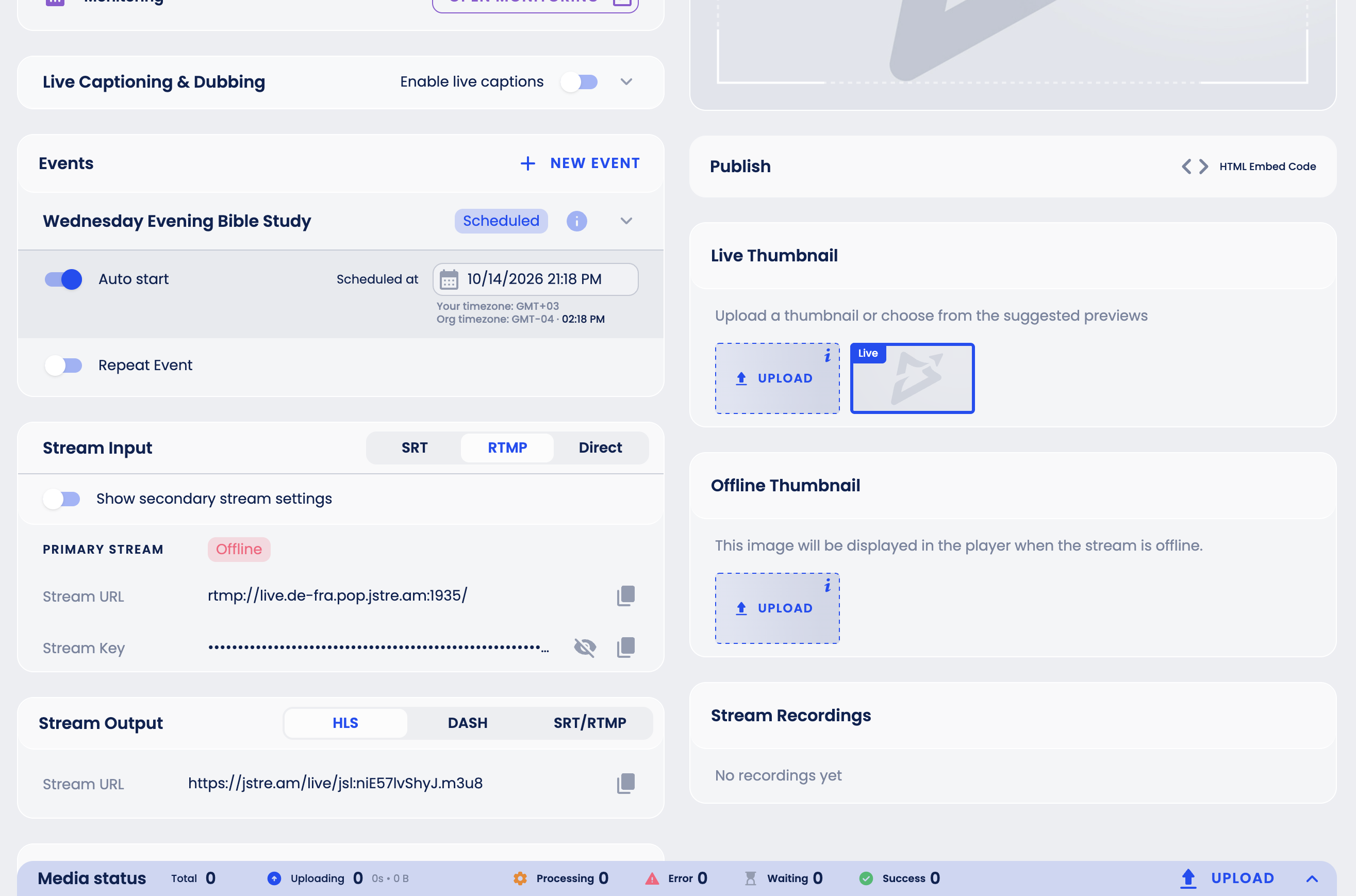
Keep the stream key and Stream id private: anyone who has them can send video to your stream.
To set up an encoder, see Connecting an Encoder and the encoder requirements.
If your organization has a backup server, Show secondary stream settings shows a second input for a backup encoder.
Stream Output
The address viewers and players use:
- HLS and DASH - stream URLs for players and apps;
- SRT/RTMP - deliver the stream to other systems: add a Listener (a URL that is shown only once, so copy it) or an SRT Caller that pushes the stream to a remote host (Add delivery).
Other settings
- Enable Geoblocking - block viewers in the countries you select from watching the stream. See Geoblocking.
- Record Stream - Event streams only: save the broadcast as a recording. Turn it on before the stream goes live or into preview; while the stream is live or in preview, the switch is locked. Recordings appear under Stream Recordings.
- Monitoring - while the stream is live, shows the audio levels and the incoming signal: resolution, frame rate, bitrate, codecs, protocol and packet loss.
- Publish → HTML Embed Code - put the stream on your website. See Embedding a Video or Stream.
- Live Thumbnail and Offline Thumbnail - the images shown in the player while the stream is live and while it is offline. JPG, PNG or WebP, up to 5 MB.
- Restream - send the stream to YouTube, Facebook and other platforms. See Restreaming.
Delete a stream
Click ⋯ next to the stream status and choose Delete the Stream, then type the stream name to confirm. While the stream is Live, Delete the Stream is unavailable: stop the broadcast first. A stream also cannot be deleted while a Playout channel linked to it is on air. Deleting a stream also deletes its recordings and cannot be undone.