Users and Invitations
People join your organization by invitation. Invitations are sent from Hope.Cloud, the administration app of your organization.
Who can do this
Only an Organization Admin can invite users and manage invitations.
Invite a user
Open Hope.Cloud at admin.hope.cloud.
In the top menu, click Users, then Invite user.
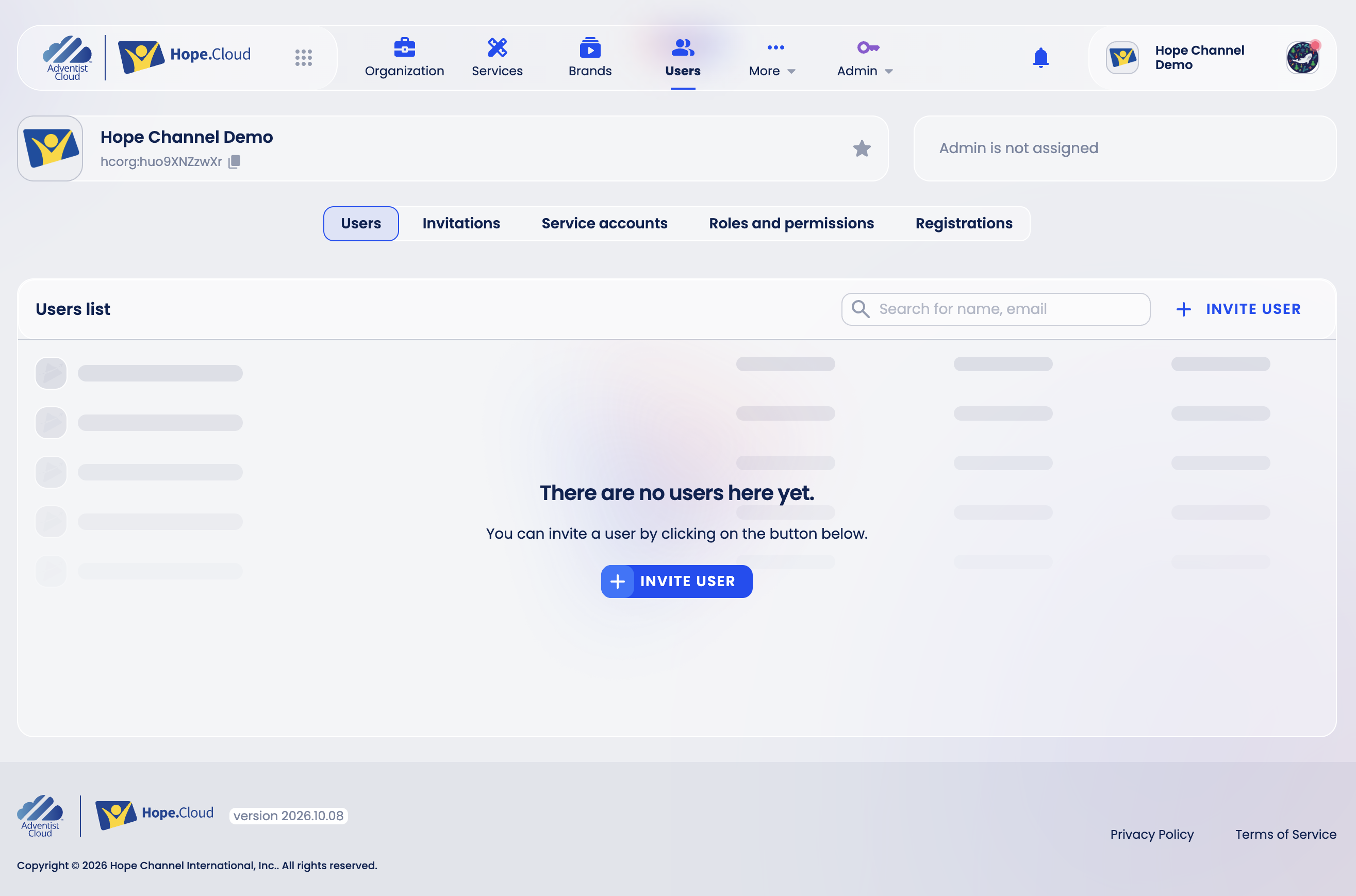
Enter the email address of the person you want to invite and click Next.
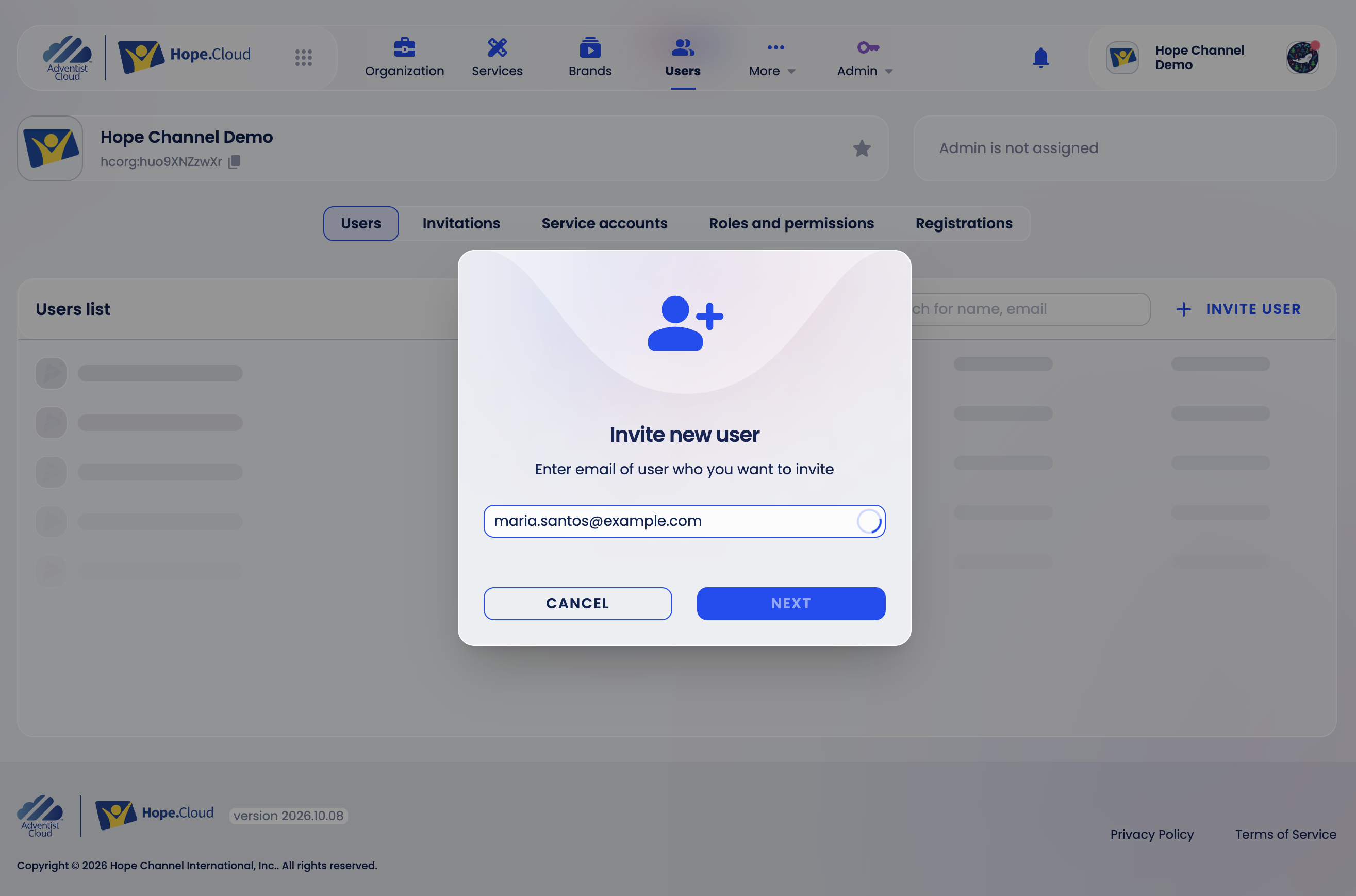
Fill in the user profile: First name, Last name and, optionally, Phone number.
Under Roles, the Hope.Cloud User role is already added. Click Add role next to each app the person needs and choose a role. For each role you can set a Period: leave All time for a permanent role, or choose a temporary period and a Date of end.
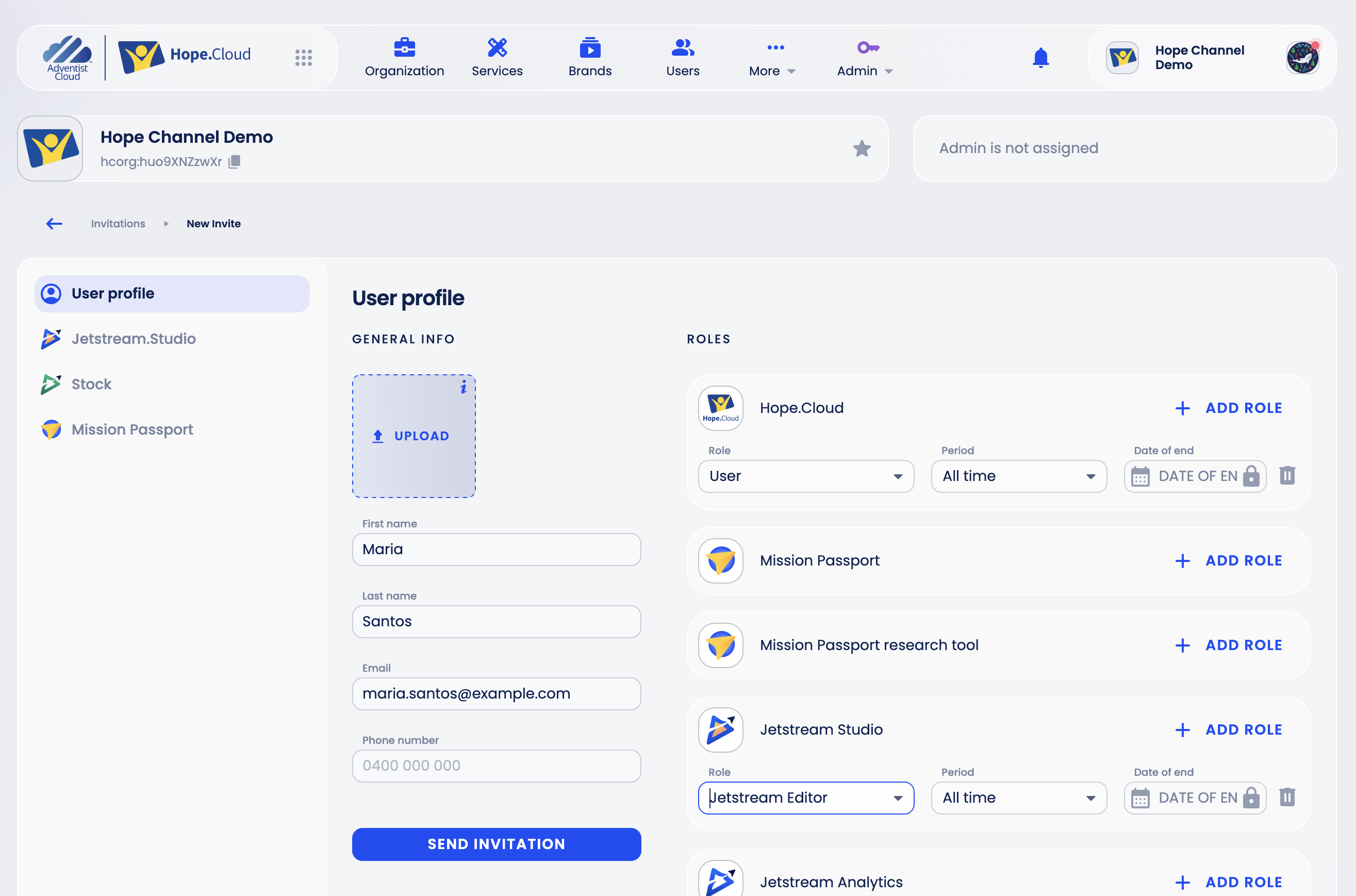
Click Send Invitation.
The person receives an email with a temporary password and a link to sign in. After signing in, they finish setting up their account.
If the person already has a Hope.Cloud account in another organization, the button reads Add to organization: they are added with the chosen roles and no invitation email is sent.
Jetstream Studio roles
These roles apply to the whole organization:
| Role | What it allows |
|---|---|
| Jetstream Editor | Create and edit brands, seasons, episodes, media, playlists and players of the organization, connect publishing accounts and publish to them. |
| Limited Access | See only the brands the person is assigned to. Access inside a brand comes from their brand role. |
| Live Stream Admin | Create and manage live streams and their settings, and, if your organization uses Playout, its channels with their schedule and templates. |
The role list can show more roles than these: roles your organization created for itself (for example View streams or Edit brands), and roles for content review tasks (HCI Reviewer, HCI Manager). Ask your organization's admin what a role made for your organization allows.
An Organization Admin (a Hope.Cloud role) can do everything in the organization, including inviting users.
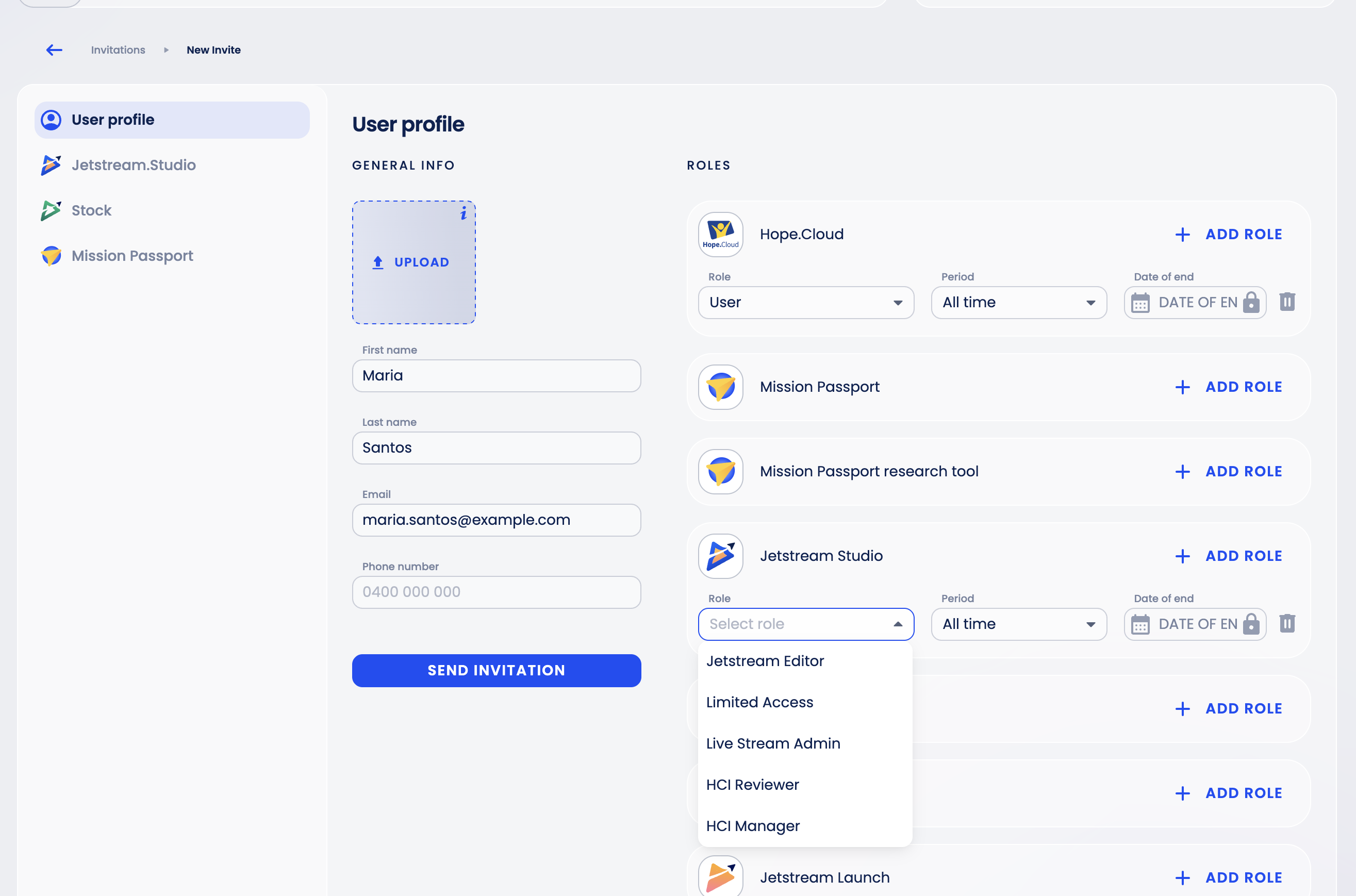
To give someone access to one brand only, give them Limited Access here and a role on that brand. See Brand Roles.
Manage invitations
In Hope.Cloud, click Users, then the Invitations tab.
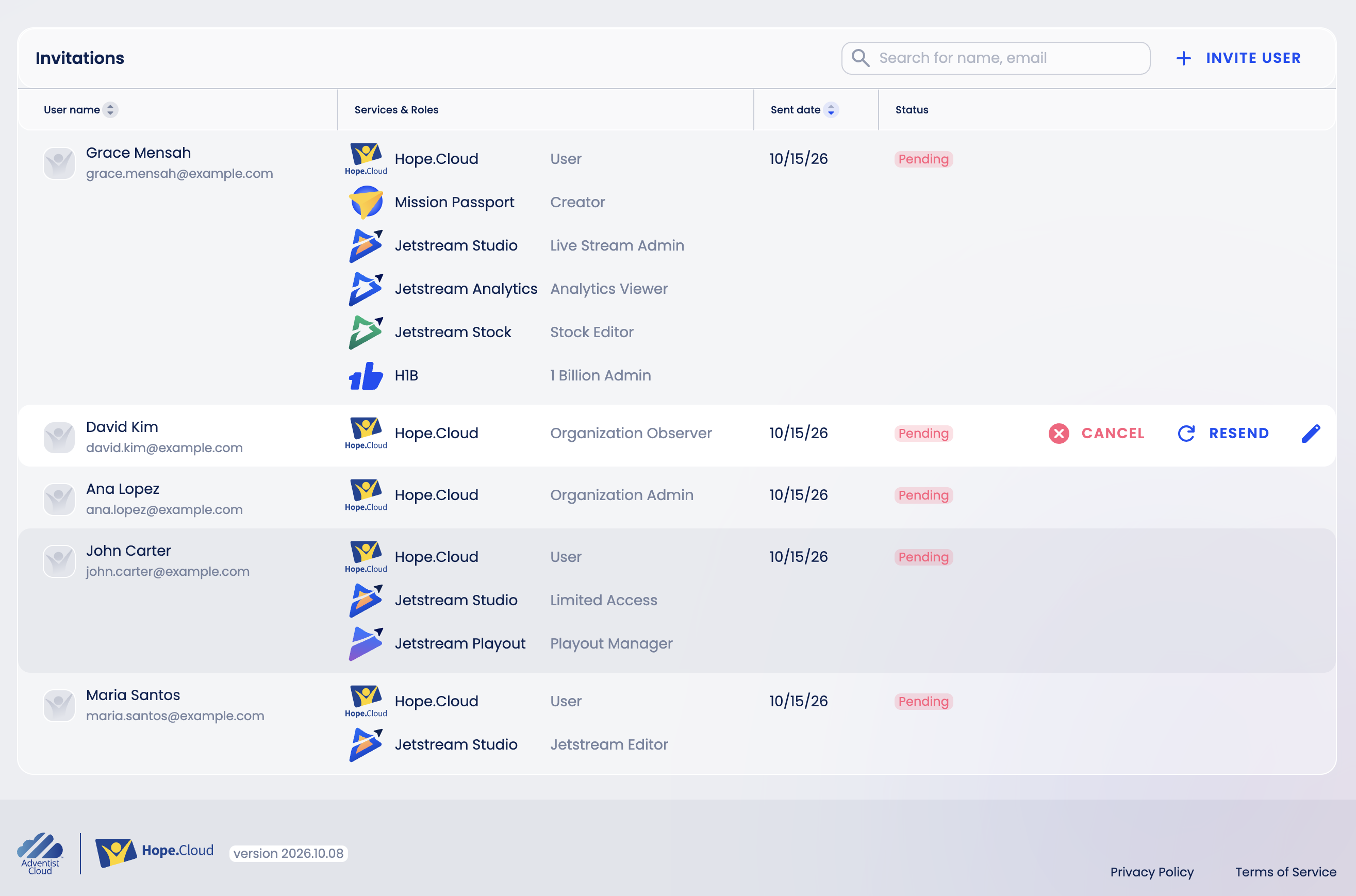
The list shows every invitation and its status:
- Pending - the invitation is created and the email is sent or about to be sent (if it did not arrive, use Resend);
- Opened - the email has been opened;
- Clicked - the link in the email has been opened;
- Logged - the person has signed in with the temporary password but has not finished setting up the account.
When the person finishes the setup, the invitation leaves this list.
Each invitation has these actions:
- Resend sends the email again;
- Cancel withdraws the invitation;
- the pencil icon (Edit) changes the person's details or roles.
If a person says their invitation has expired, resend it.